
Coordinate — Cues, Clients & Server
Coordinate is where the show happens. Cue stacks drive the playback; the Clients view shows every connected device in real time; the Server page is the live health readout.
Cue stacks
A cue stack is an ordered list of cues. New events start with one stack called Main Cue Stack; you can create as many more as the show needs — Pre-Show, Main, Backup, Breakout, Strike, etc. Switch between stacks in the sidebar on the Cues page. Groups can be locked to a specific stack via the group's Playback Target, or left open to respond to any stack.
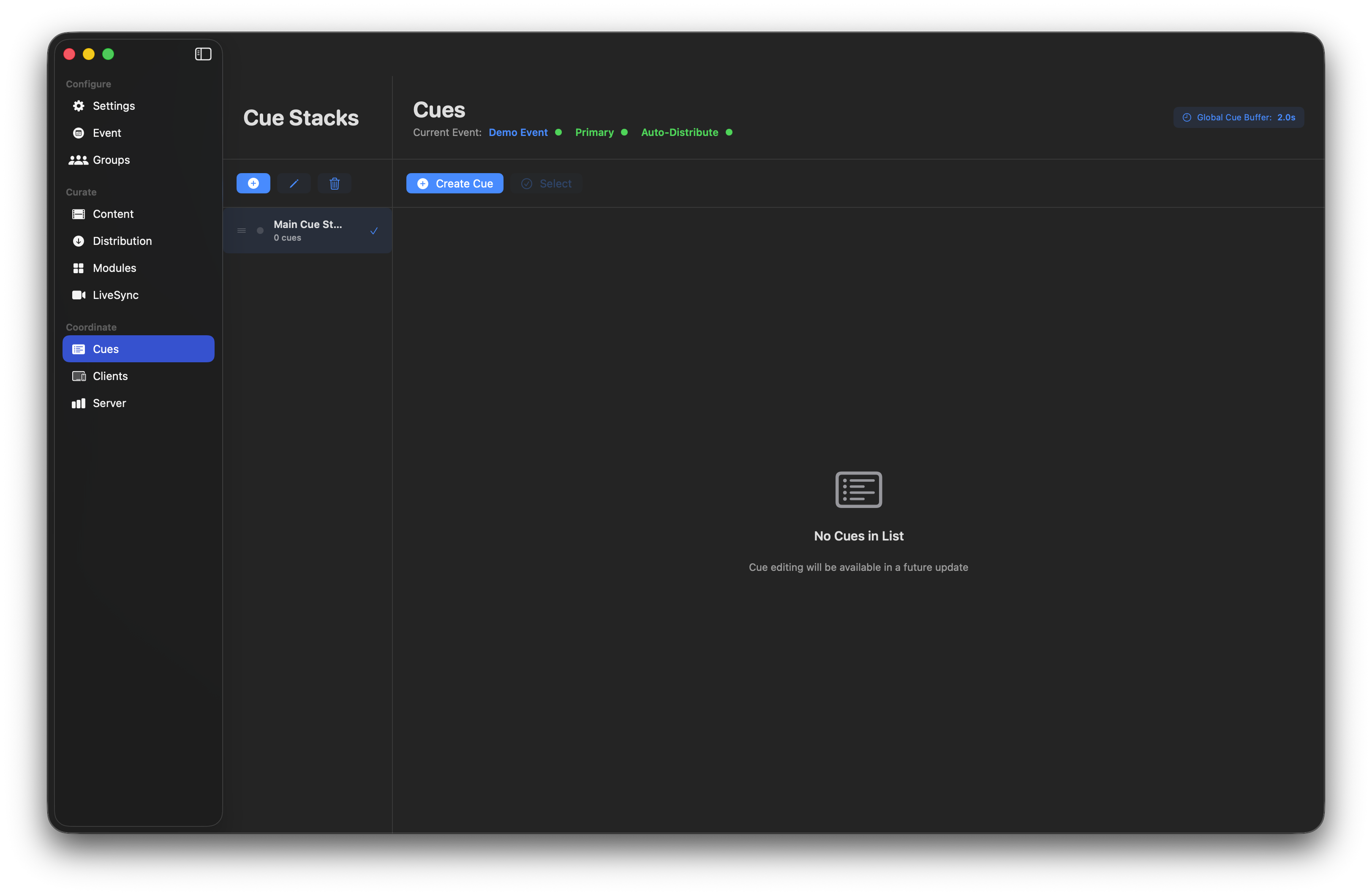
A brand-new cue stack with no cues yet.
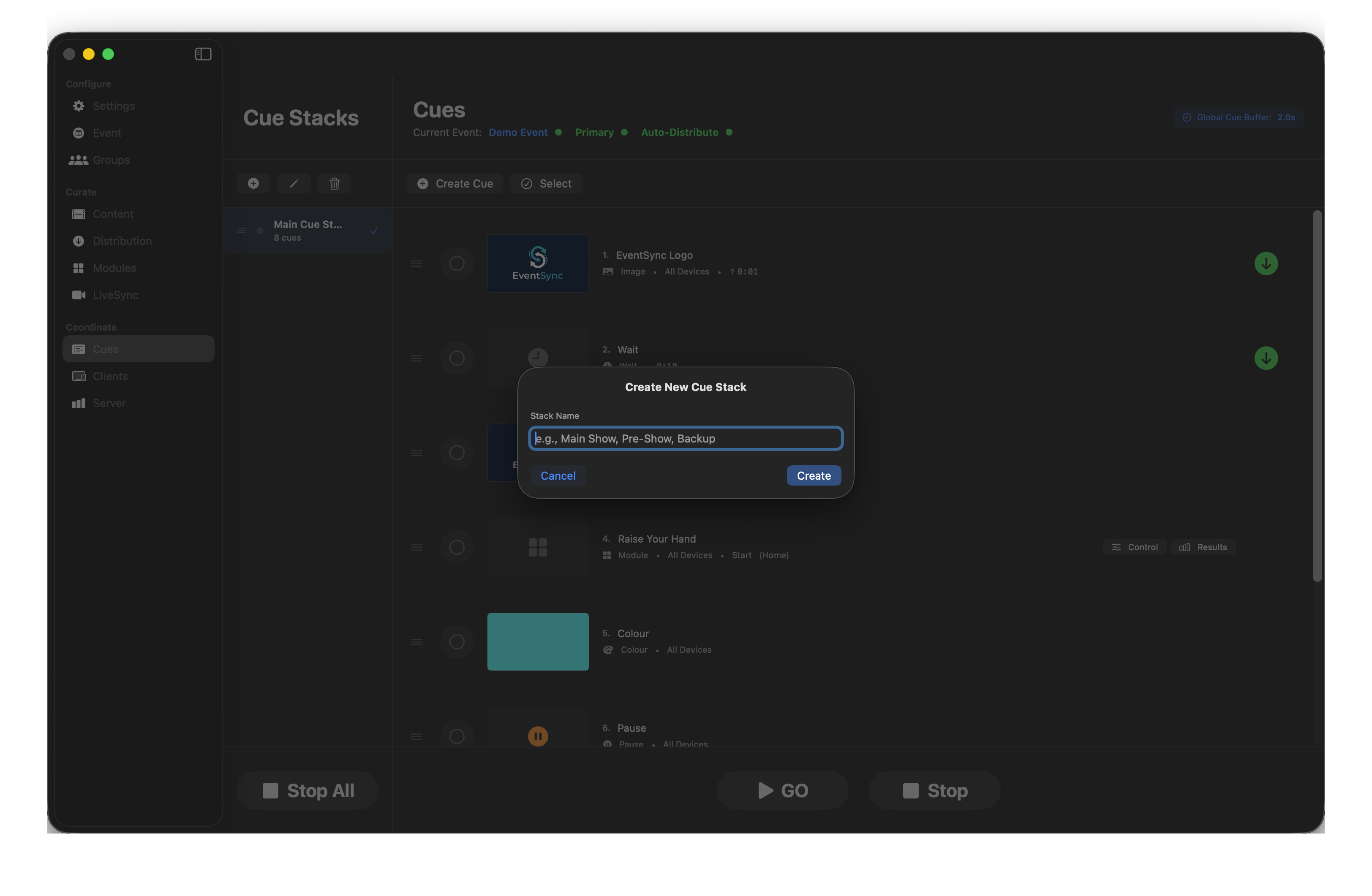
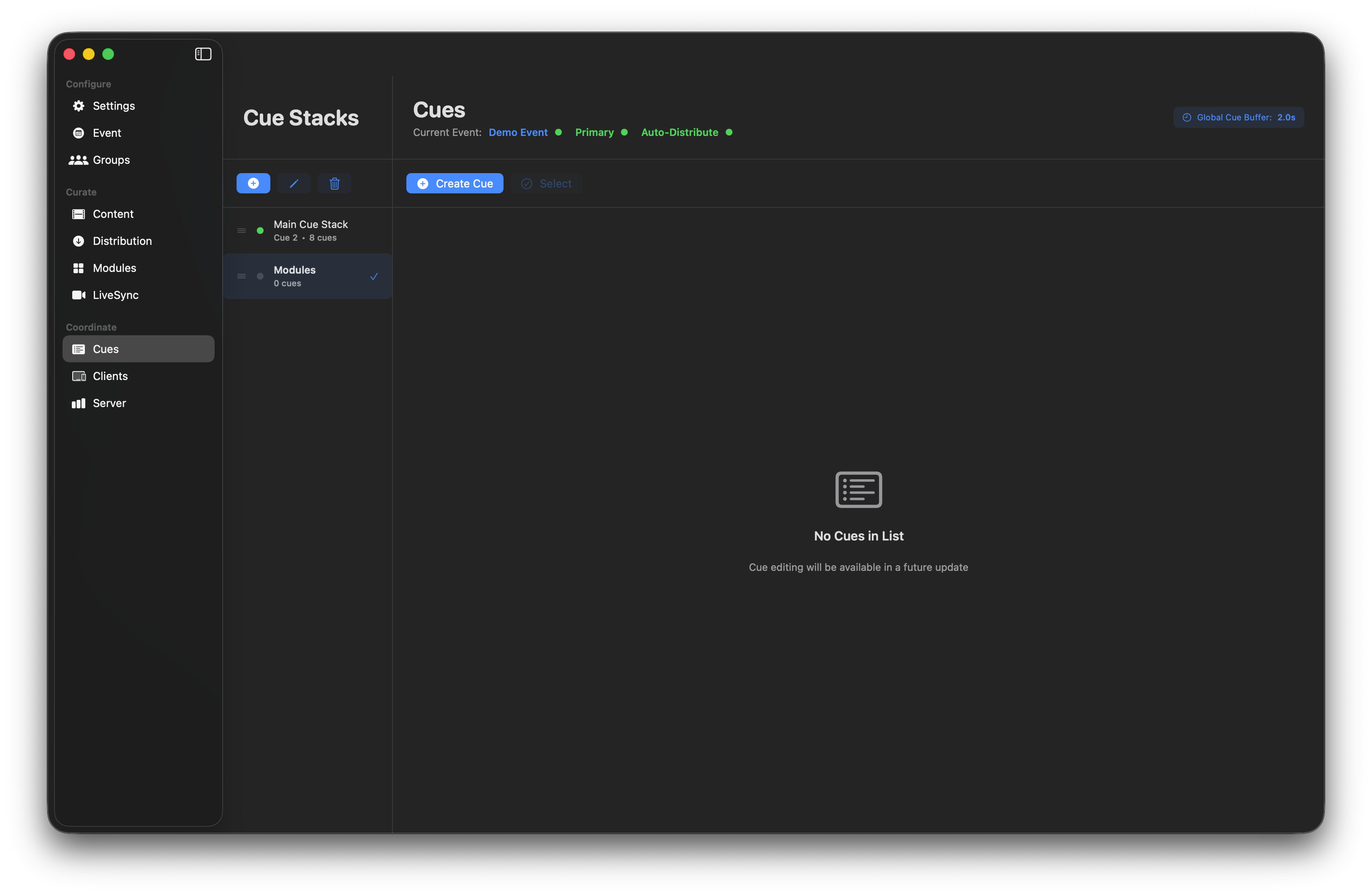
Building the cue list
Click Create Cue and pick the type you need. Step 2 configures it. Thirteen cue types are available — see Cue types below for the full reference.
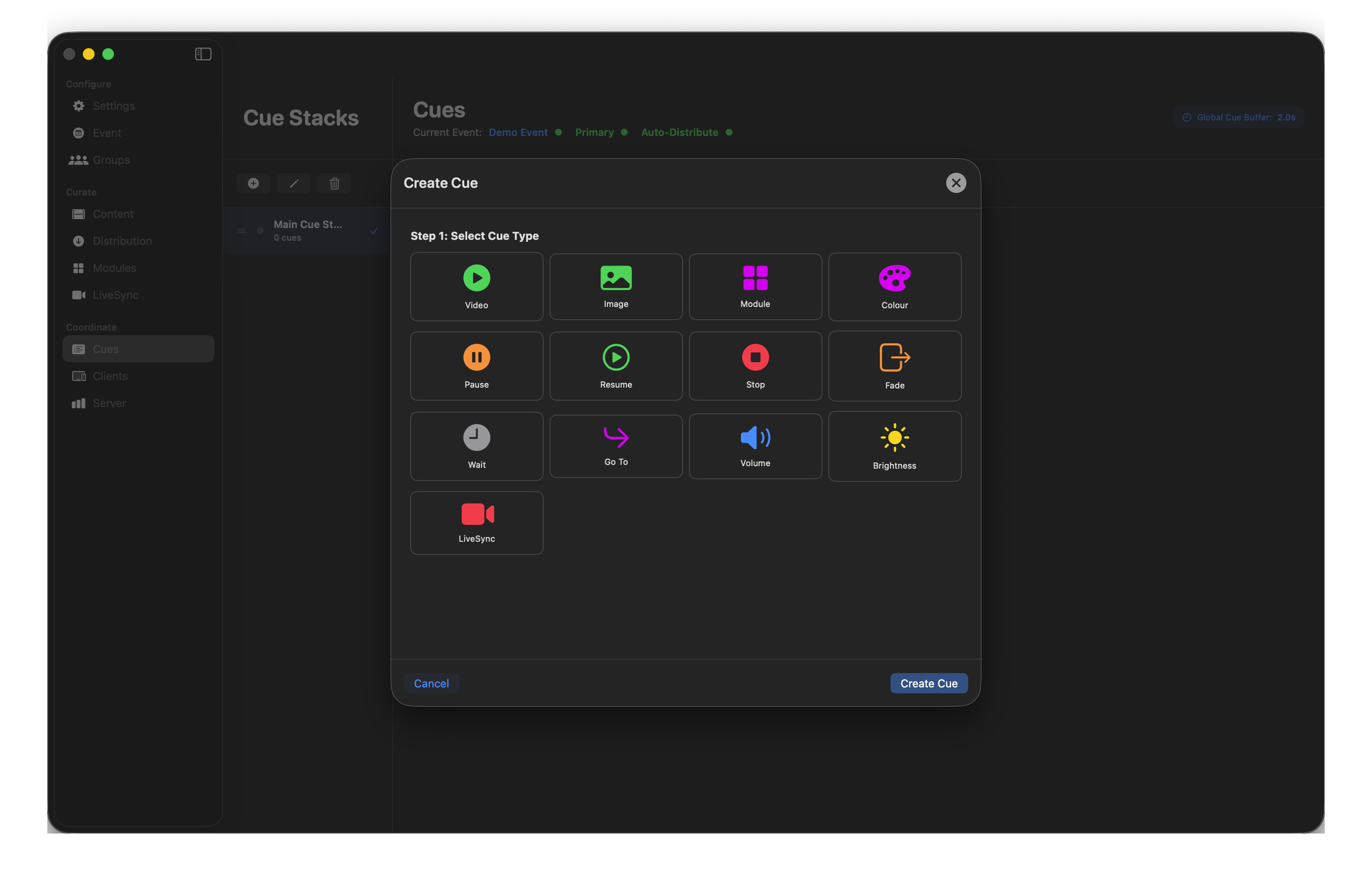
Thirteen cue types across four categories.
Common options for every cue
- Cue Name — label for the cue list. "Gala opener" beats "Video 1".
- Target — All Devices or Specific Groups. Specific Groups lets you target exactly the zones that should react.
- Auto-follow — immediately triggers the next cue when this one fires. If you need a delay, add a Wait cue between them.
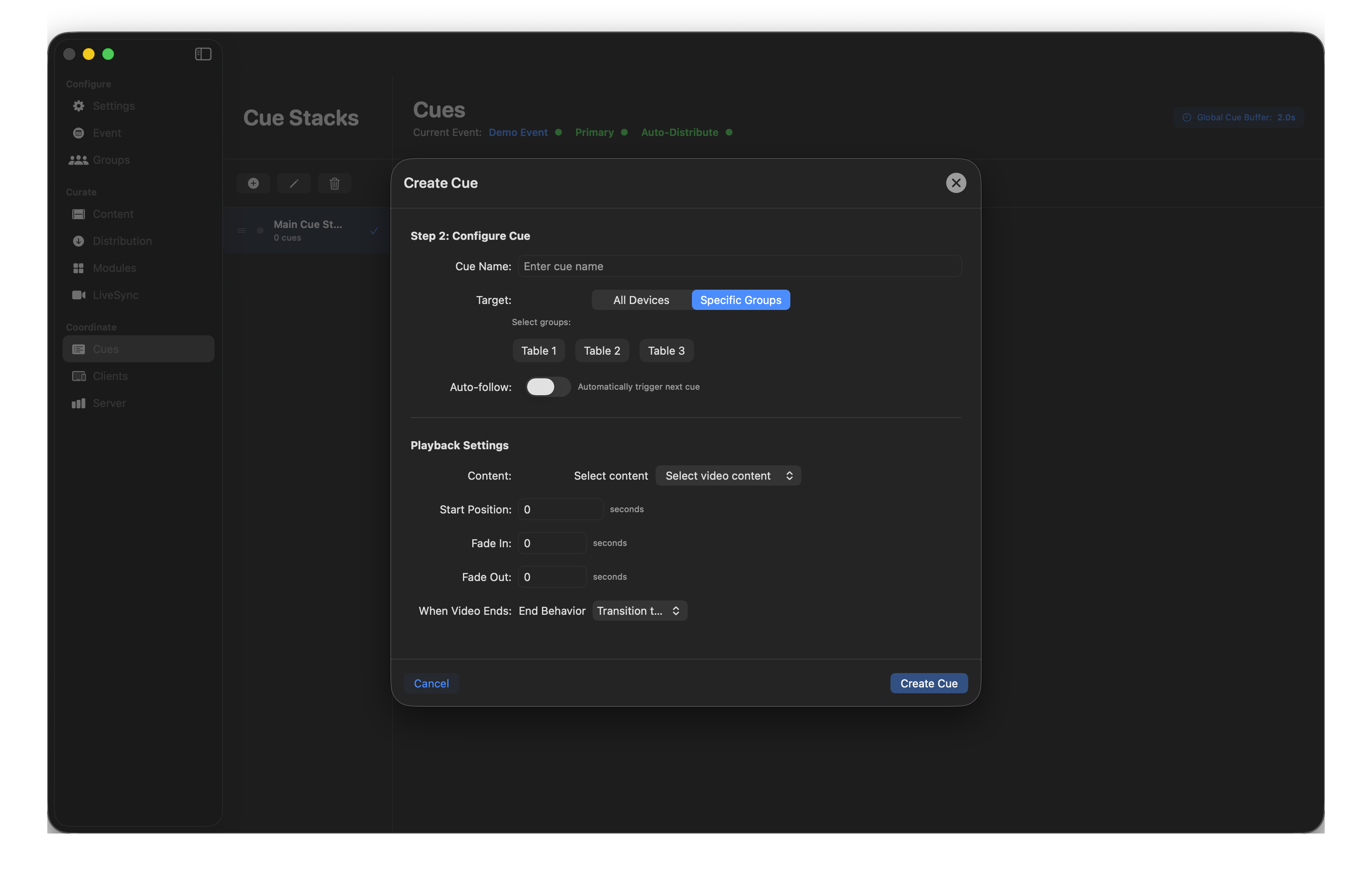
💡 Tip — cue names auto-fill
The Cue Name field starts blank. As you pick content, change an action or adjust a value, the name auto-updates to match — handy, but it means you need to enter a custom name after you've finished setting the cue up, not before. Applies to all cue types, including Volume, Brightness, Fade and Wait, whose names update as you drag the value or duration.
Reordering and editing
Cues sit in the order you create them. Each row shows the cue name, type, target count, duration and auto-follow marker.
- Reorder — drag the three-line handle on the left of any cue row.
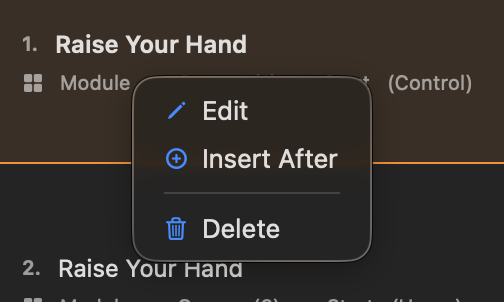
- Right-click a cue row for quick actions: Edit, Insert After, or Delete.
A stack as it fills out
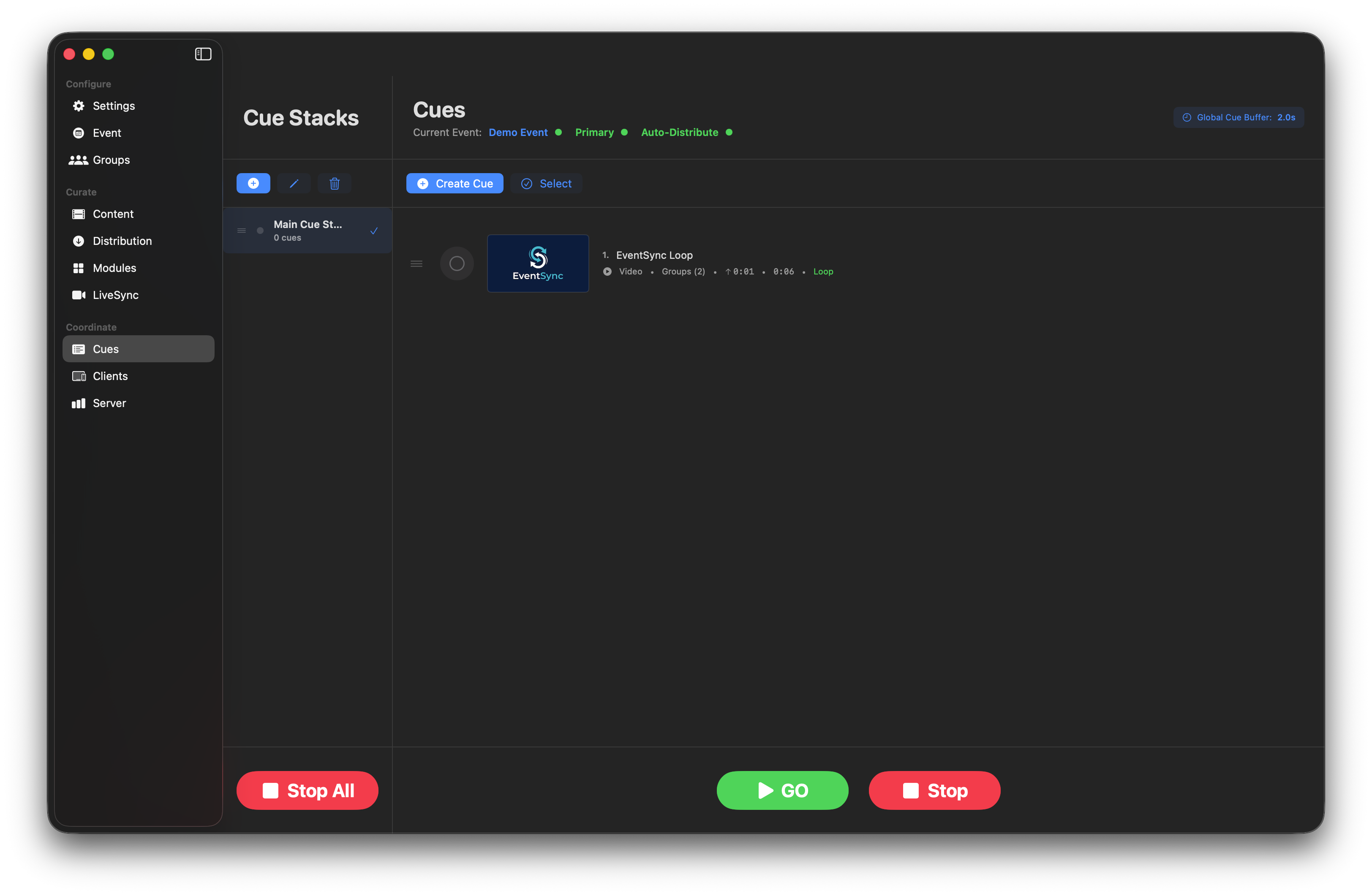
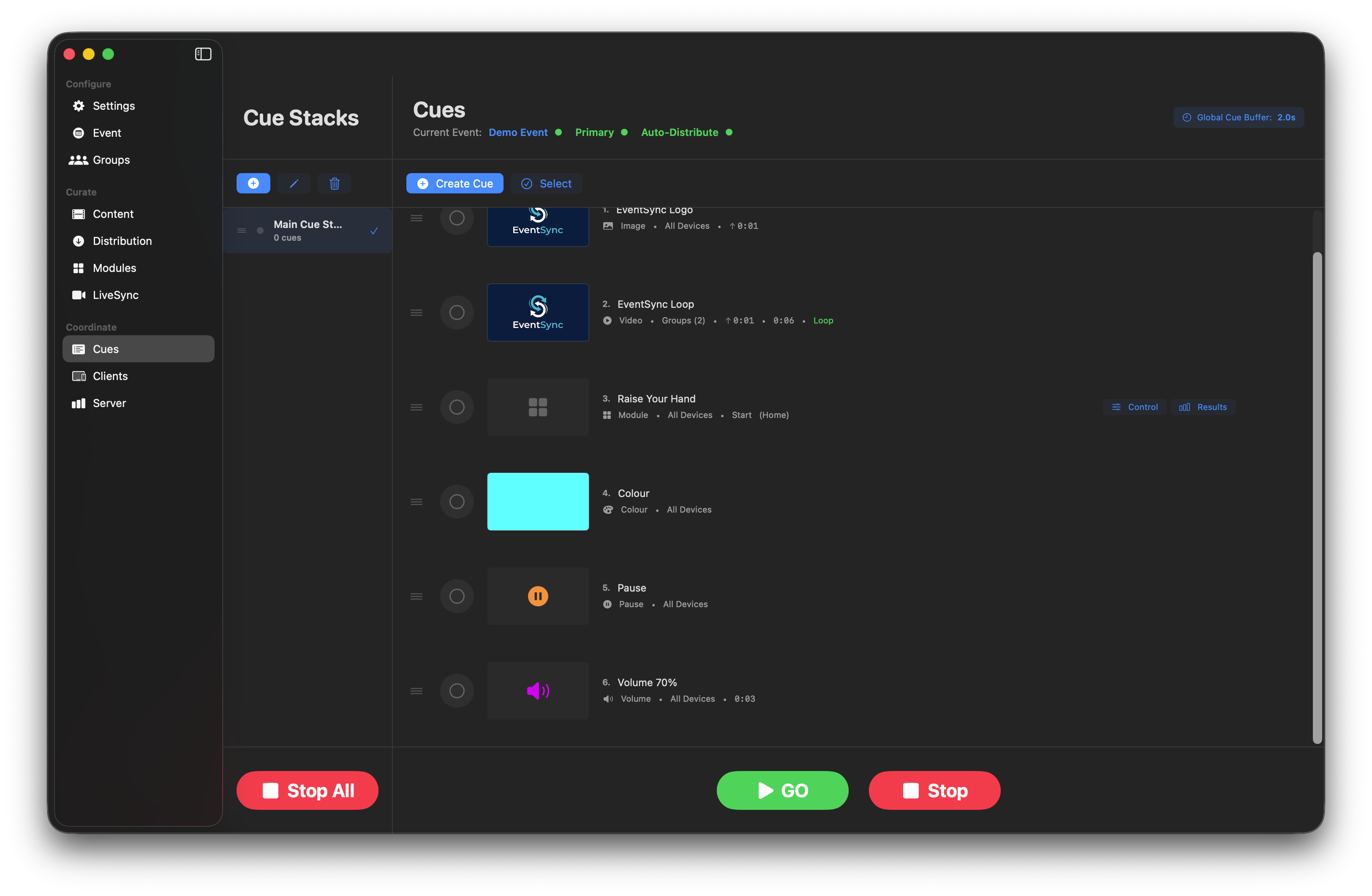
A cue stack growing from the first video cue to a complete run.
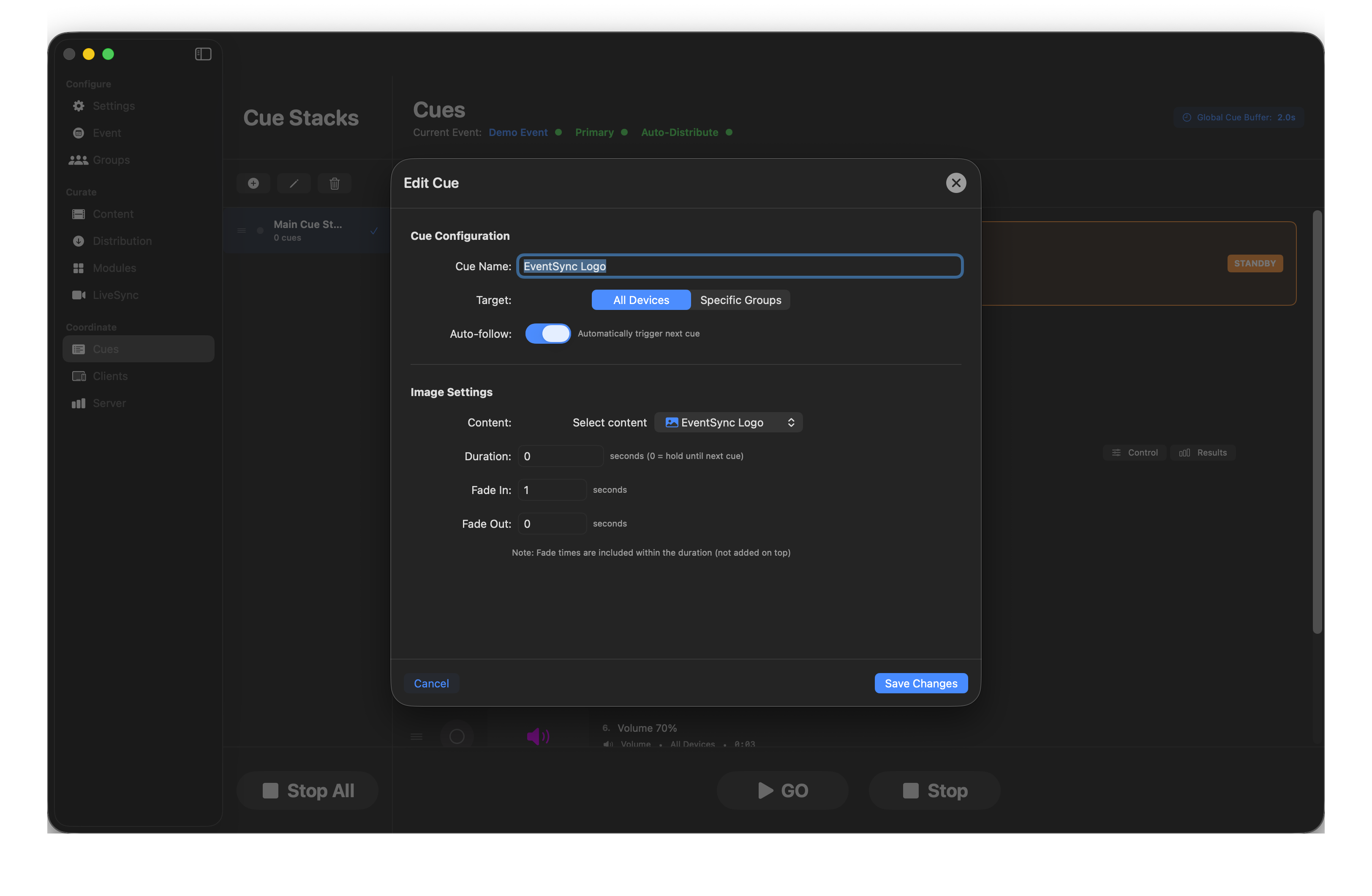
Edit dialog — toggle Auto-follow on a cue.
Running cues
- GO — trigger the selected cue. Keyboard:
Space. - Stop — stop the currently selected cue stack. Keyboard:
Esc. - Stop All — stop every cue stack, kill live video, reset devices to idle.
Run states
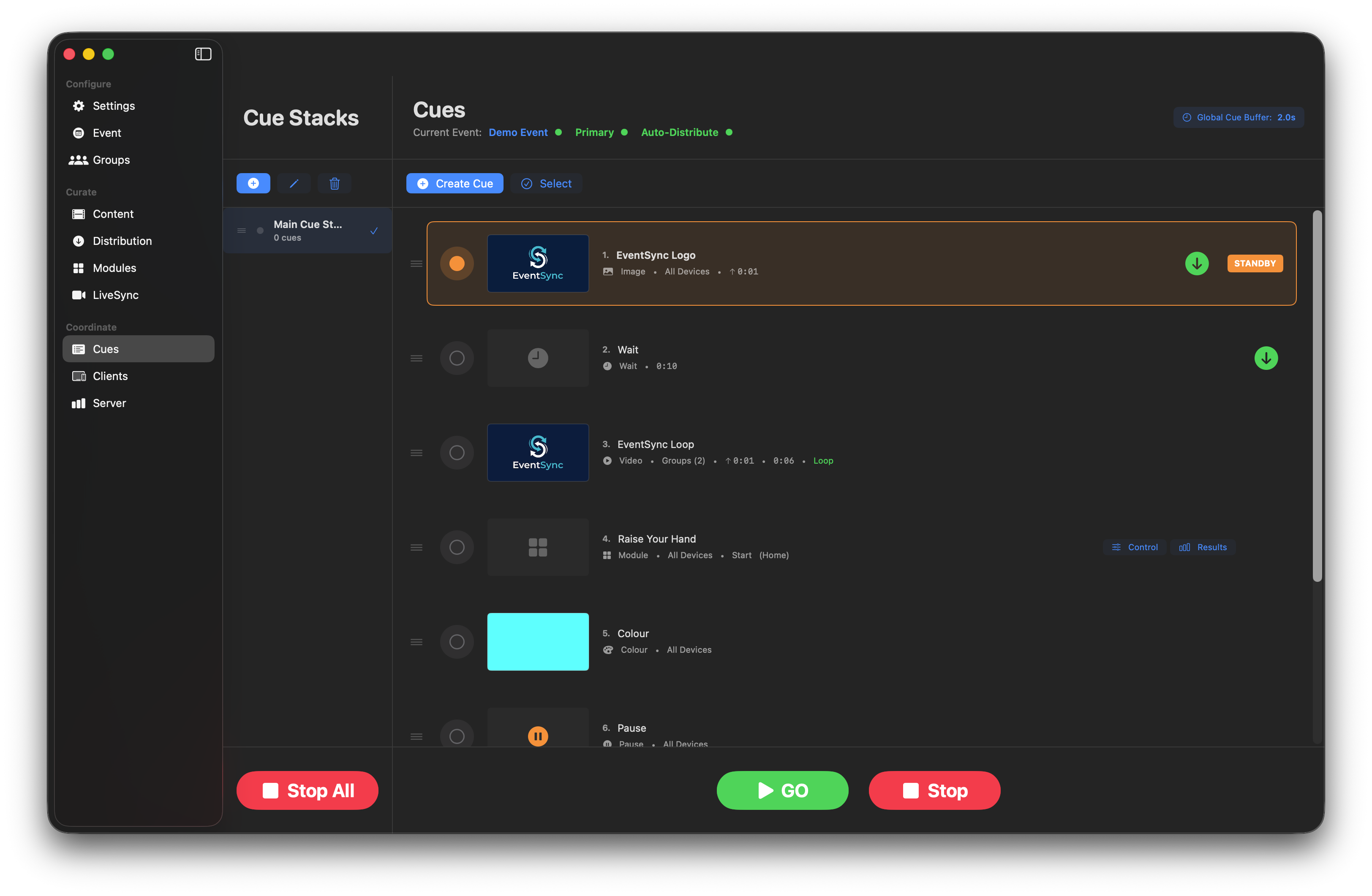
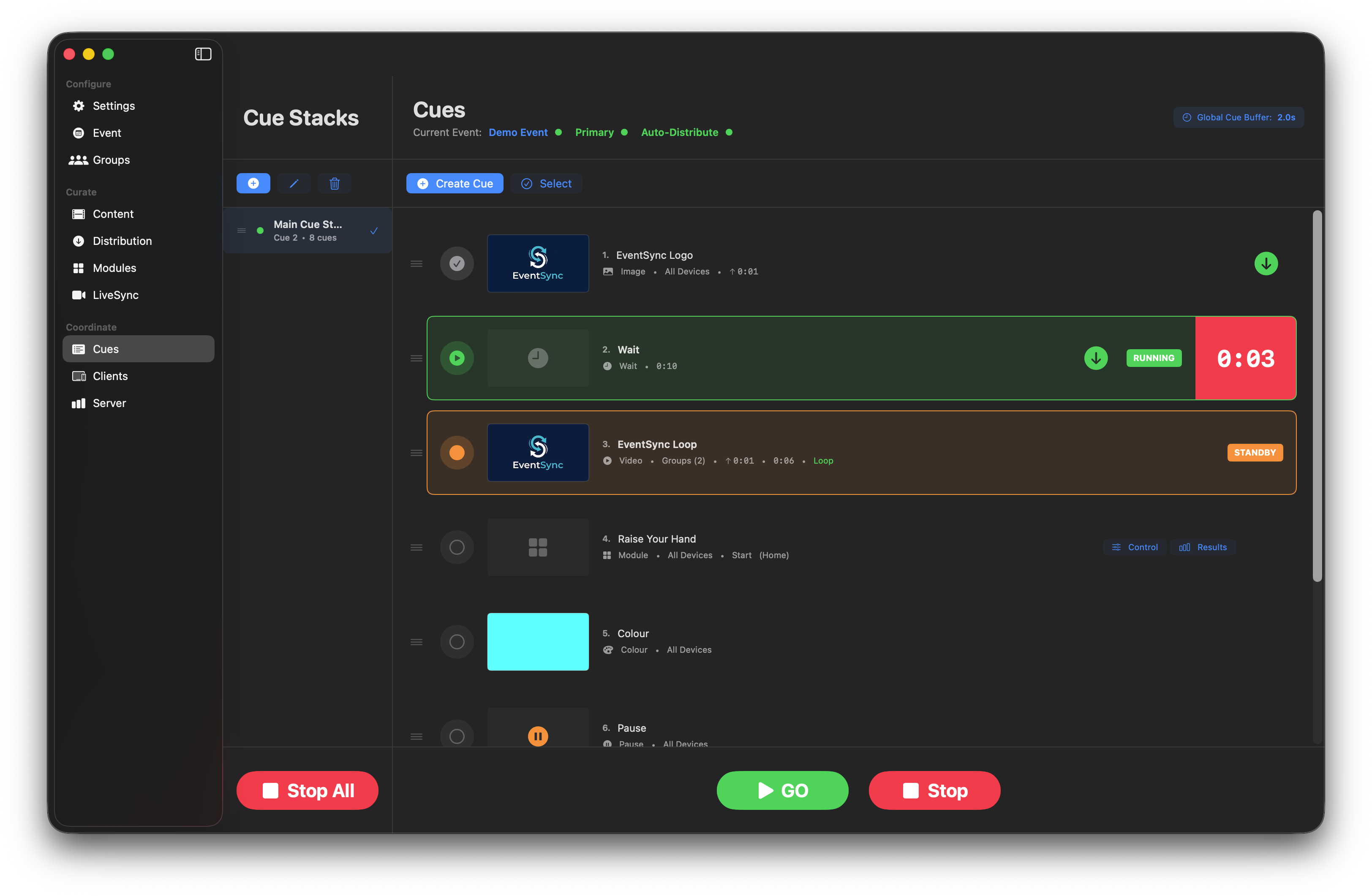
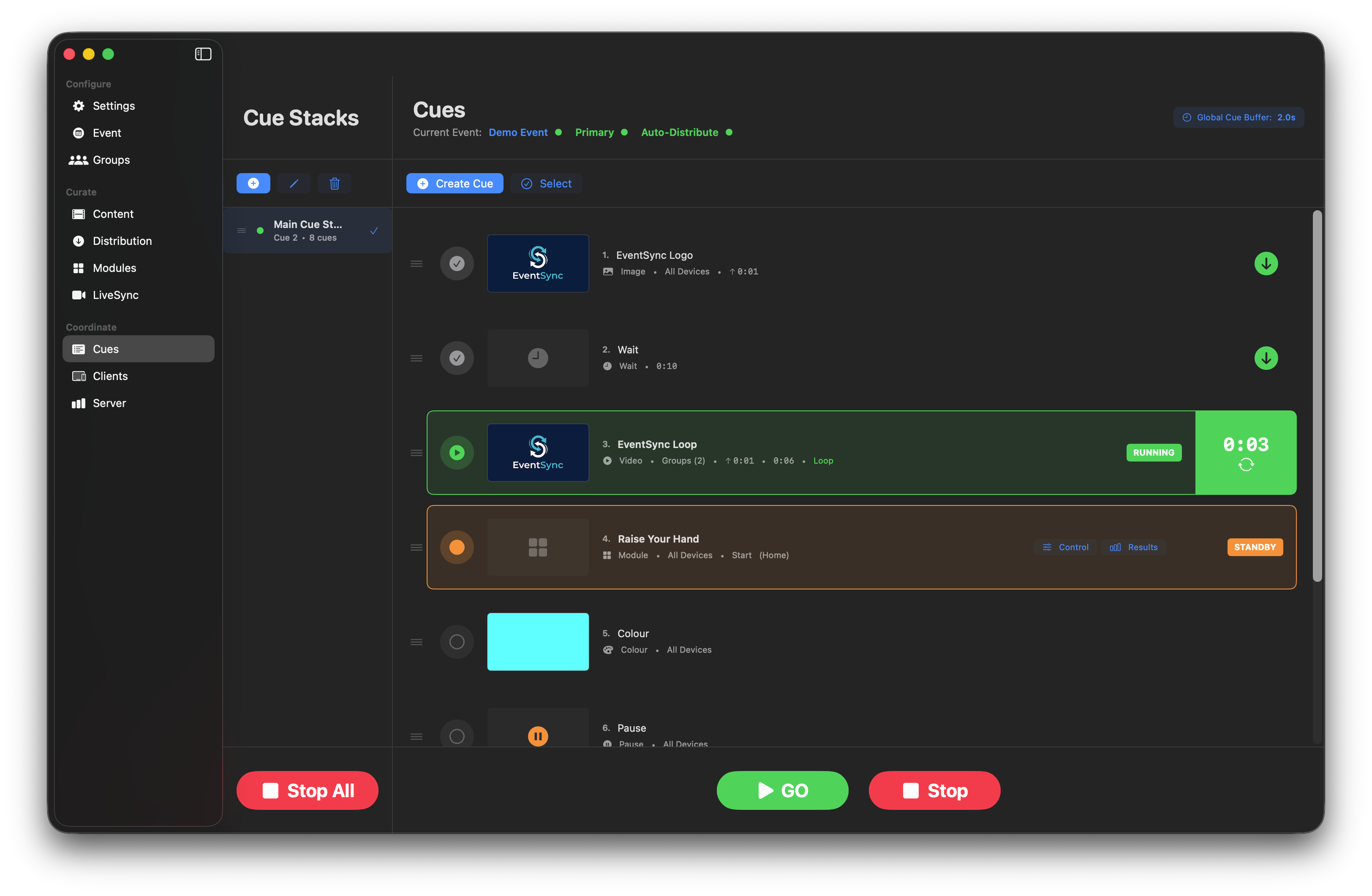
Each cue displays its current state in the list:
- RUNNING — cue is currently active.
- STANDBY — cue is next, awaiting trigger / auto-follow.
- ✓ (grey check) — cue has completed.
- Wait countdown — remaining time on a Wait cue.
Auto-follow chains
The down-arrow marker on a cue means auto-follow is on. Chain cues like this for hands-off sections of the show:
Mix manual GOs with auto-follow sections freely — you decide which beats to control live and which to automate.
Global Cue Buffer
The Global Cue Buffer (shown top-right, default 2.0 s) is the time between pressing GO and content starting on devices. It gives every target device time to prepare for synchronised playback. Tune it from Settings or override per-group (see Groups).
💡 Cue Buffer Tuning
On a well-built network following our recommendations, 0.2–0.5 s buffer is achievable and gives you snappy GOs. The 2 s default is conservative for rough networks and unknown device counts. Drop it during rehearsal and walk it back up if you see late starters.
Cue types
Video
Play a video on the targeted devices.
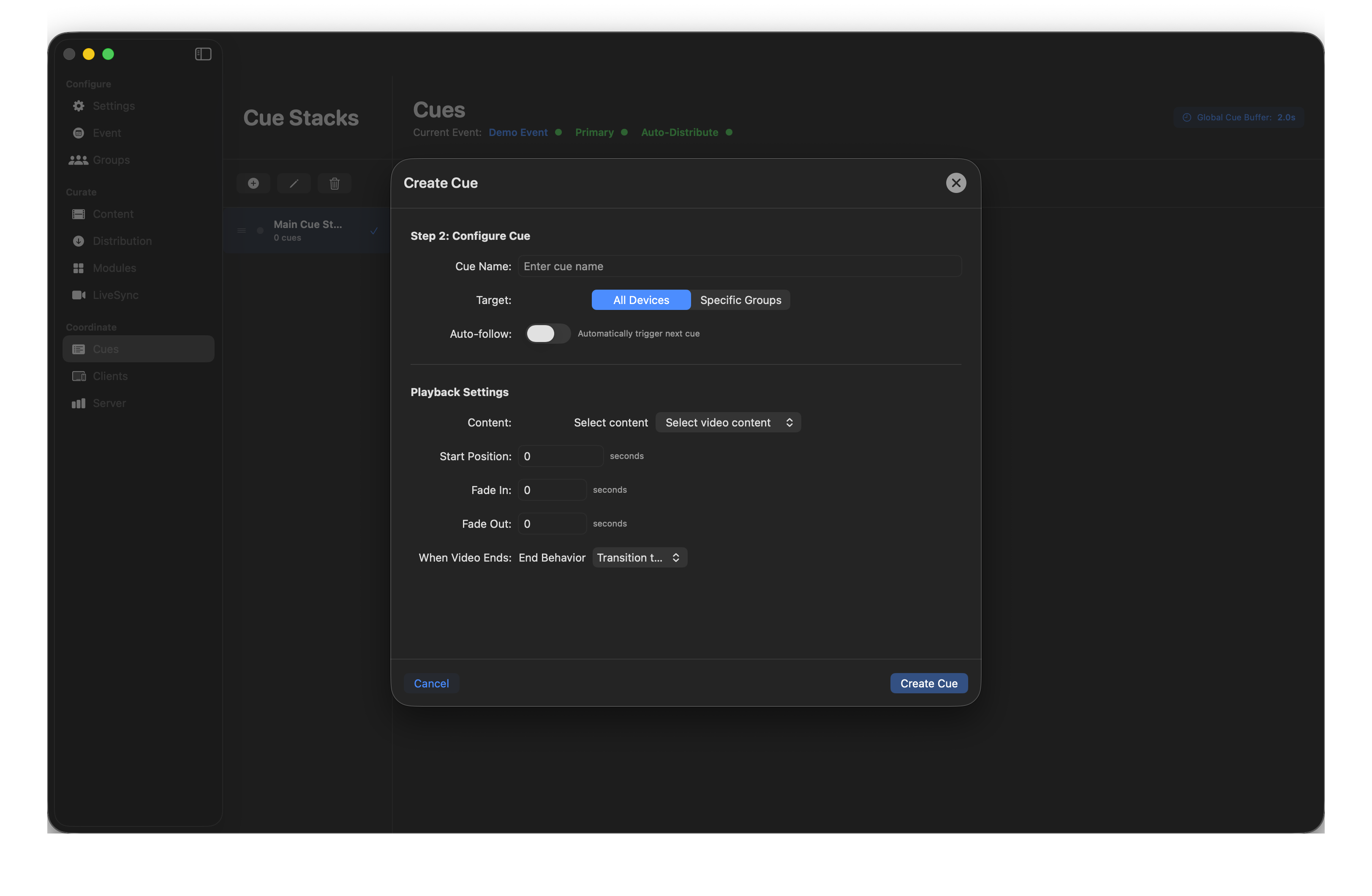
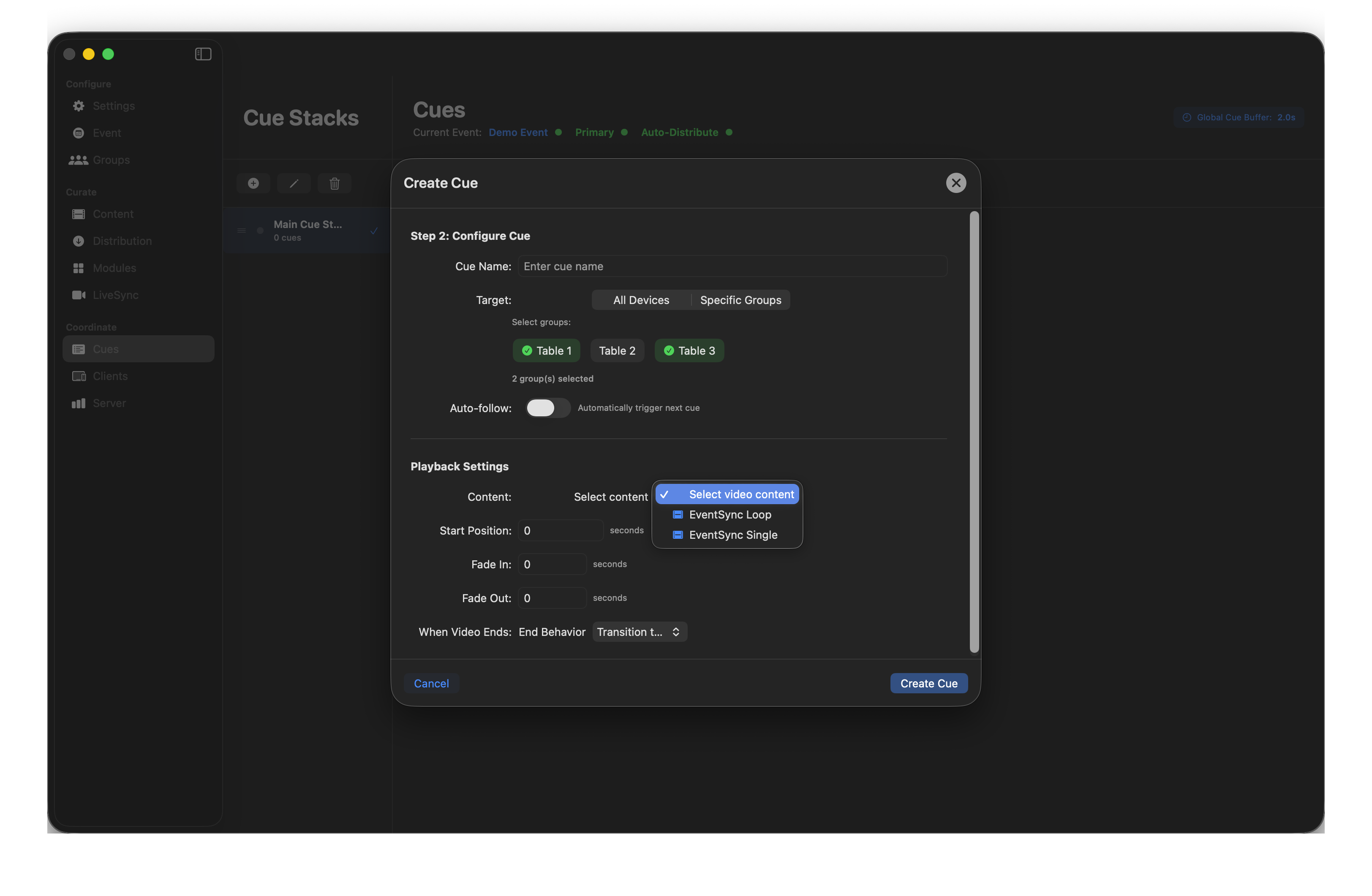
- Content — pick from imported library.
- Start Position — begin at a specific time.
- Fade In / Fade Out — in seconds.
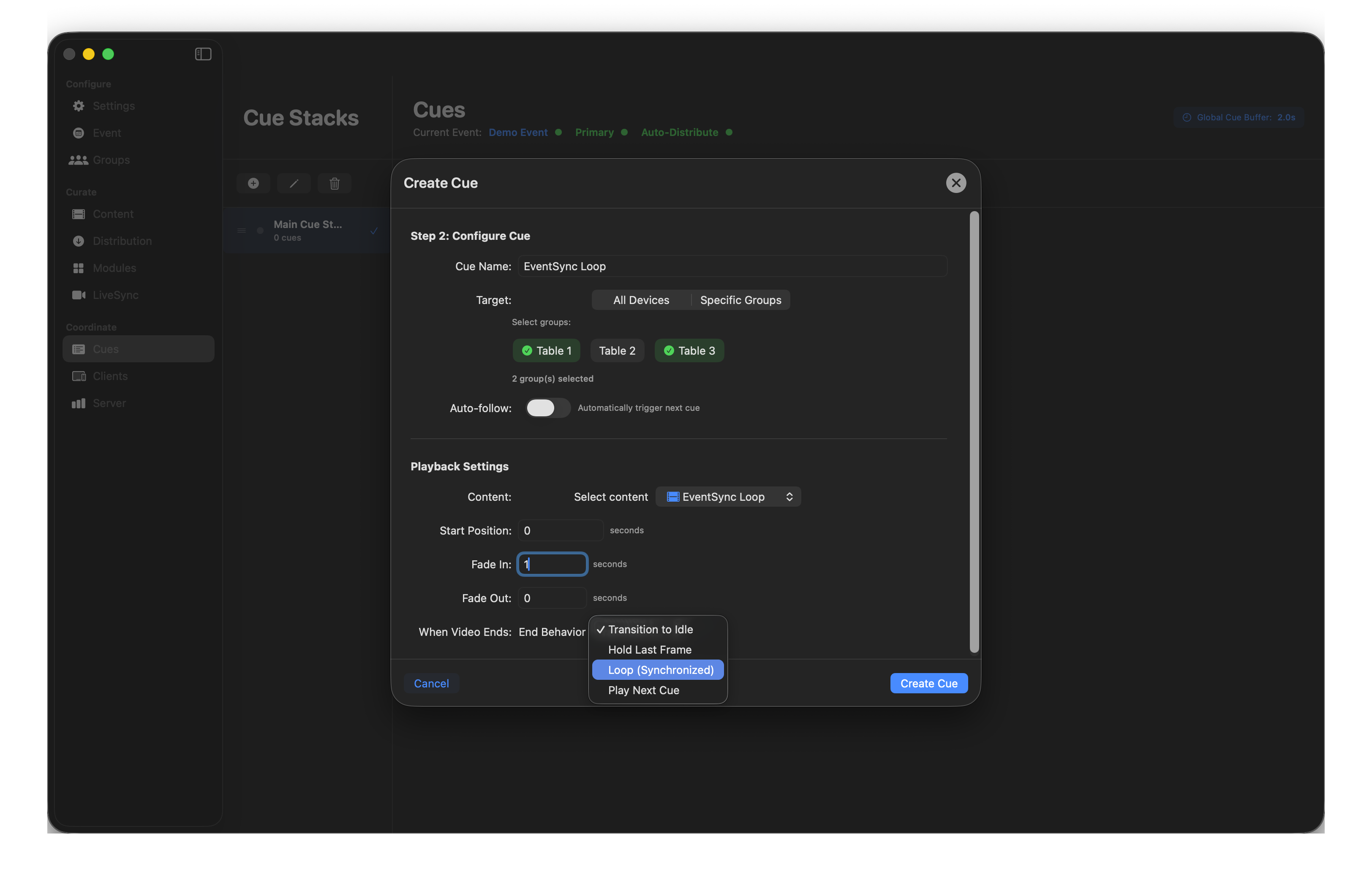
- When Video Ends — End Behavior:
- Transition to Idle — return to the event background.
- Hold Last Frame — freeze on the final frame.
- Loop (Synchronized) — repeat in sync across devices.
- Play Next Cue — auto-trigger the next cue in the stack.
Image
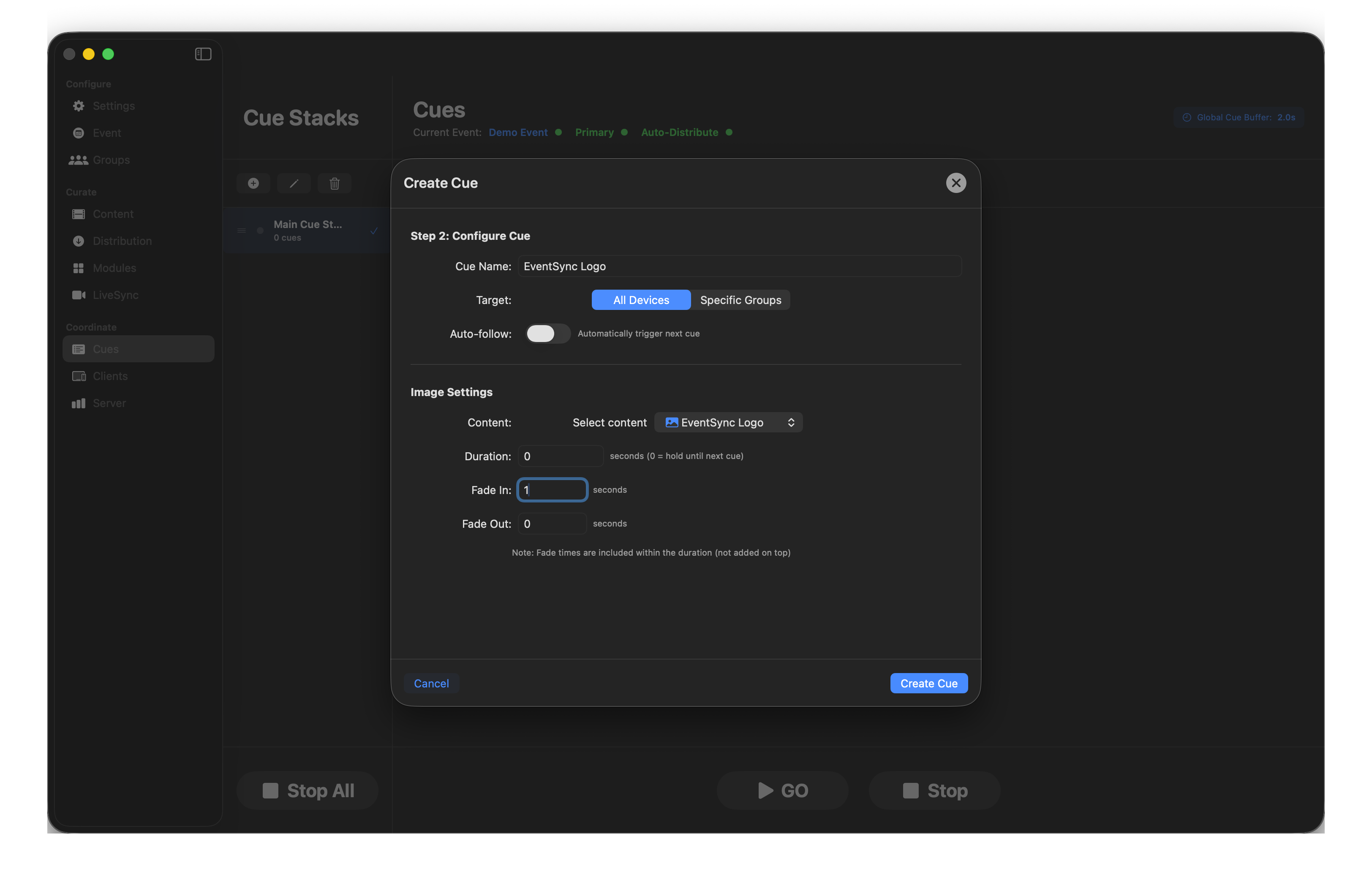
Display a still image.
- Duration — seconds (0 = hold until next cue).
- Fade In / Fade Out — included within the duration.
Module
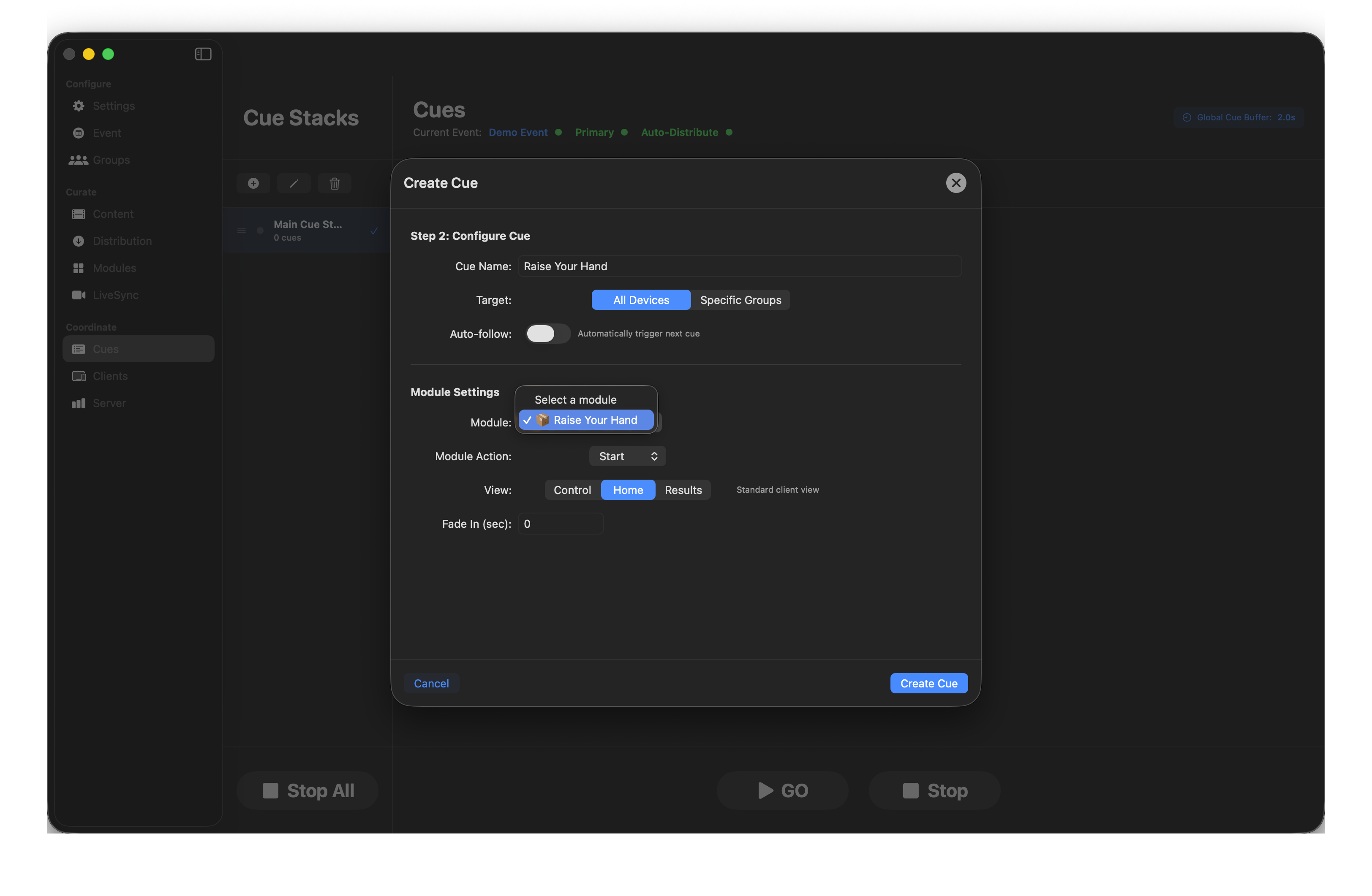
- Module — which module (built-in or custom). Only modules activated on the Modules page appear in the list.
- Module Action — Start / Trigger / Stop.
- View — Control, Home or Results. Each Module cue sets one view for its target. If you want different views running simultaneously on different groups, chain multiple Module cues with auto-follow — one per group, each selecting its own view (see the worked example below).
💡 Worked example — three views, three groups, one module
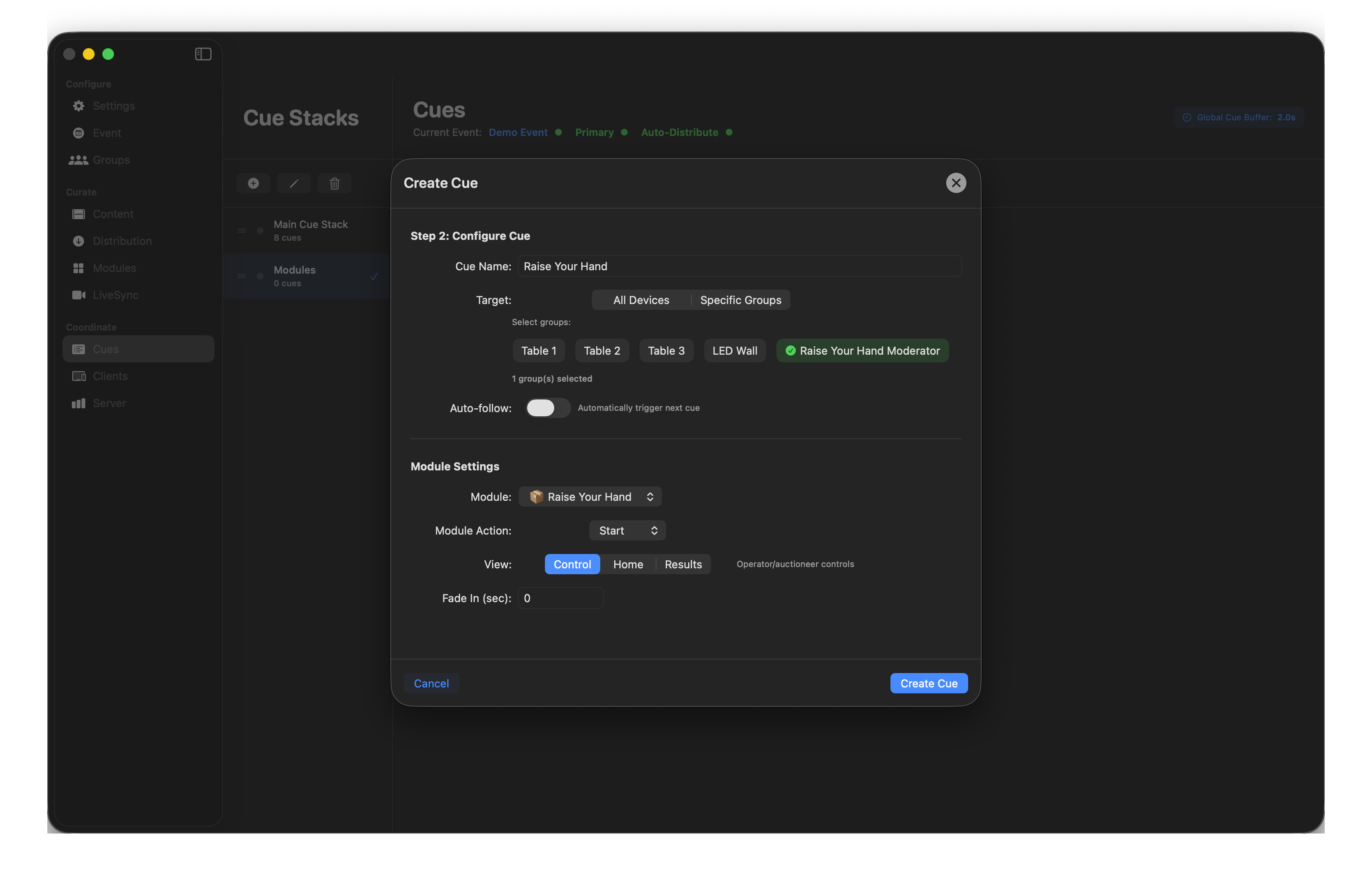
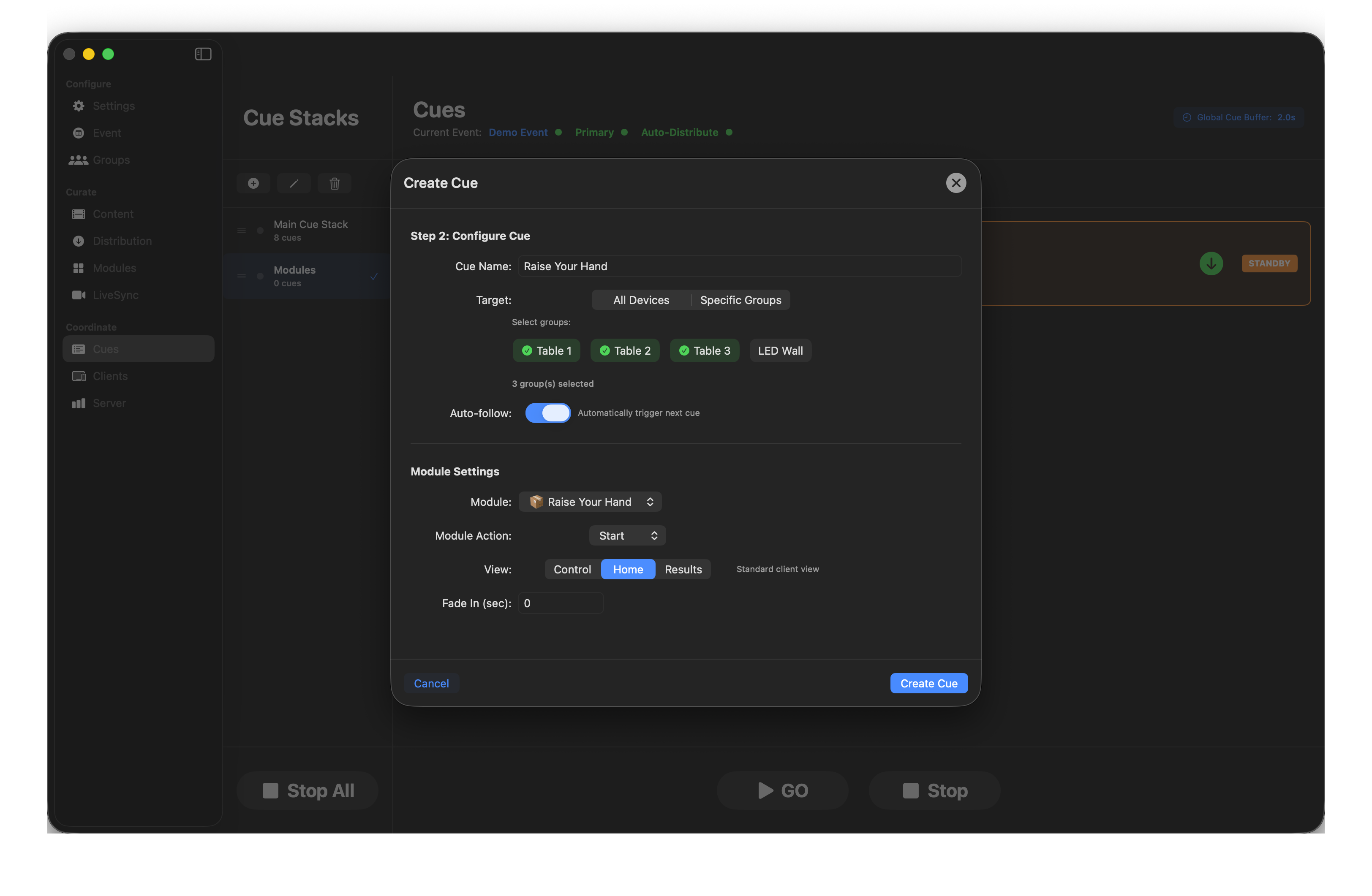
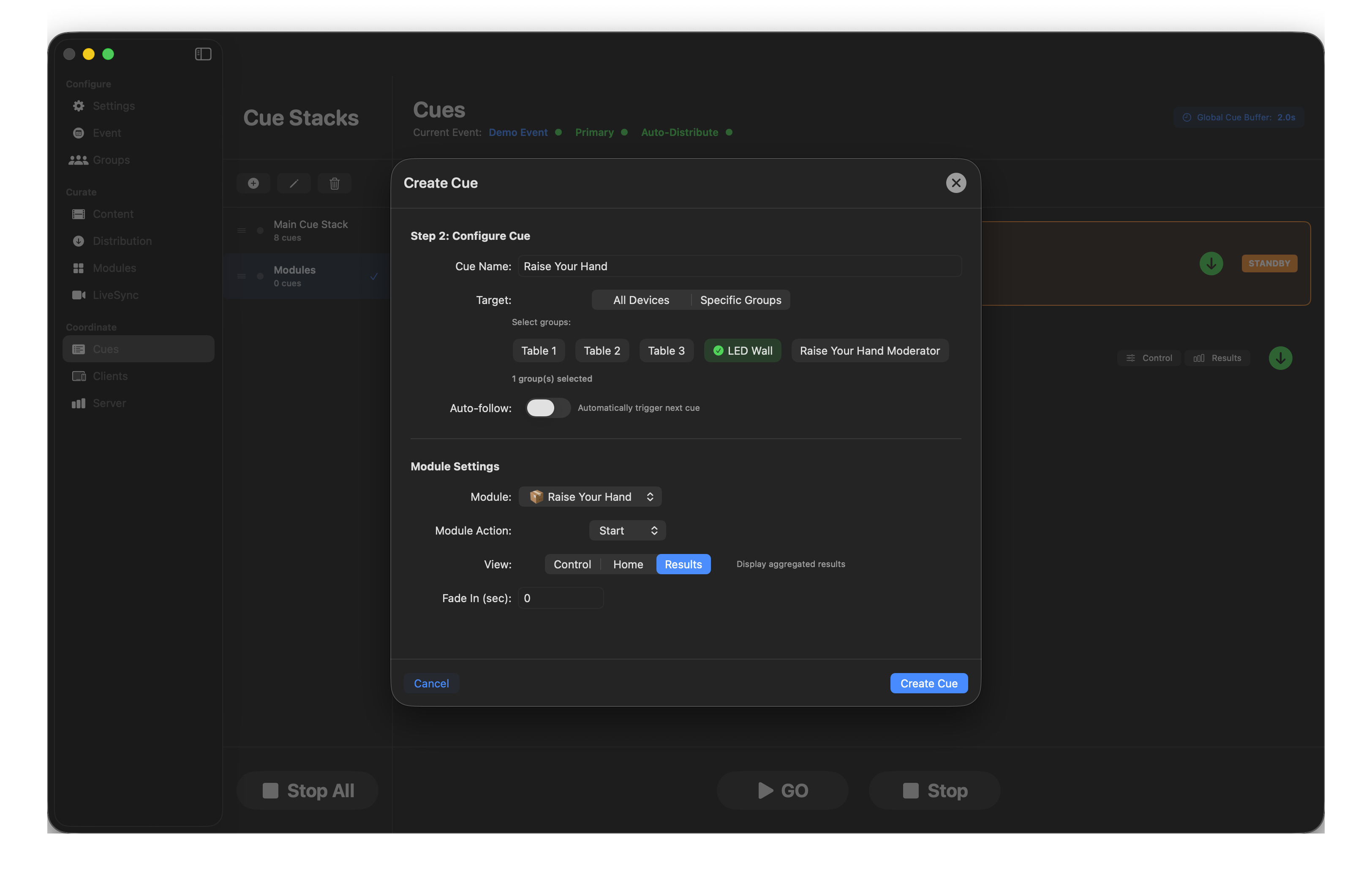
The Raise Your Hand pattern — the Moderator device gets the Control view (the queue of raised hands), the guest tables get the Home view (where guests tap to raise), and the LED Wall gets the Results view. Same module, three different views, three different groups. Build it as three Module cues, each targeting one group and selecting its own view, chained with auto-follow:
- Moderator / Ops group → Control view
- Table groups → Home view (what guests interact with)
- LED Wall group → Results view
With auto-follow set on the first two, pressing GO on the Moderator cue fires all three in sequence — every group lights up with its correct view simultaneously.
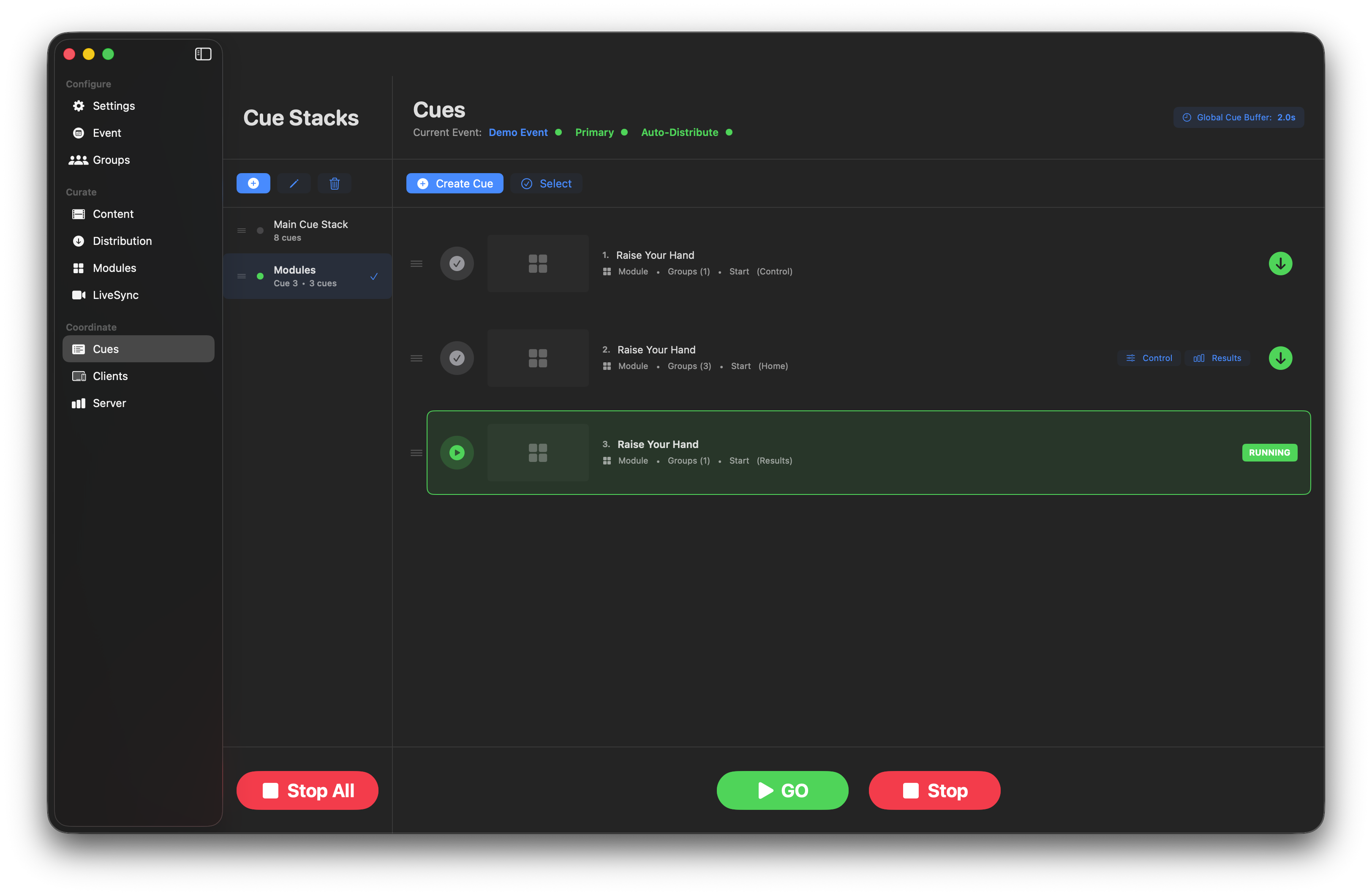
The finished pattern: three Module cues, same module, three different groups, three different views — one GO fires the lot.
💡 Tip — Control and Results buttons on the cue row
When a Module cue targets the Home view, its row in the Dashboard picks up Control and Results buttons. Click either to open that view in a floating Dashboard window — live access to the ops view (queues, moderation) or the Results display without leaving the Cues page.

Colour
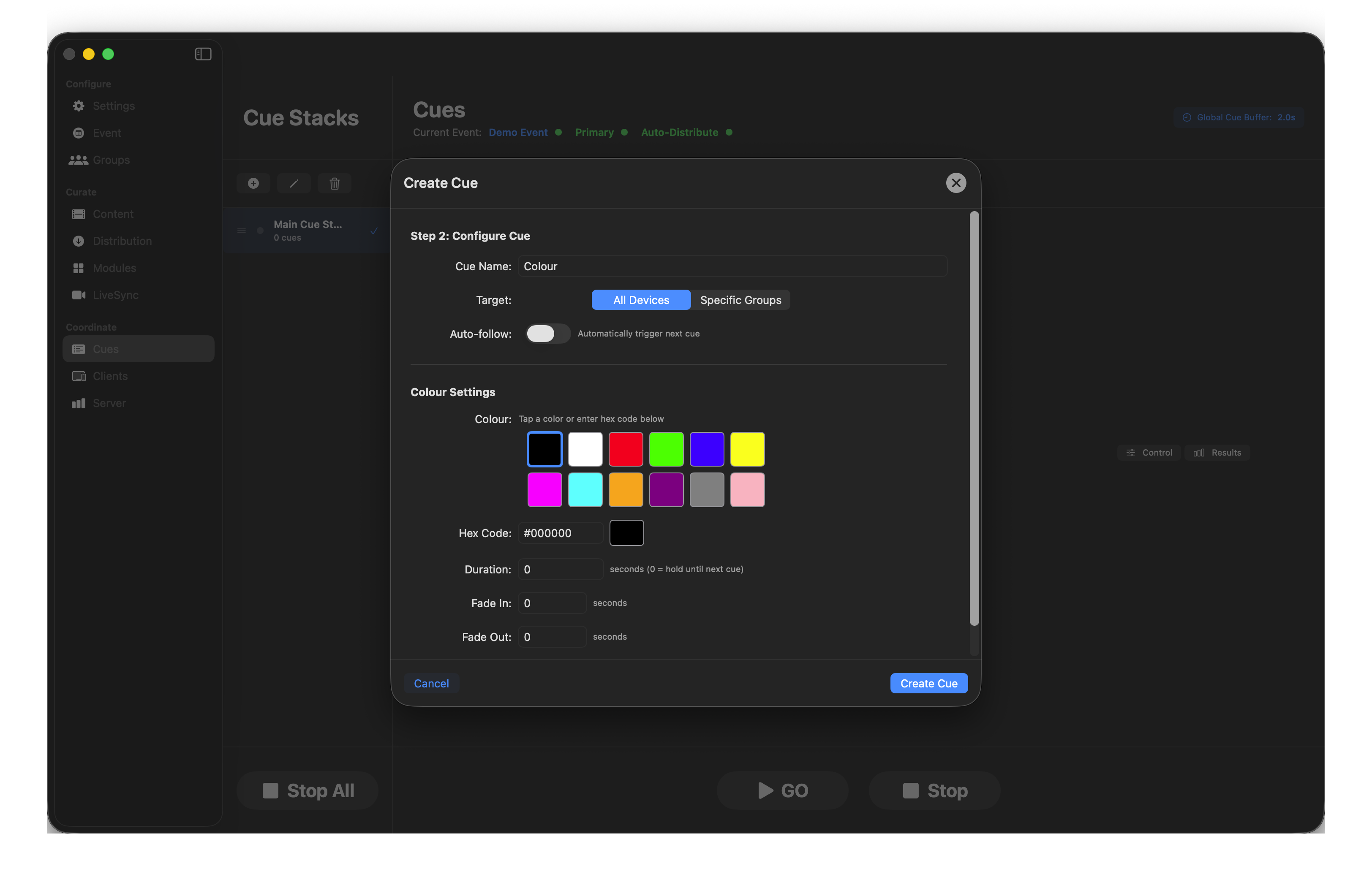
Fill the target devices with a solid colour. Useful for cue-zero blackouts, branded colour washes or countdown-timer theatrics.
- Preset swatches or hex entry.
- Duration (0 = hold until next cue).
- Fade In / Fade Out.
Pause / Resume / Stop
Simple command cues with no additional options — they send the command to the targeted devices.
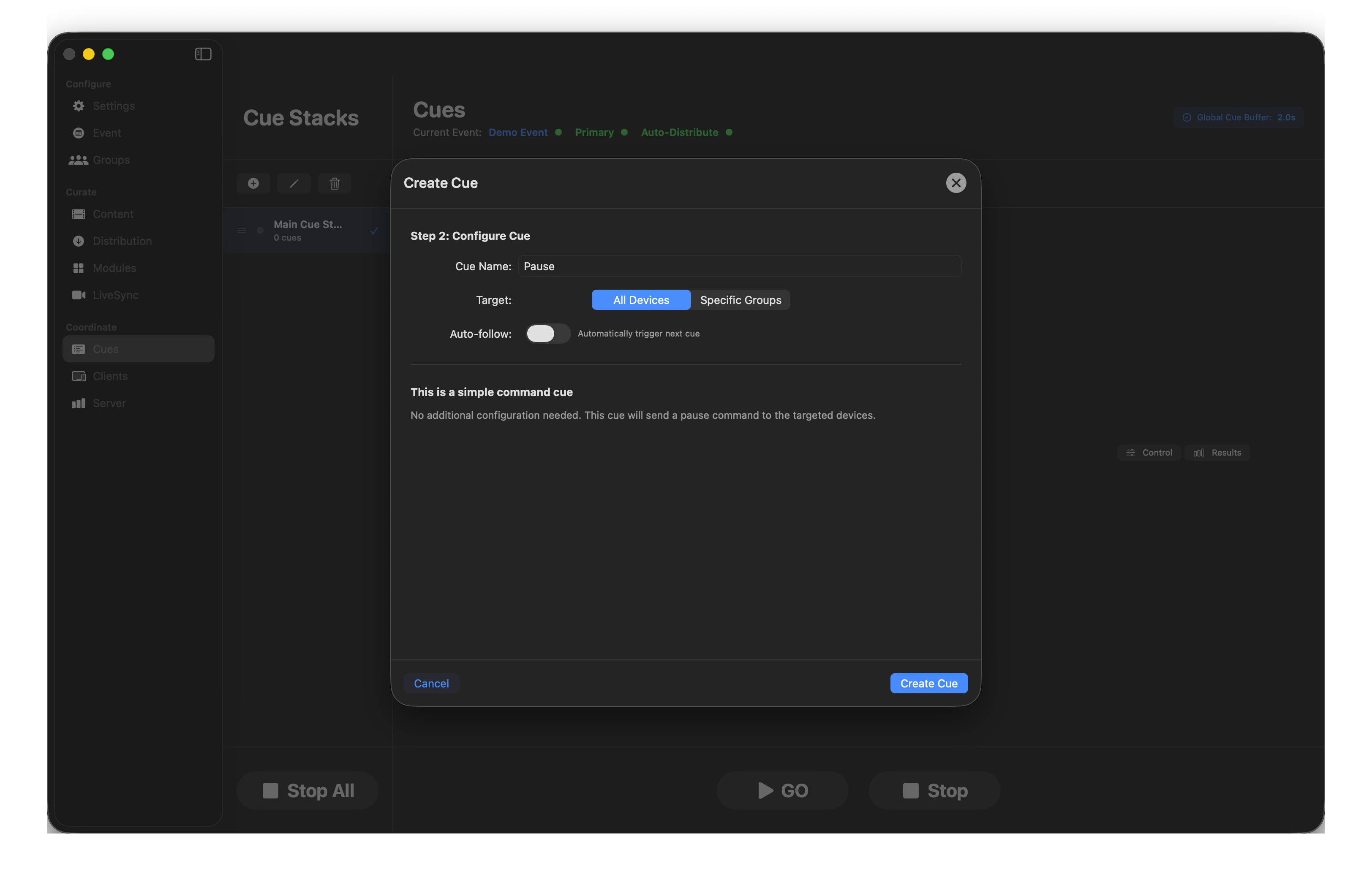
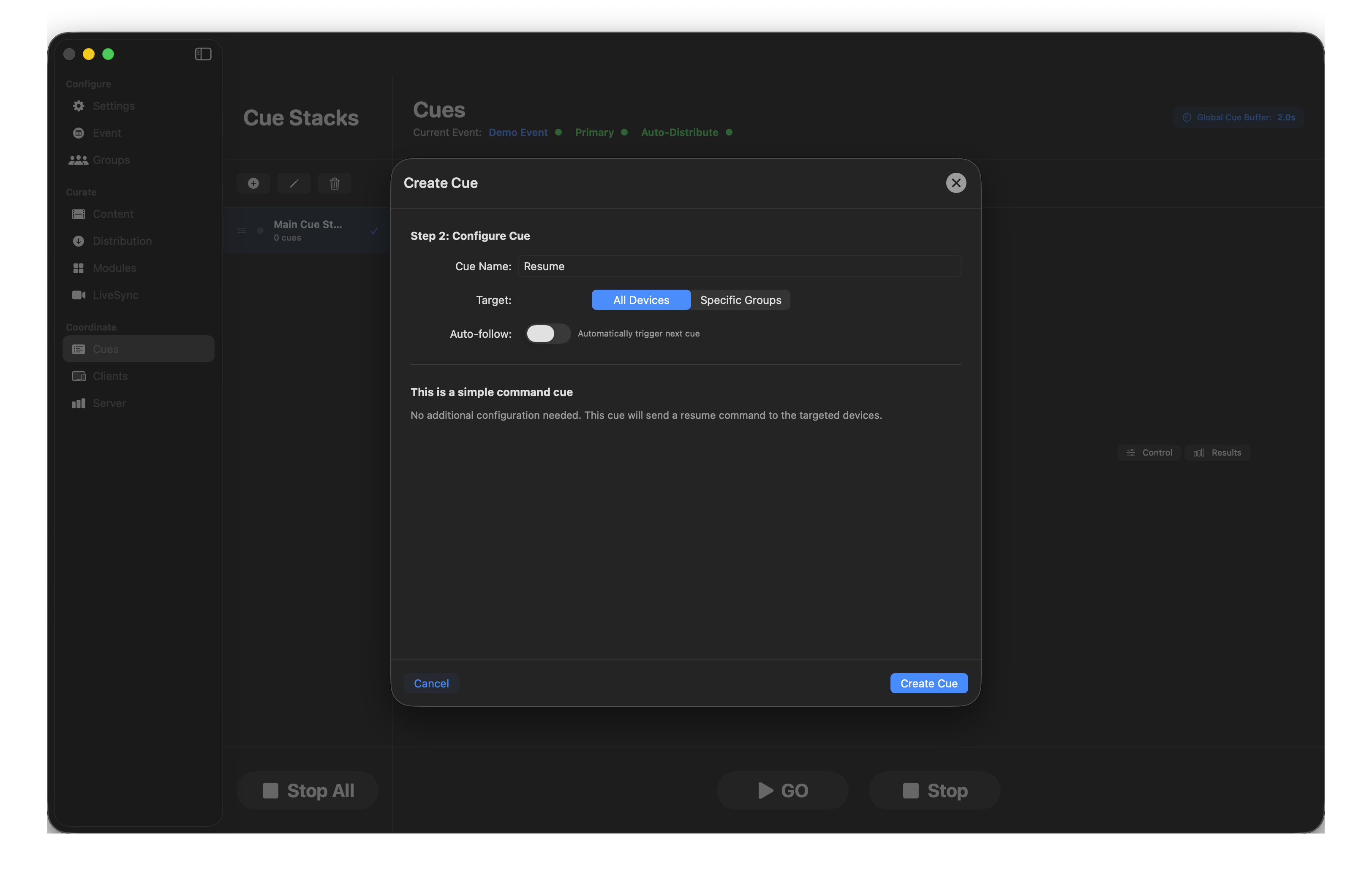
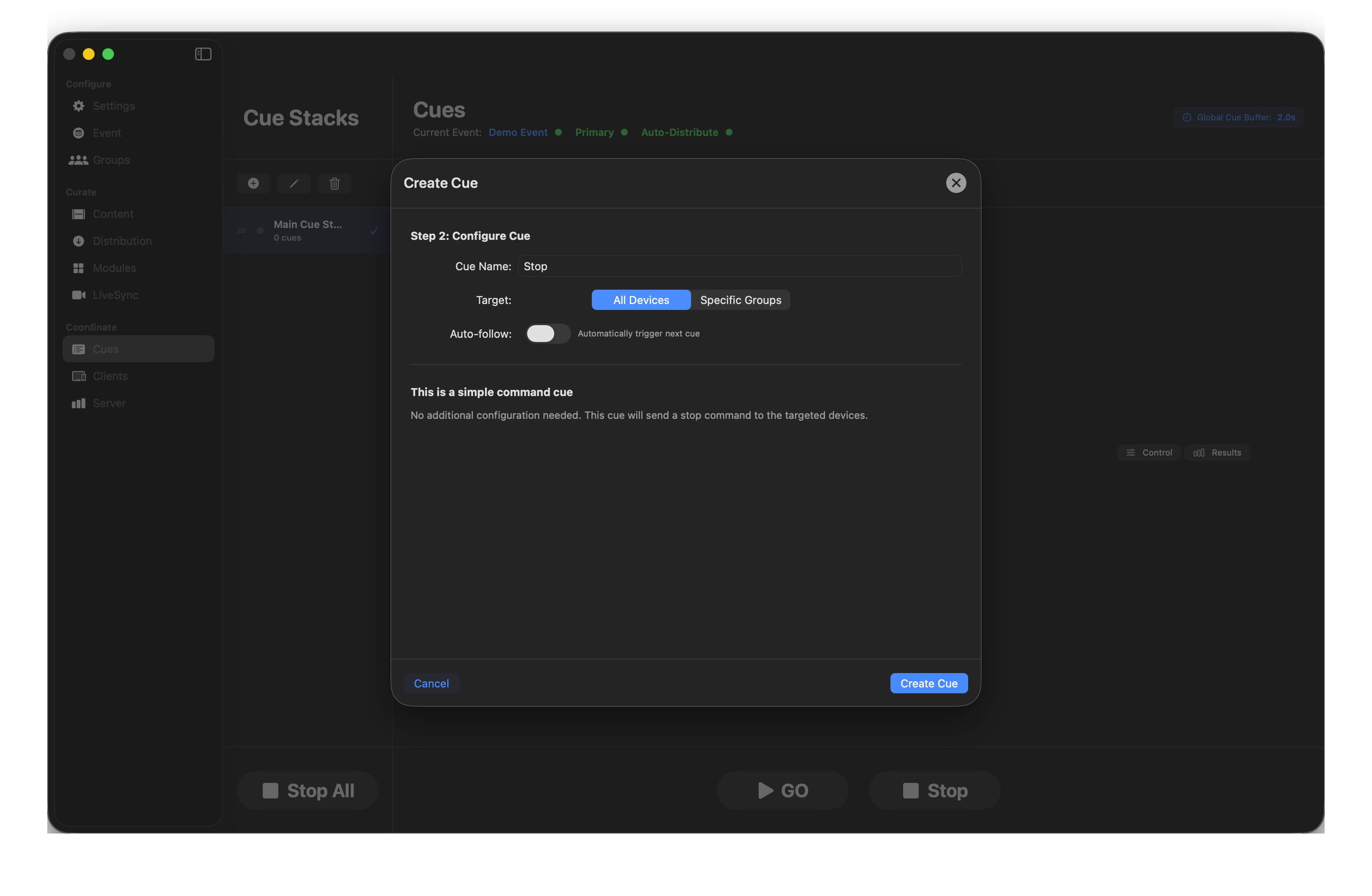
Fade to Idle
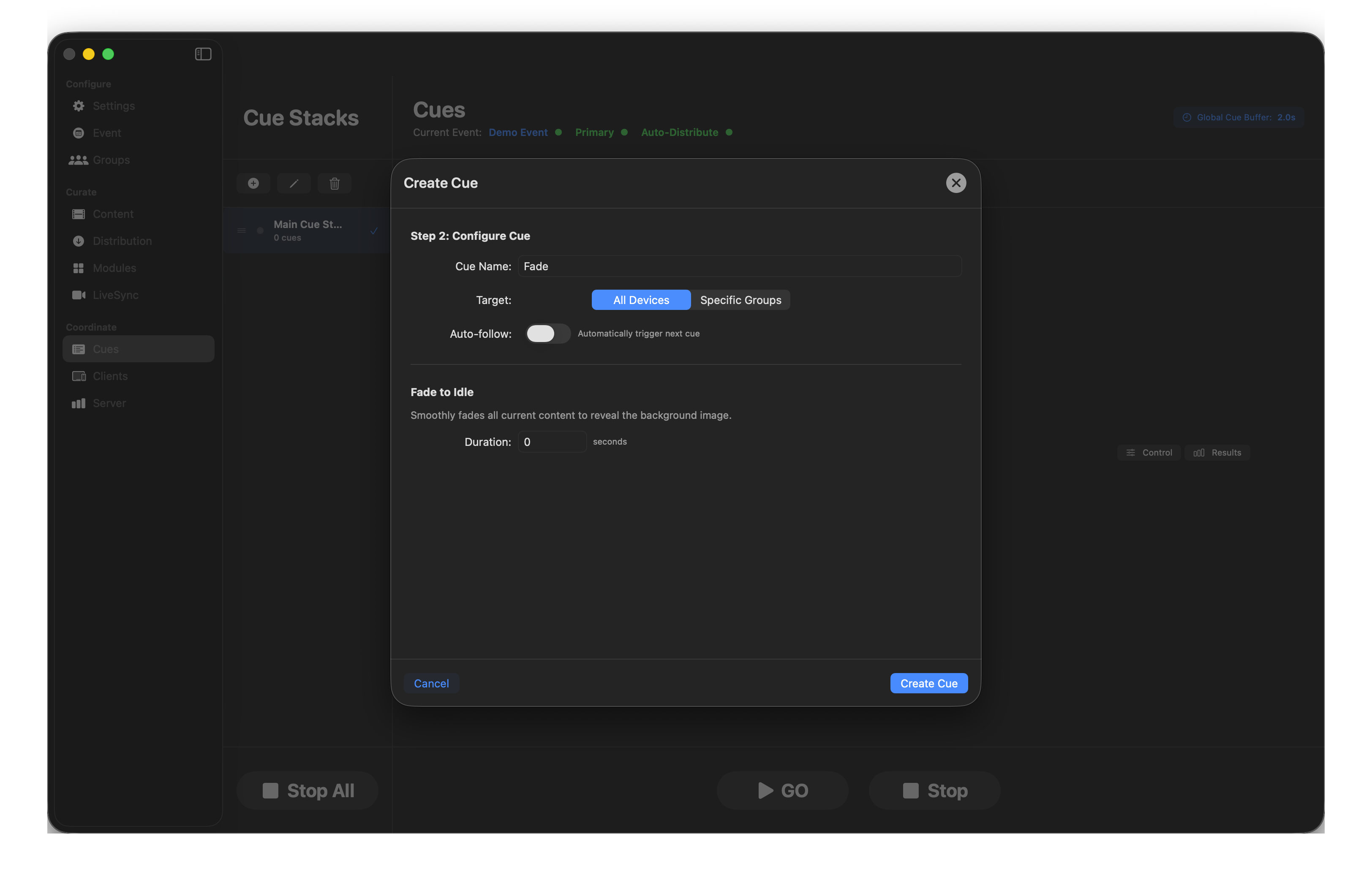
Smoothly fades current content to reveal the idle background image. Duration is the fade time.
Wait
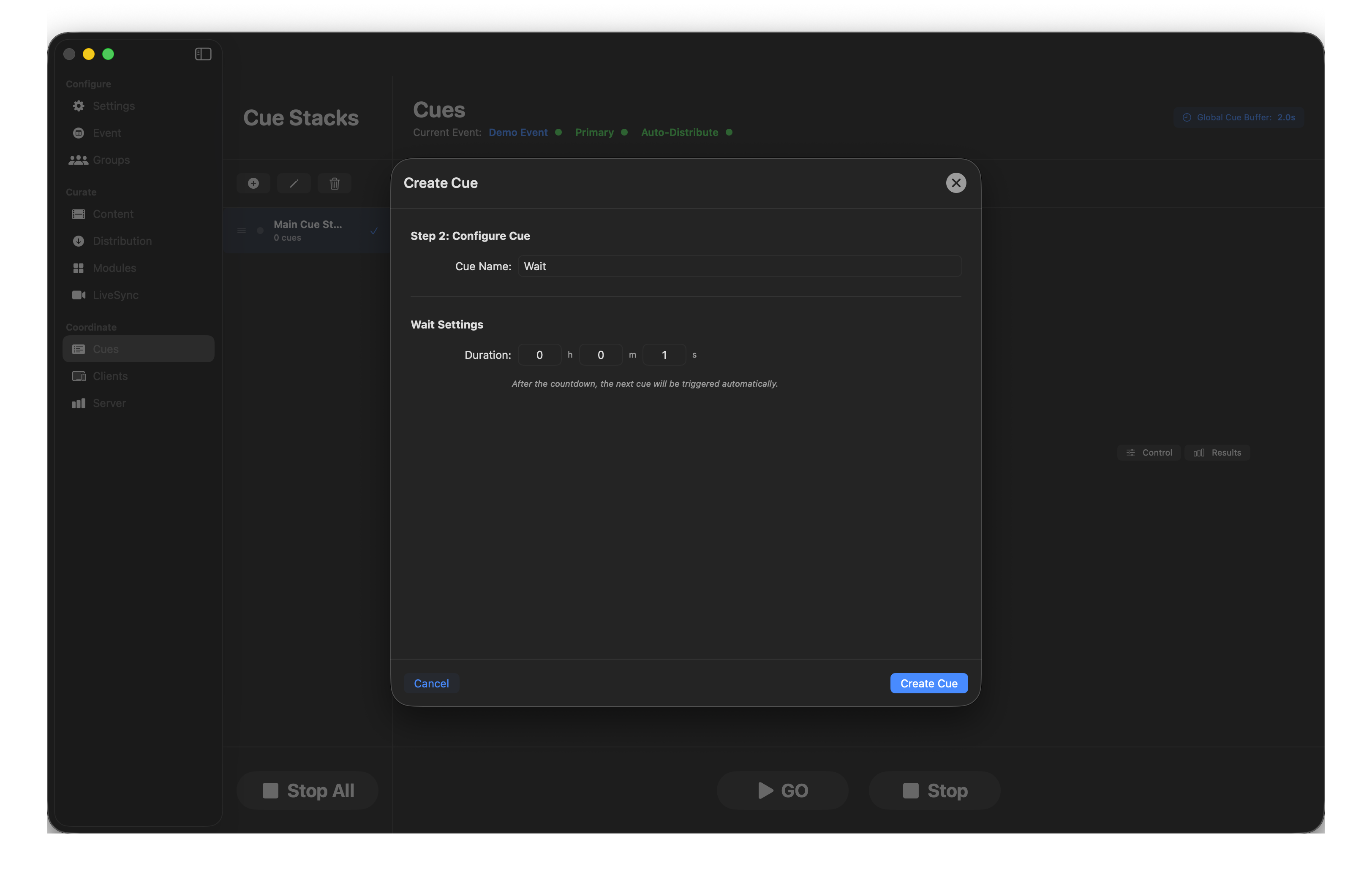
Use Wait to time when the next cue plays.
Example — Video cue (auto-follow on) → Wait 30s → Image cue. The video starts playing, the 30-second timer runs alongside it, and 30 seconds later the Image cue fires.
Go To
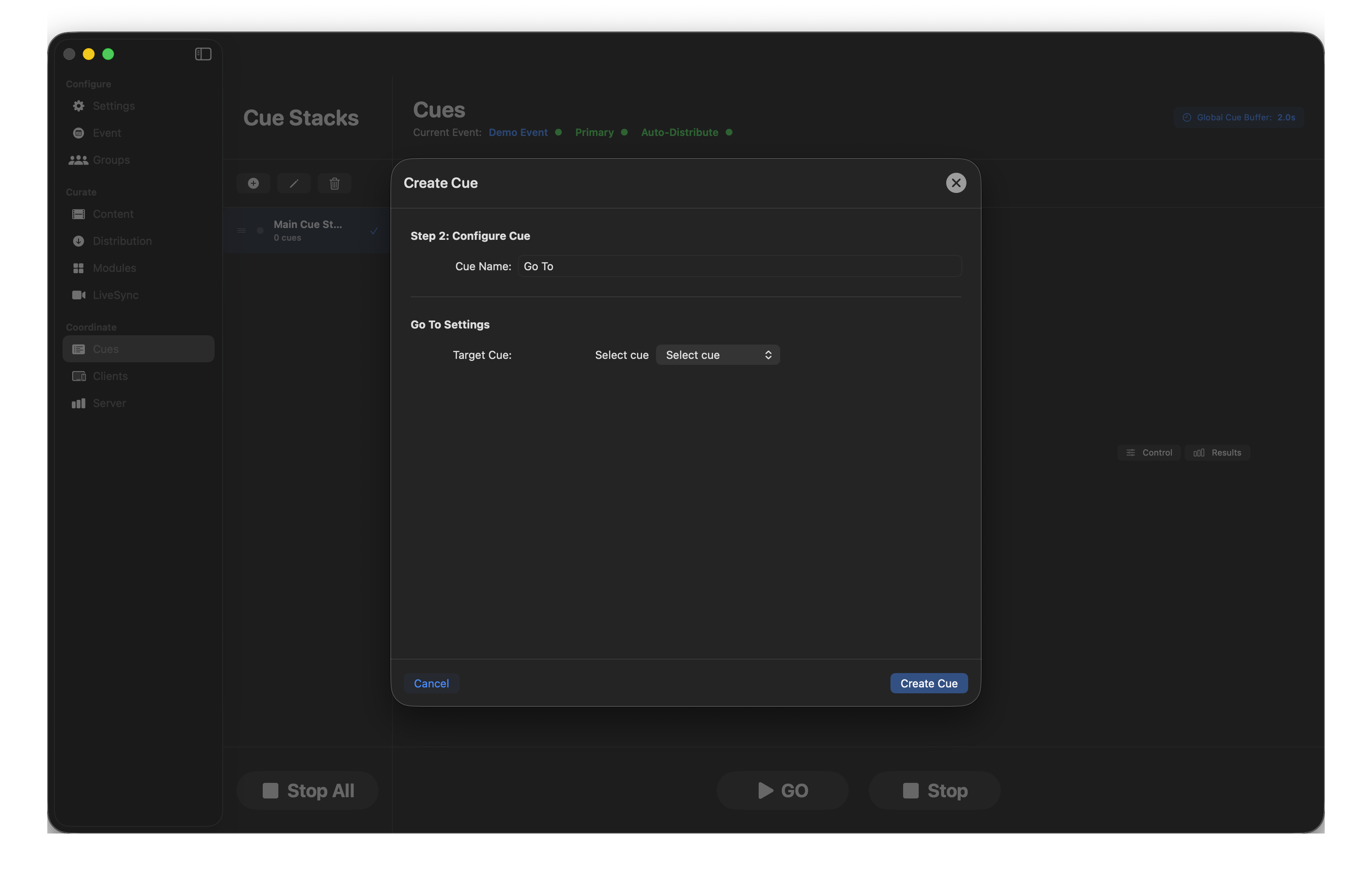
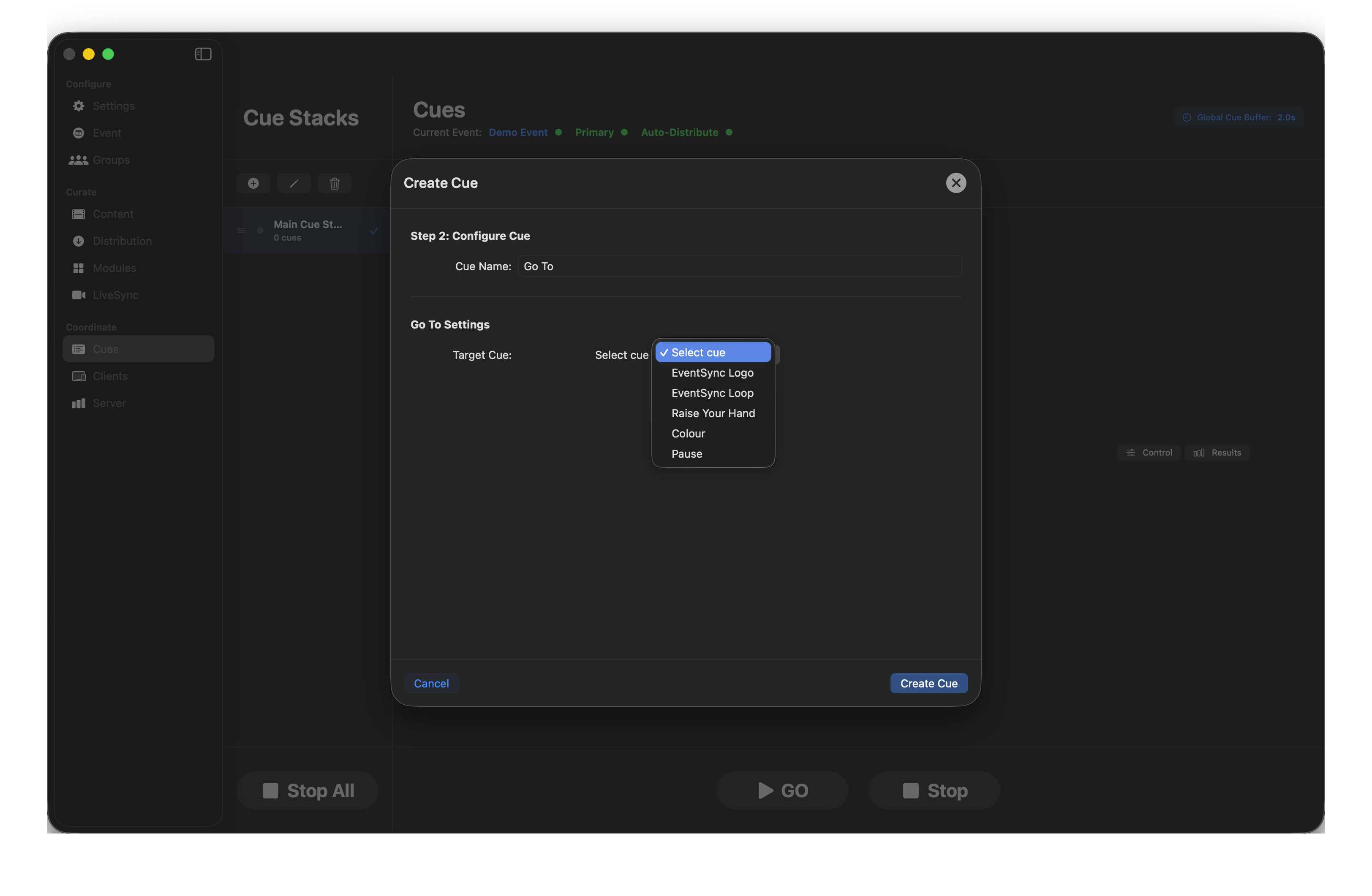
Jump to another cue in the stack. Use for looping a logo ident, returning to a holding slide, or recovering from a muff.
Volume
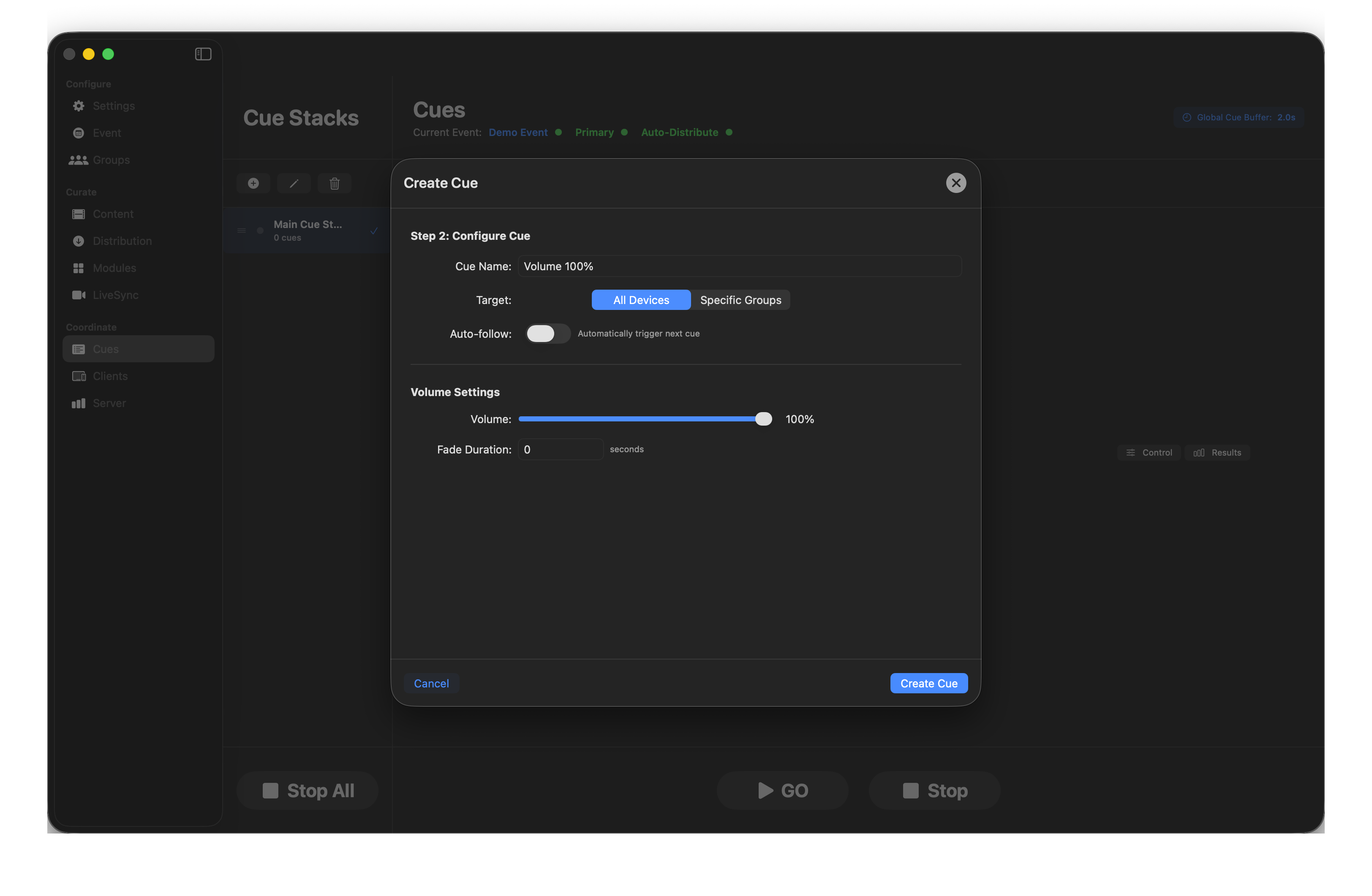
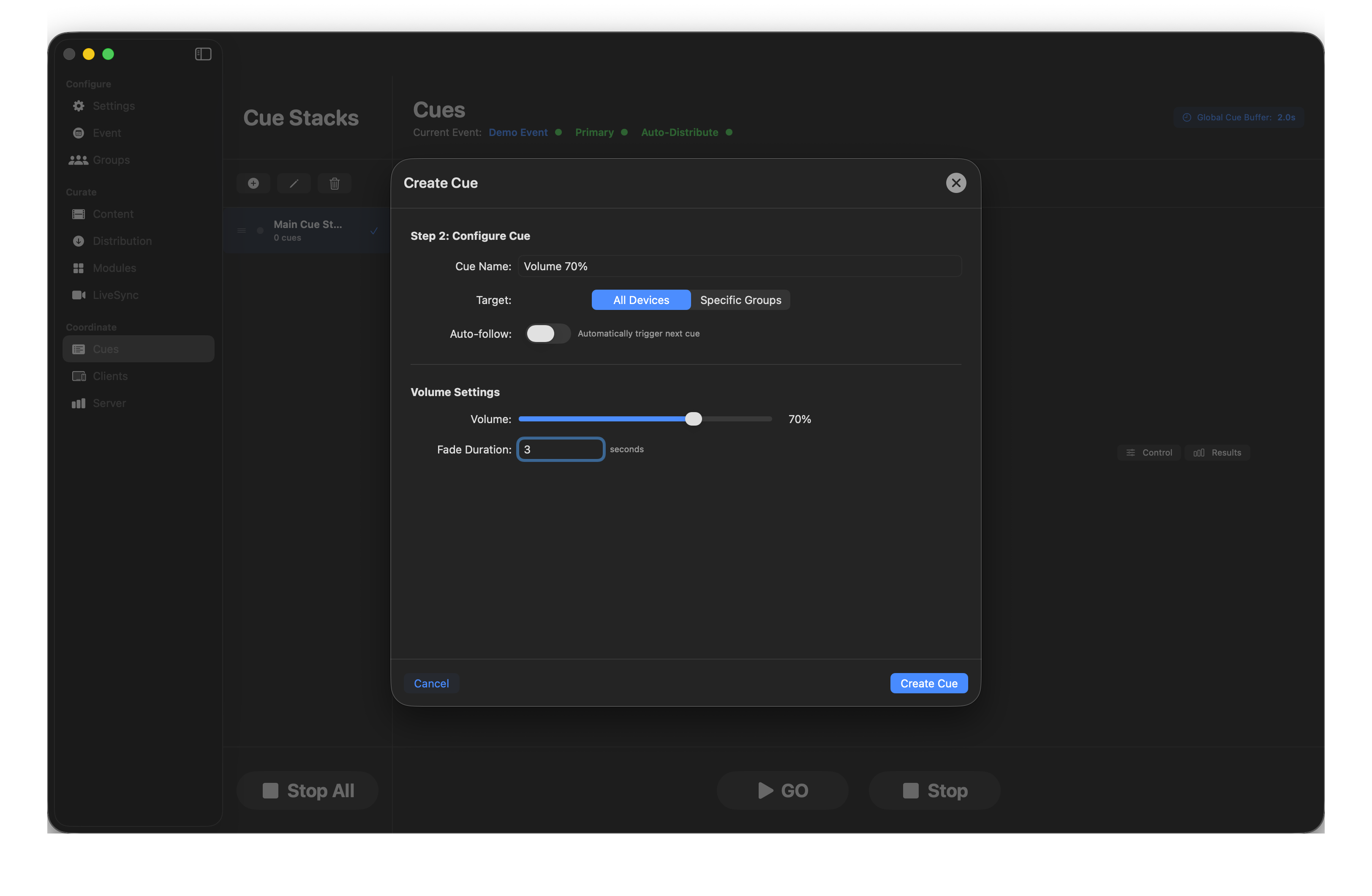
Set volume on targeted devices, optionally with a fade duration.
Brightness
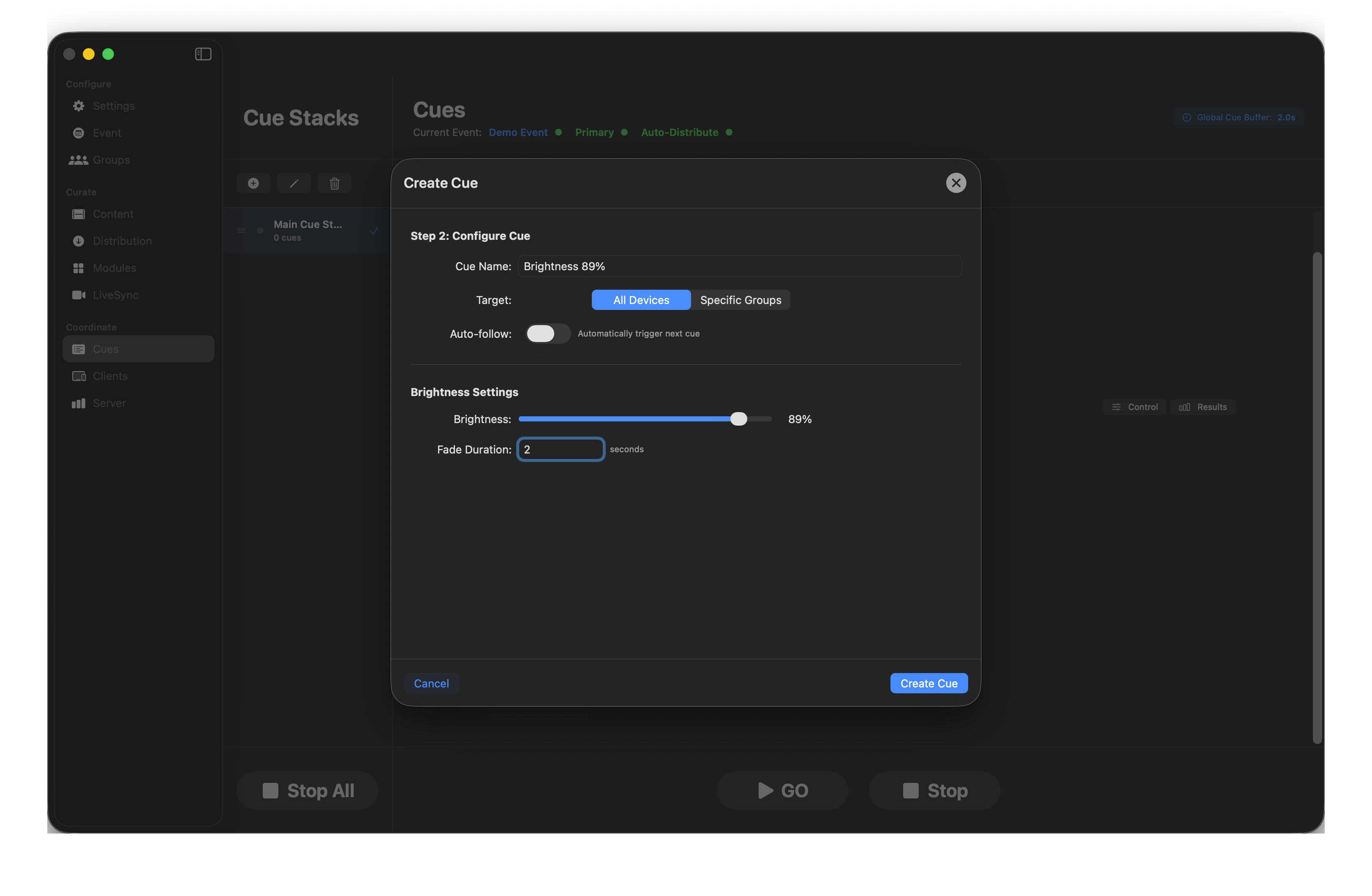
Set screen brightness, optionally with a fade. Handy for mood changes or for bringing devices down at the end of a room reveal.
LiveSync
A LiveSync cue starts (or stops) a configured LiveSync stream on the target group. Configure the stream itself from the LiveSync page; the cue only selects which stream and which group.
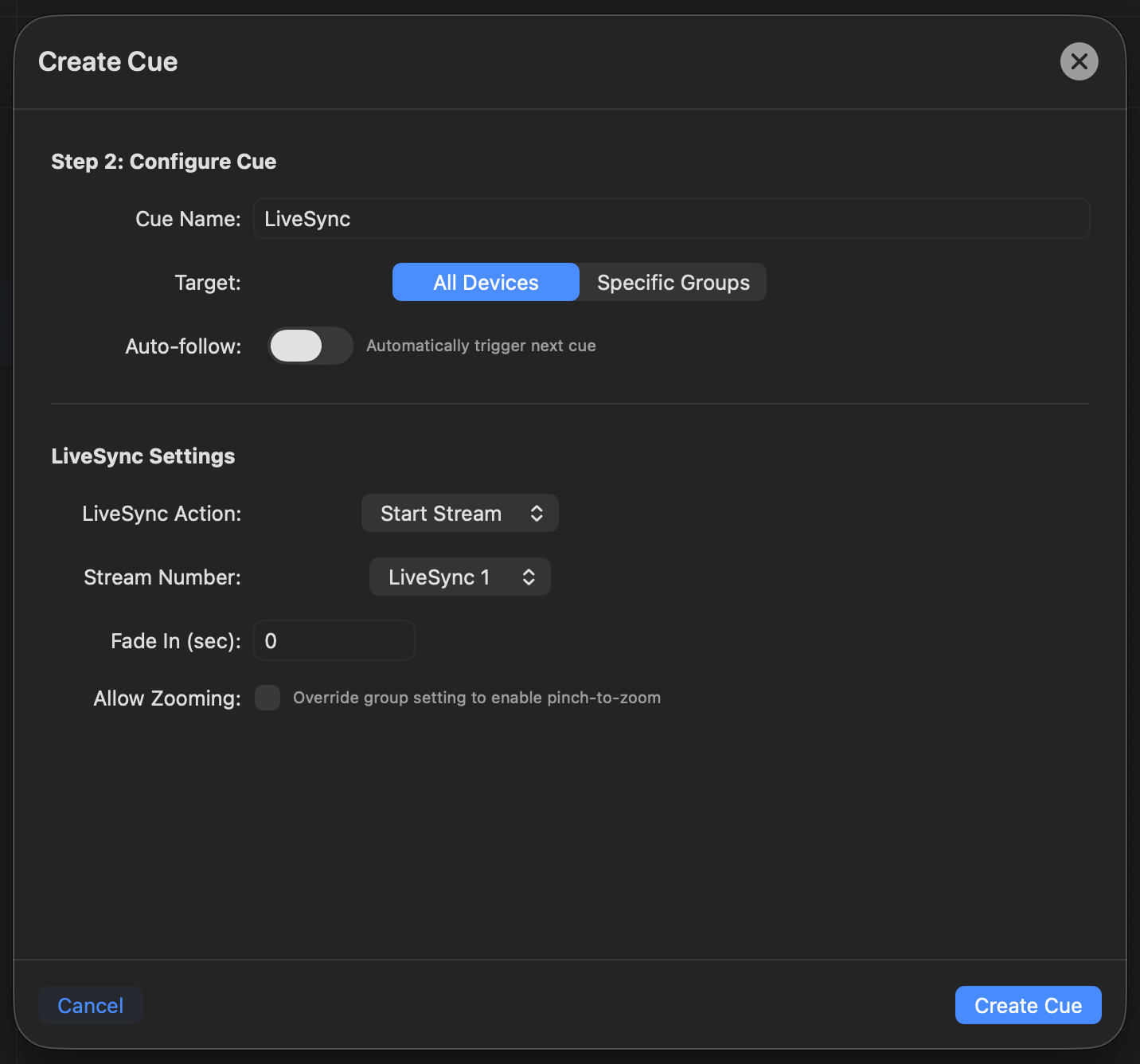
- LiveSync Action — Start Stream or Stop Stream.
- Stream Number — which of the four configured streams (LiveSync 1–4) to fire.
- Fade In — seconds.
- Allow Zooming — overrides the target group's pinch-to-zoom setting for this stream. Handy when guests normally can't zoom but you want them to be able to pinch into slides.
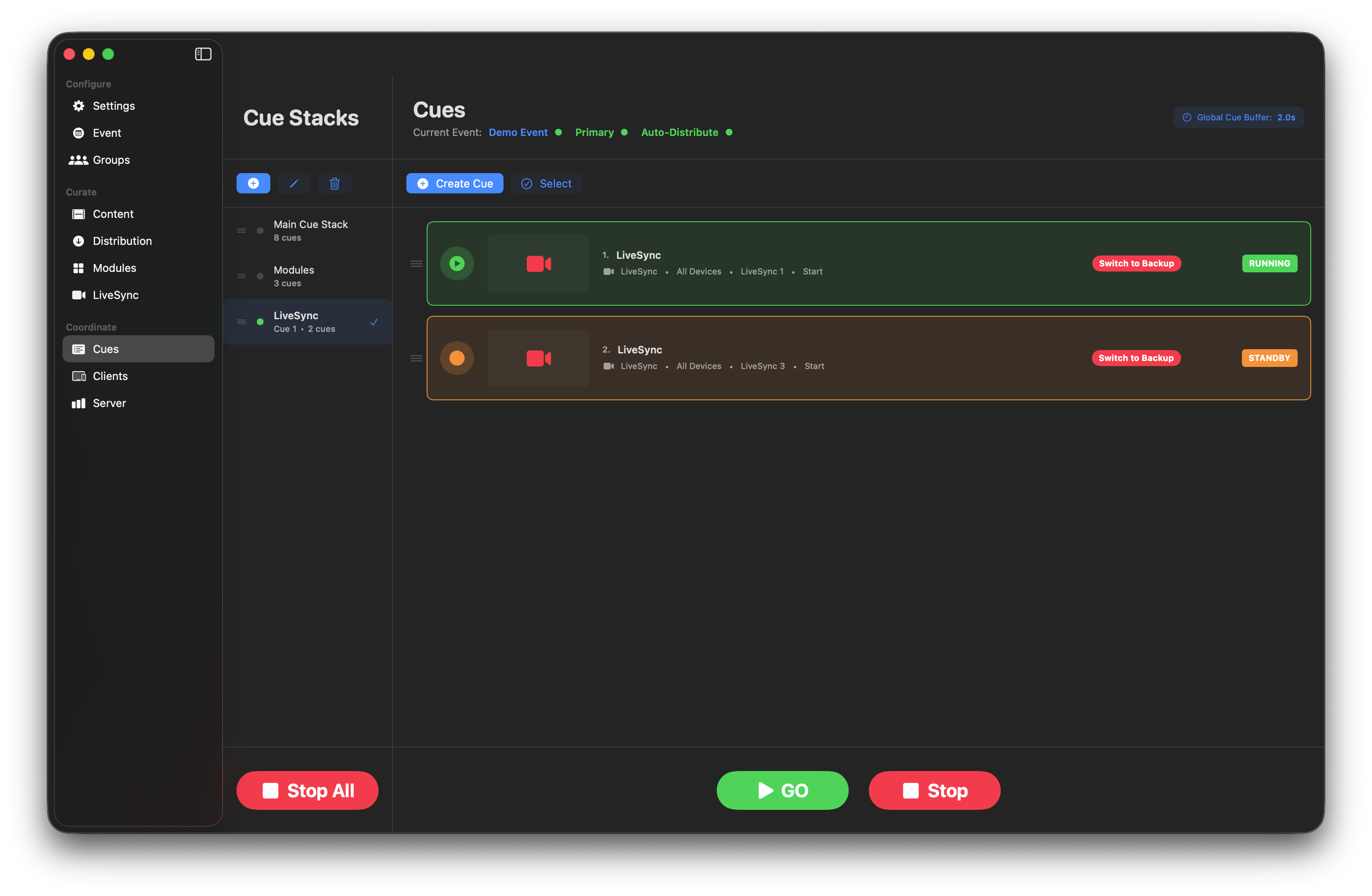
Switch to Backup
Once a LiveSync cue is running, its row in the Dashboard shows a red Switch to Backup button. Click it to hand just that feed over to the Backup LiveSync Server — per-cue failover, independent of the other feeds and independent of the main BackupSync system.
Clients — the live device view
The Clients page shows every connected device with full health and distribution detail.
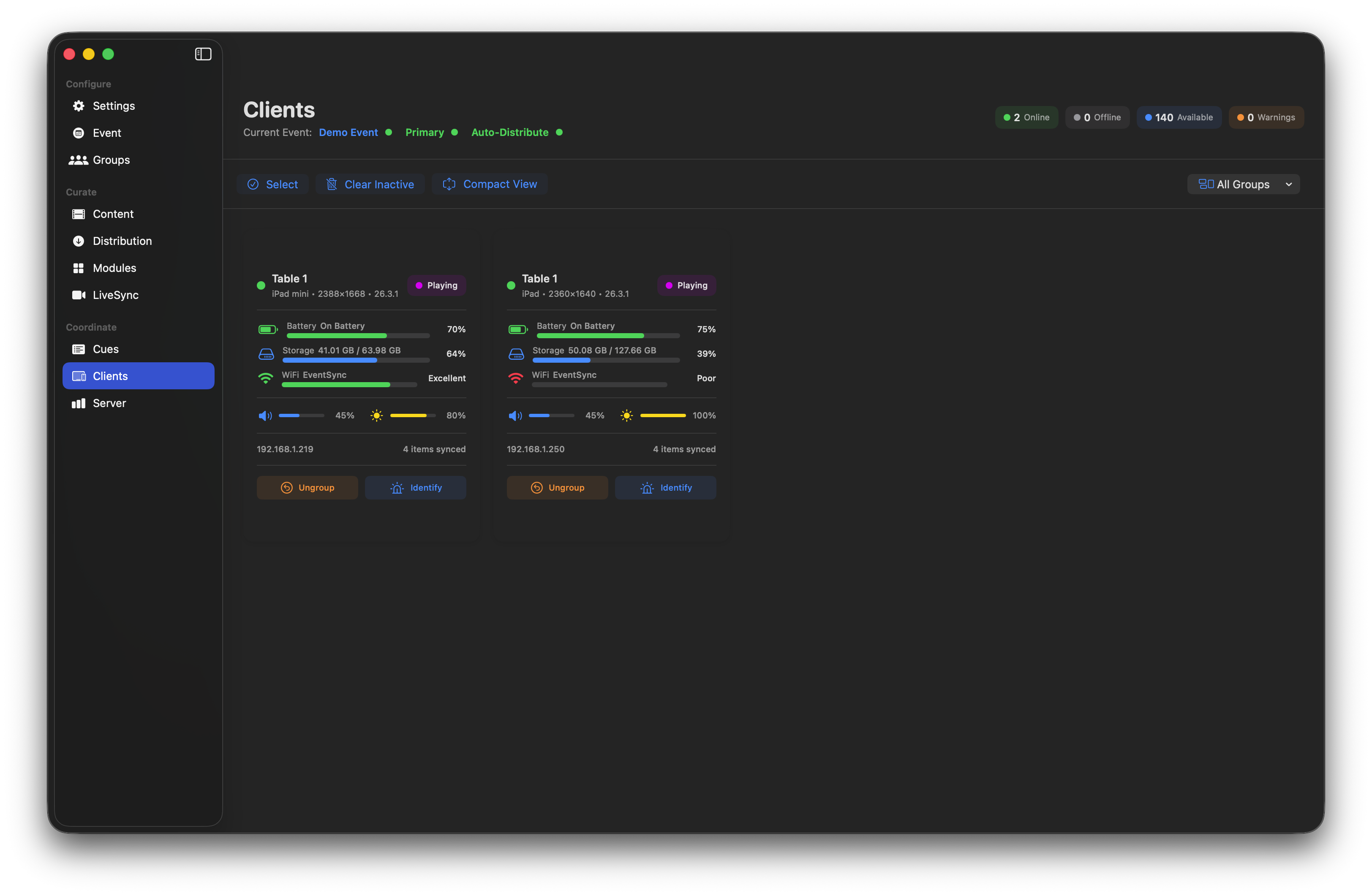
Header counts tell you at a glance what the room looks like: Online / Offline / Licenses available / Warnings.
Device cards
Each card shows group, model, resolution, battery, storage, Wi-Fi quality, brightness, volume, IP address and current play state. A pink Playing chip means the device is actively running a cue's content.
💡 Tip — what "Wi-Fi quality" actually measures
The Wi-Fi quality indicator on a device card isn't signal strength — it's the round-trip time of a packet to that device. A "Good" or "Excellent" reading means the device is responding quickly and consistently; a "Fair" or "Poor" reading means packets are taking longer to round-trip. For tightly-timed cues that matters more than bar count — it's the number that tells you which devices might fall behind. If you're seeing Fair/Poor on devices you can't fix physically, bump the Global Cue Buffer up a few hundred milliseconds so even the slowest device has time to prepare.
Device detail
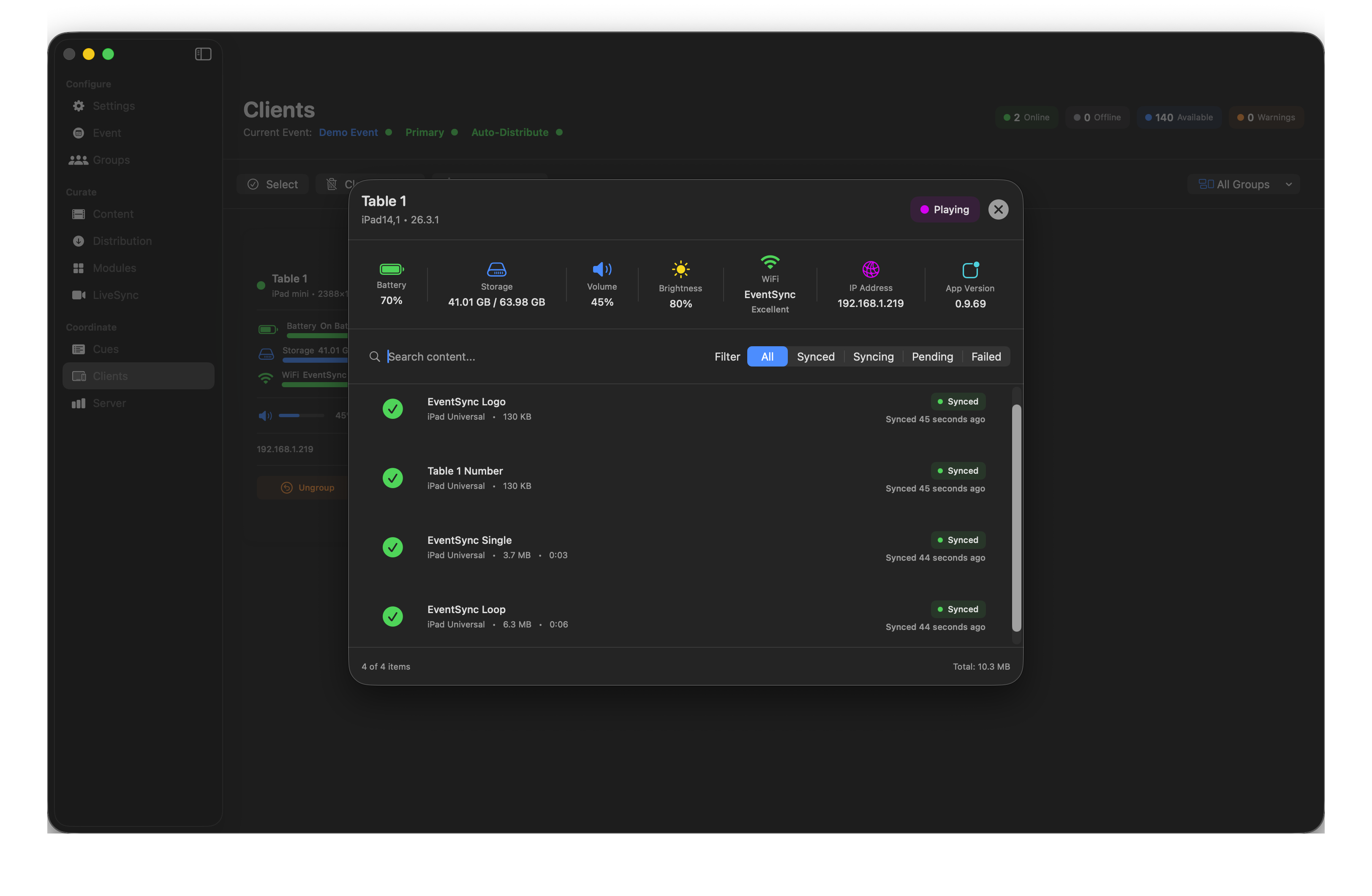
Click a device to open the detail panel. You get a full per-device view including every asset on the device with its sync status (Spread, Syncing, Pending, Failed) — invaluable when chasing why one device isn't playing.
Selection and actions
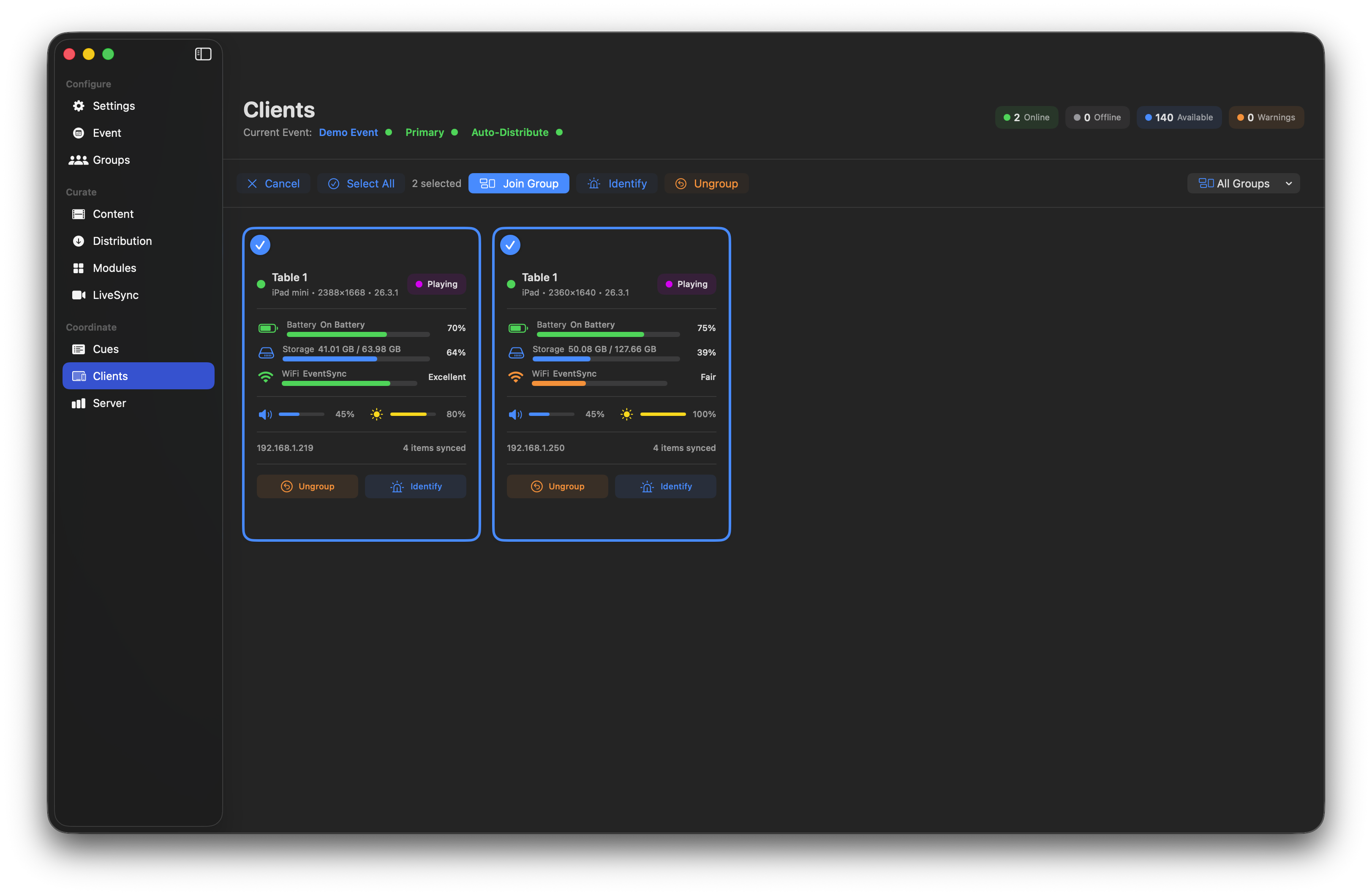
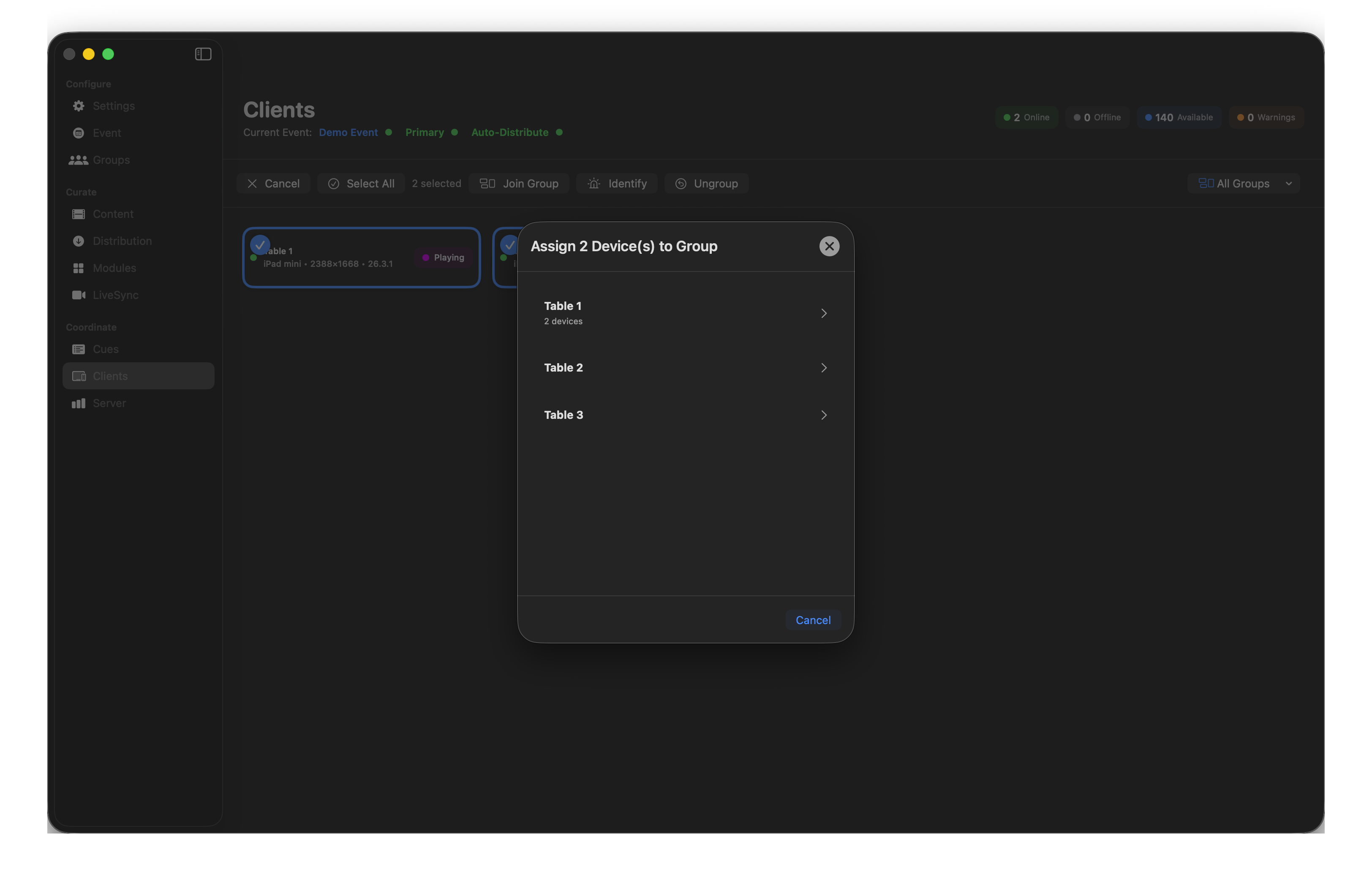
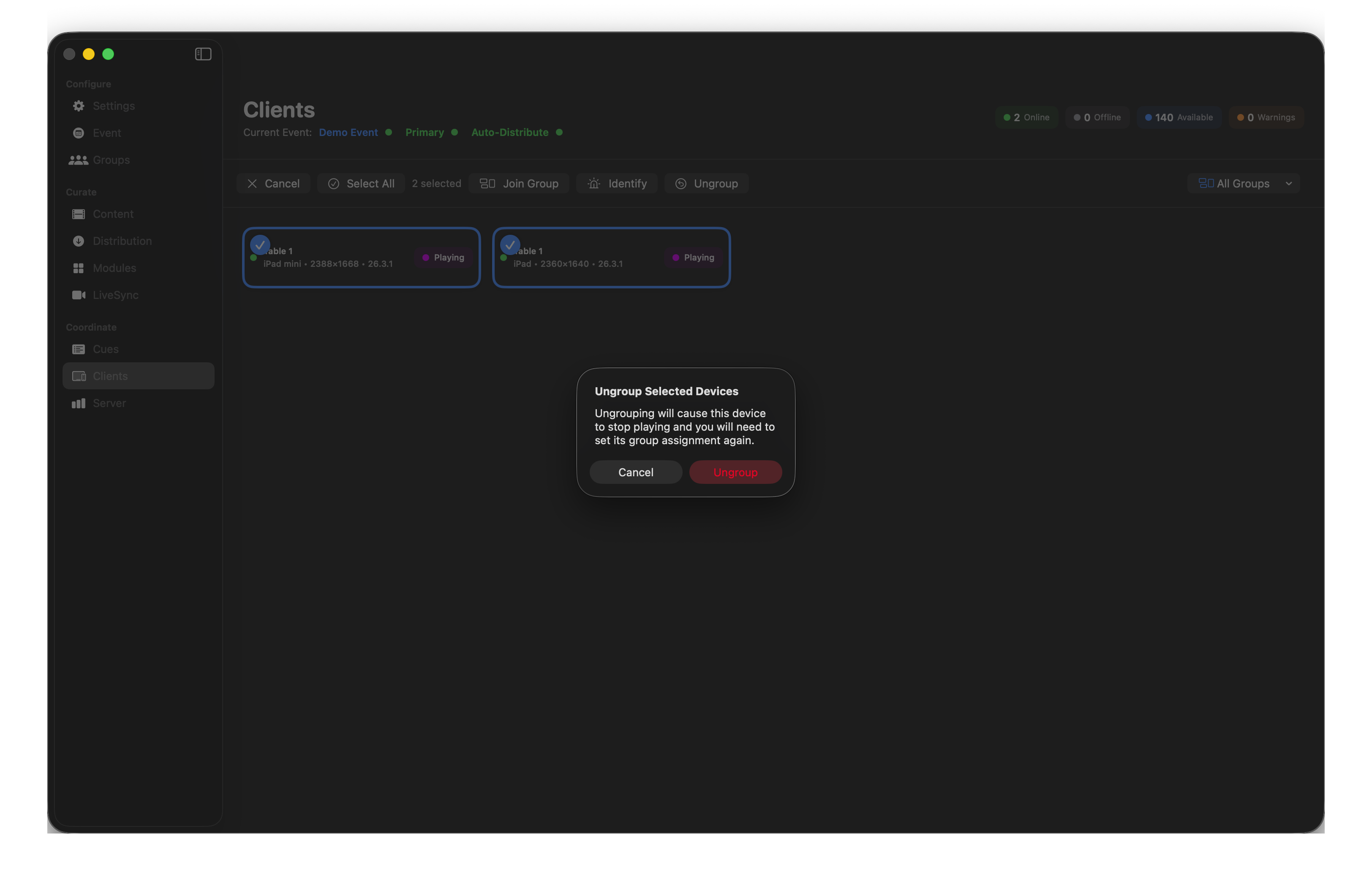
Click Select to multi-select devices. Actions include Join Group, Identify, Ungroup and Clear Inactive (for offline devices).
💡 Tip — reclaim licenses with Clear Inactive
Running short on licenses and you can see greyed-out (inactive) device cards in the list? Use Clear Inactive to remove them and return their assigned licenses to the pool, ready for a live device to claim.
Compact view
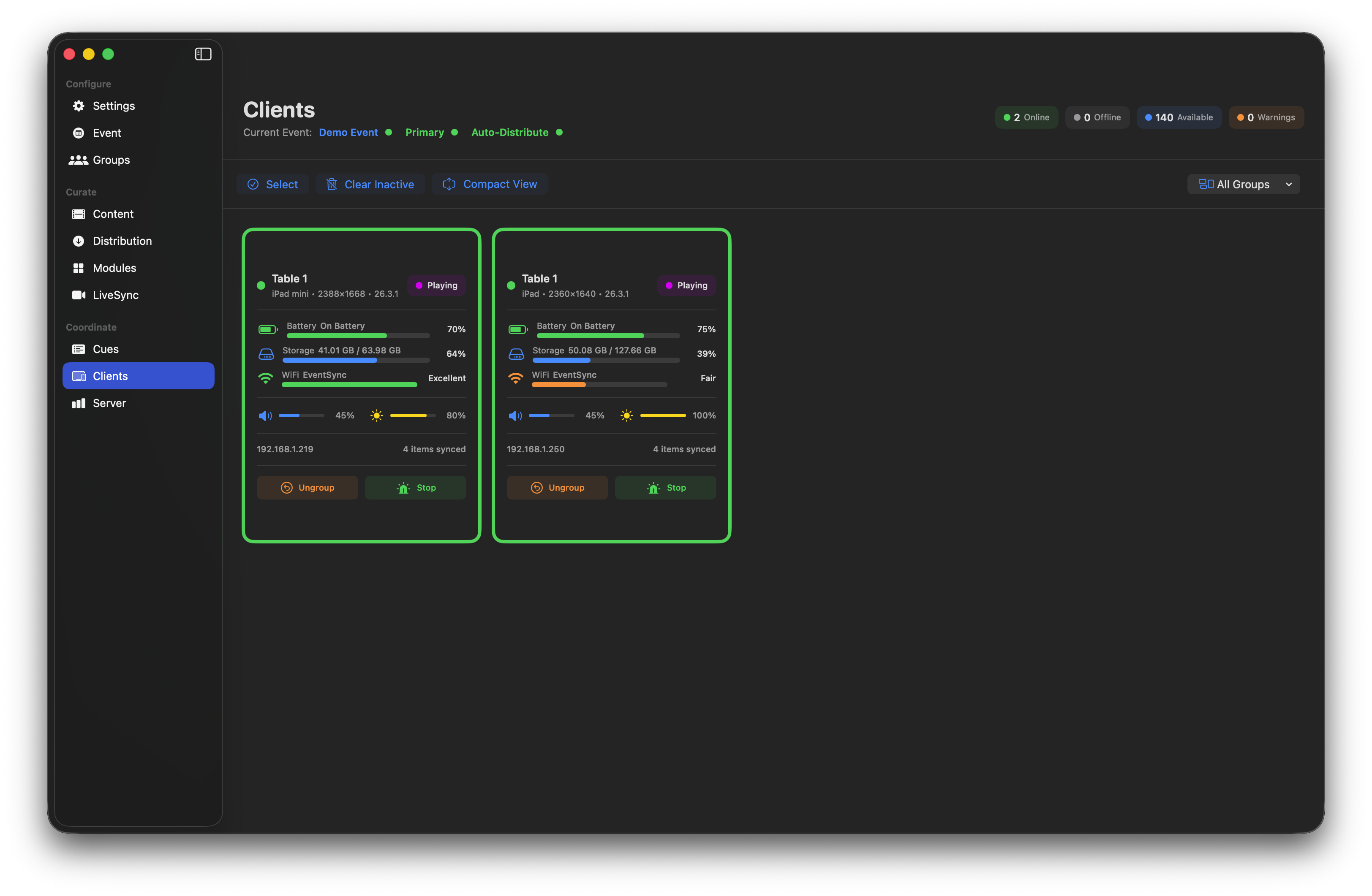
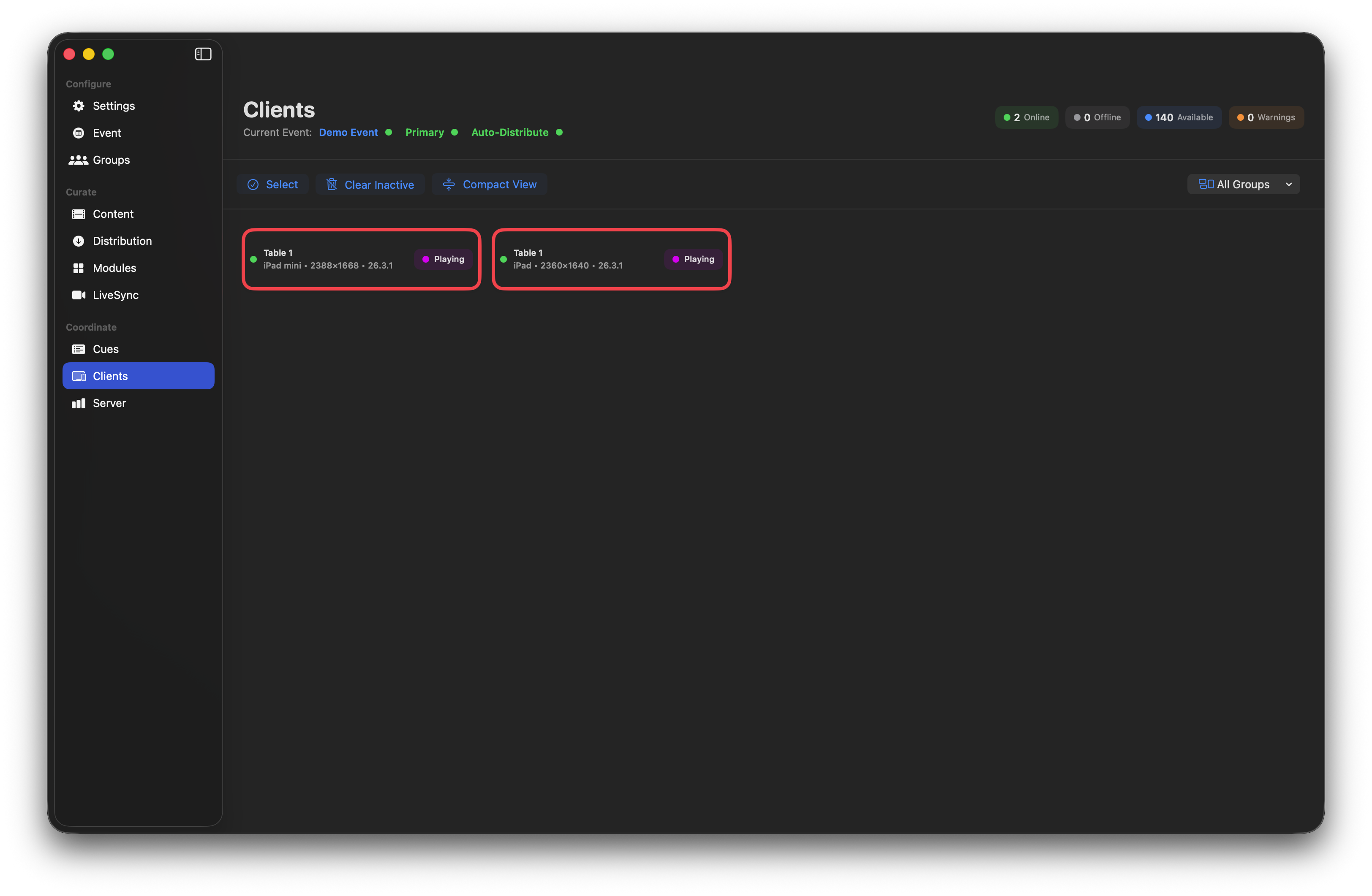
Turn on Compact View for large deployments where a one-line summary per device is more useful than full cards.
Identify
Finding one device in a room of 200? Click Identify on any card. Both the Dashboard card and the device screen flash alternately. Works the other way too: open the device's Operator Menu and tap Identify on Dashboard to highlight that specific device in the Clients view.
Server — live health
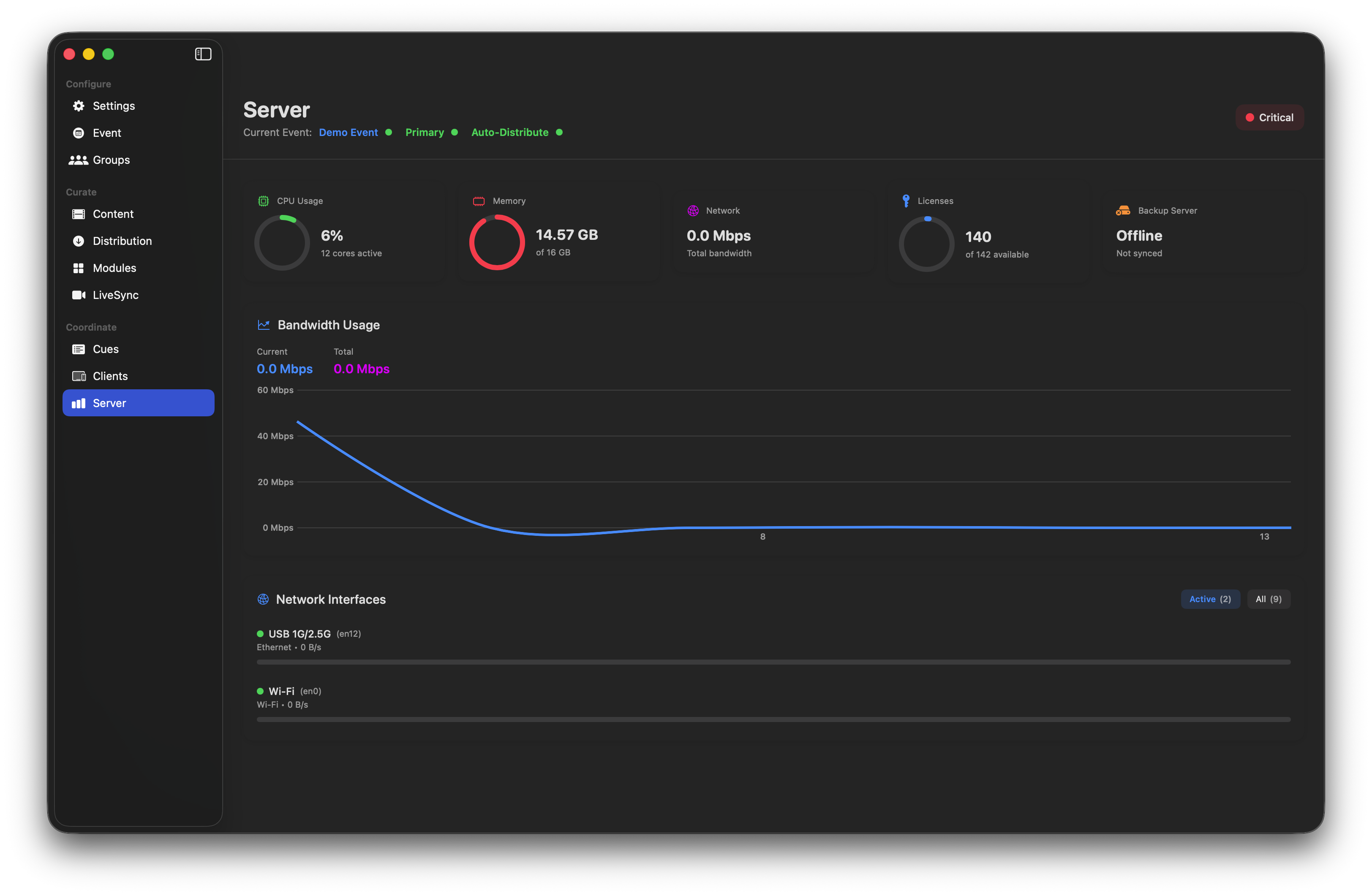
The Server page is the dashboard's live health readout:
- CPU Usage — server load and active cores.
- Memory — RAM in use (turns red when high).
- Network — total bandwidth flowing to devices.
- Licenses — current allocation from your pool.
- Backup Server — BackupSync status (Offline / Syncing / Ready).
- Bandwidth Usage graph — rolling throughput over time.
- Network Interfaces — active adapters with current throughput.
💡 Best Practice — during the show
Have a second operator's Dashboard parked on the Server page. A CPU spike, memory warning or license drop shows up here before it reaches the guests.