
Getting Started
What EventSync is, what you can do with it, and how to get from an empty Mac to a fully rehearsed show.
What is EventSync?
EventSync is a platform for orchestrating synchronised video, interactive modules and live streams across many devices at a live event — gala dinners, conferences, awards, immersive experiences, corporate AGMs. It runs from a Mac (the server) on site, talks to client devices over a dedicated event network, and gives you frame-accurate control of what every group of devices is showing at any moment.
The platform is split into three stages, and this documentation set is organised around them:
- Configure — set up the server, create an event, build the groups that let you send different content to different devices.
- Curate — import your content, configure modules, set up live feeds.
- Coordinate — build cue stacks, rehearse, run the show.
Key capabilities
- Synchronised playback — frame-accurate video sync across hundreds of synchronised devices.
- LiveSync streaming — low-latency live video to devices (around 250 ms on a good network).
- Interactive modules — polling, Q&A, auctions, photo booths, leaderboards and more, plus fully custom HTML5 modules.
- Flexible grouping — different content to different zones (tables, LED walls, backstage monitors).
- Automatic transcoding — EventSync creates device-appropriate versions of every asset you import.
- Show Control integration — trigger cues from Bitfocus Companion.
- BackupSync — a second Mac continuously mirrors the show from the primary. If you need to switch, the operator clicks Take Control.
Technical Specifications
The details that matter for production.
Server (< 150 connections)
| Operating System | macOS 14+ |
| Processor | Apple Silicon M3 |
| Memory | 16 GB min / 32 GB rec |
| Network | Gigabit Ethernet |
Server (> 150 connections)
| Operating System | macOS 14+ |
| Processor | Apple Silicon M4 Max |
| Memory | 64 GB min / 96 GB rec |
| Network | 10 Gigabit Ethernet |
Network
A dedicated, isolated event network with enterprise-grade Wi-Fi. Venue/public Wi-Fi is almost never suitable — see Networking for the full recommendation.
Installation & first launch
Install the EventSync Launcher
- Download the latest EventSync Launcher DMG from the downloads page.
- Open the DMG and drag EventSync Launcher into your Applications folder.
- The Launcher includes the EventSync Server, LiveSync Server, Dashboard and the tools they depend on — you do not need to install anything separately.
First launch
⚠️ Sort the network first
Before launching, make sure your network connections are set up correctly. If you change them after the servers are running, the servers will need to restart to pick up the new settings.
Open EventSync Launcher from Applications. You'll see three services listed — EventSync Server, LiveSync Server and Dashboard. All three start as Closed.
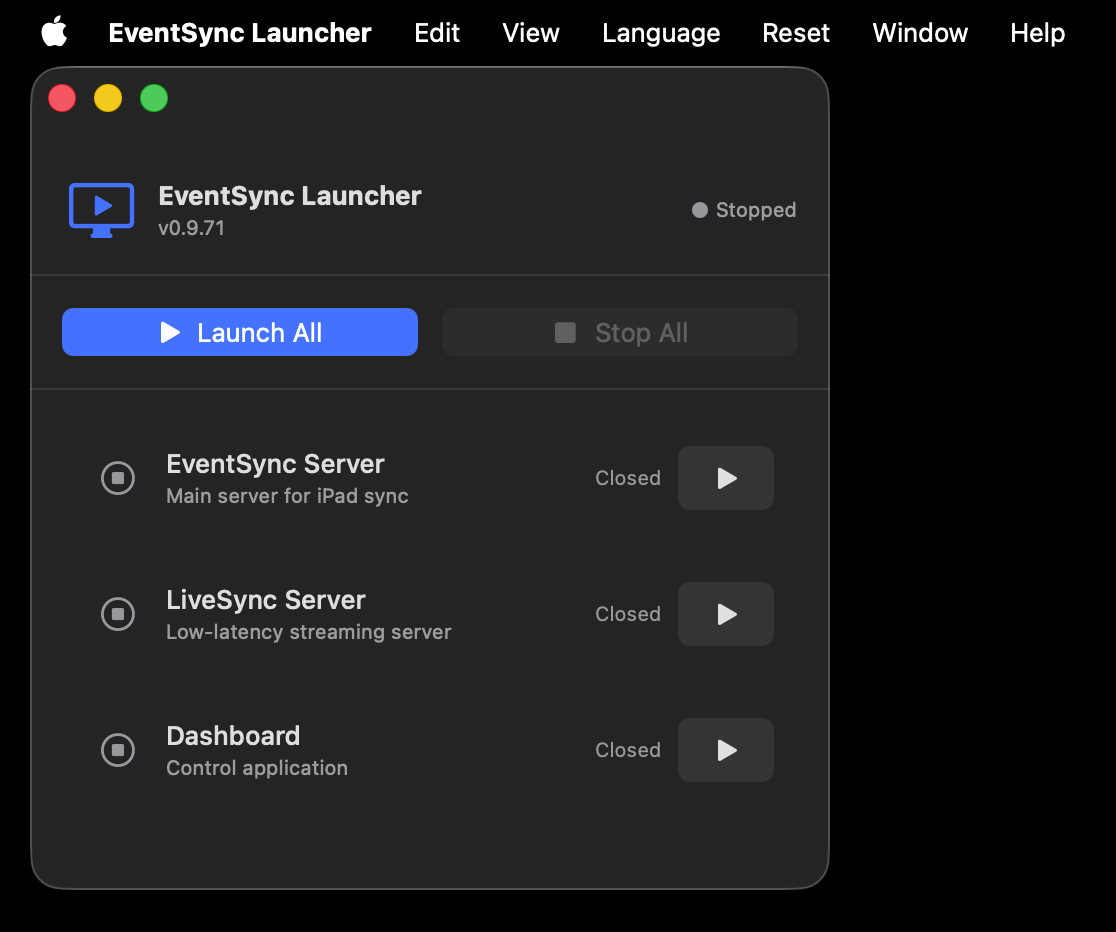
Launcher on first run — click Launch All to bring everything online.
Click Launch All. Within a few seconds all three services should report as running and the Dashboard window opens automatically.
You can also start and stop components individually using the per-service buttons. The Launcher remembers your last configuration — if the last session had only EventSync Server and Dashboard running, Launch All will start just those two again.
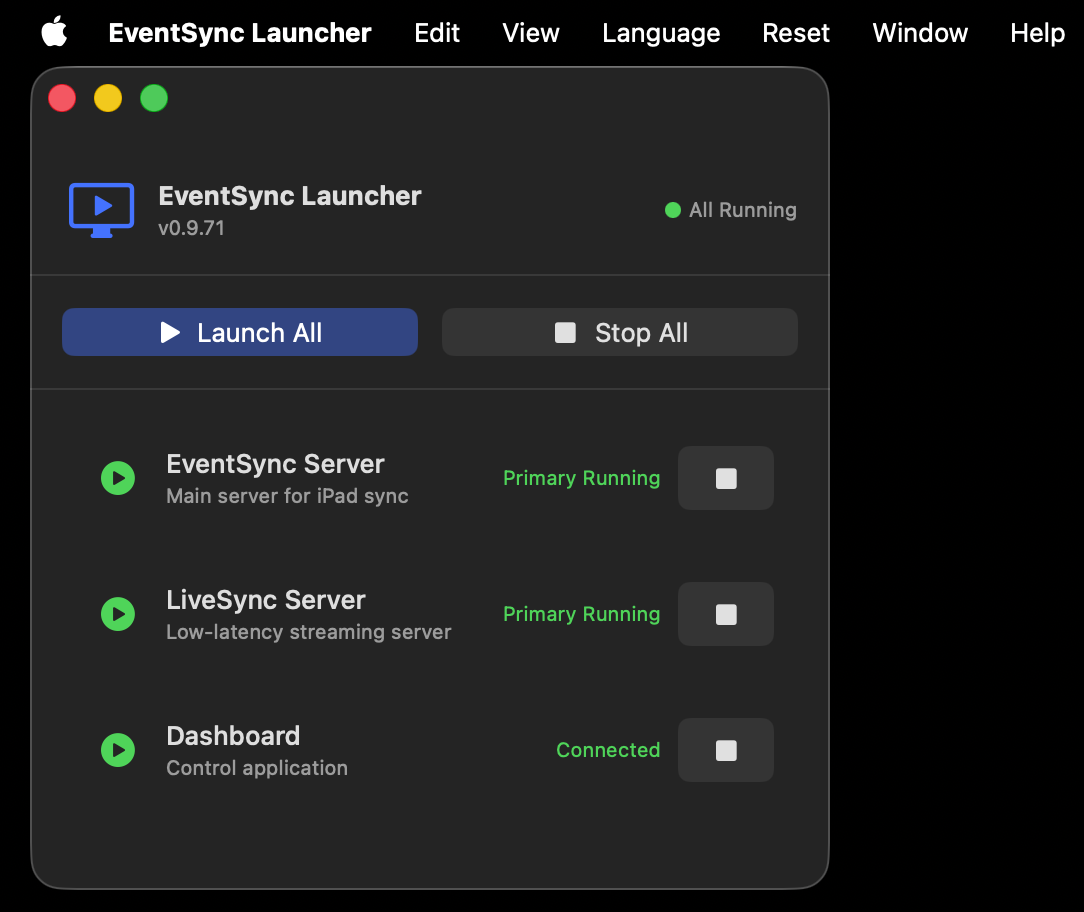
All running — EventSync Server (Primary Running), LiveSync Server (Primary Running) and the Dashboard (Connected).
💡 Best Practice
Before your first show, run a rehearsal on the actual event hardware and network. It shakes out firewall, switch and DHCP surprises while you still have time to fix them.
Platform support
The table below shows what platforms the client app runs on and their uses. Android support is coming very soon.
| Platform | Status | Notes |
|---|---|---|
| iPad — iPadOS 17+, A10 Fusion (iPad 6th gen, 2018) or newer | Supported | Primary client. Free on the App Store. |
| Apple Silicon Mac (M-series) | Supported | Runs the iPad client via "Designed for iPad" from the App Store. Used to drive TVs, LED walls and projectors via HDMI or similar. |
| Android phones | In development | Same functionality as the iOS app. |
| Android tablets | In development | Same functionality as the iOS app. |
| Android TV | In development | For driving large displays when a Mac isn't practical. |
| Intel Mac | Not supported | EventSync requires Apple Silicon. |
Driving TVs, LED walls and projectors
For large displays, run the iPad client app on an Apple Silicon Mac (via "Designed for iPad" on the App Store) and send its HDMI output to the screen. One Mac per display.
Where next?
- To bring up your servers for the first time: The Server Applications.
- To connect the Dashboard to a running server: Connecting the Dashboard.
- To start designing your show: Configure.