
Licensing
EventSync licenses are priced per device and allocated flexibly from a pool. This page covers pricing, the allocation workflow, check-in behaviour and how to return licenses when a show is done.
Getting licenses
Every EventSync server includes two free connections for evaluation and small deployments. Additional licenses can be purchased from eventsync.co.uk.
Pool / allocated / available
Licenses live in your subscription pool. From the pool you allocate a quantity to a specific server. On that server, allocated licenses are either in use by a connected device or available.
Allocations are always reversible — you can return licenses from a server back to the pool and then allocate them to a different server, all without buying anything new.
Signing in and managing licenses
In Dashboard Settings → Licenses, click Manage Licenses. The license portal opens inside the Dashboard.
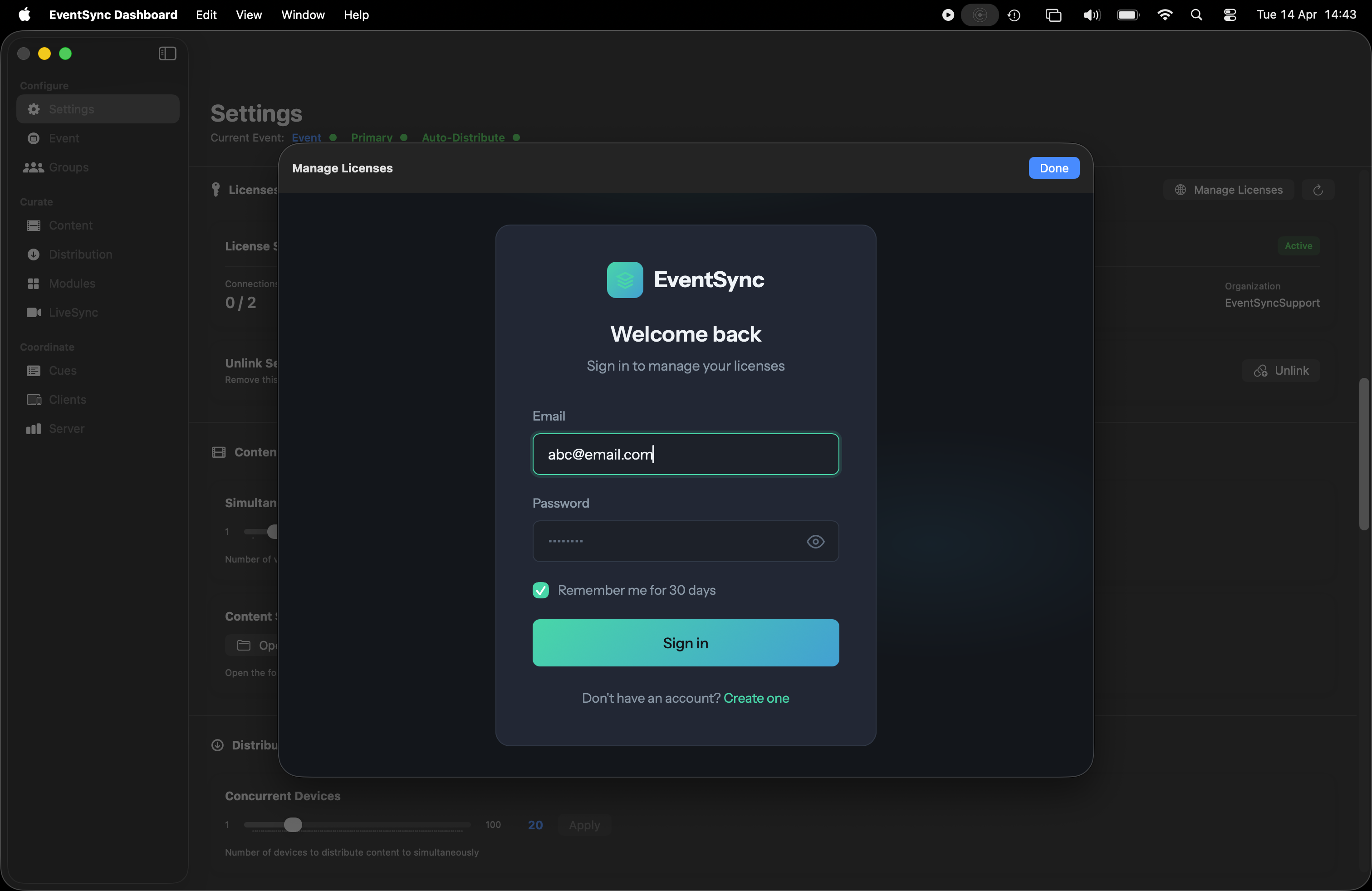
Sign in with the account you created at eventsync.co.uk.
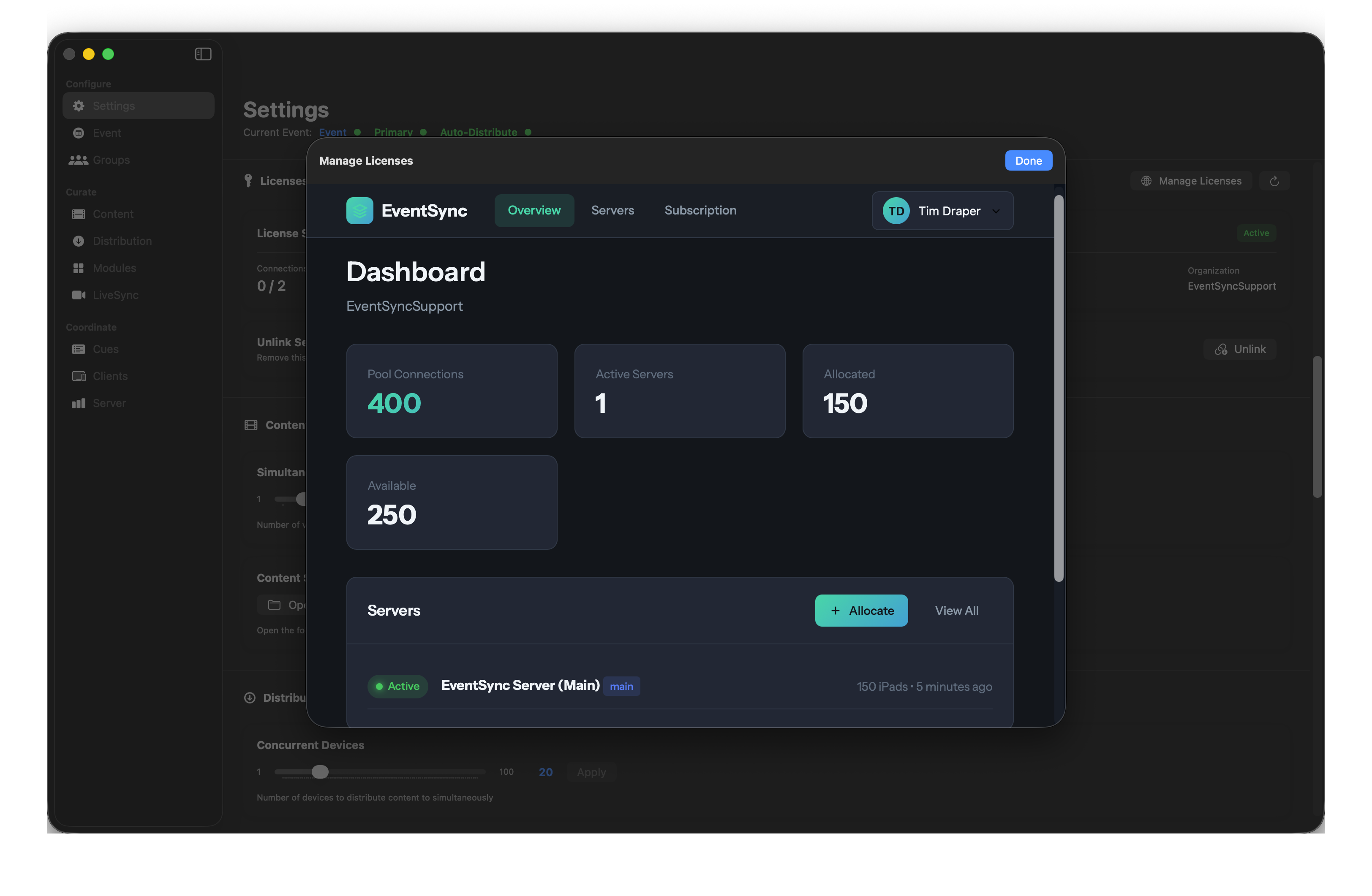
Once signed in, the Overview tab shows the high-level picture of your pool:
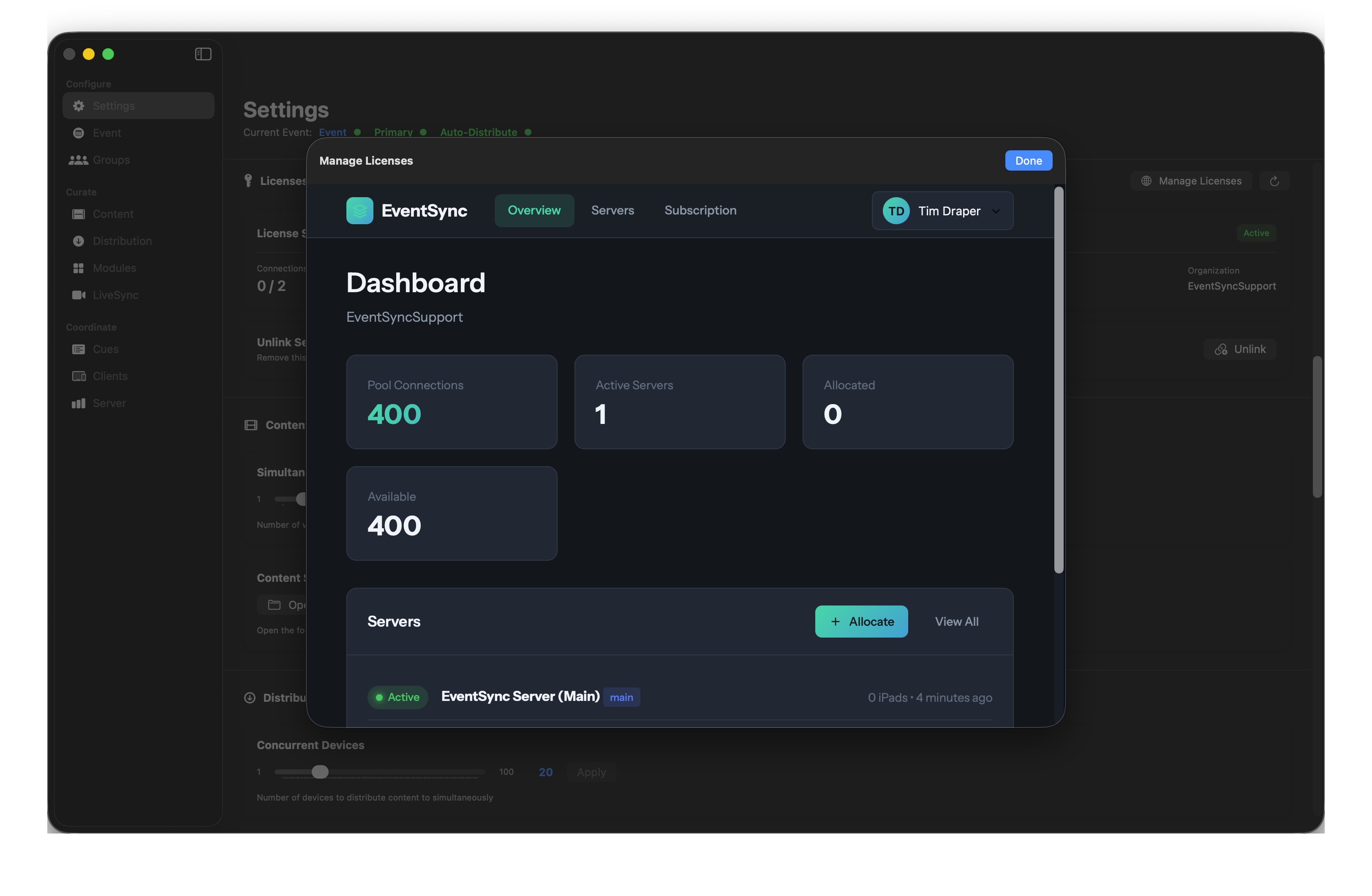
- Pool Connections — total licenses in your subscription.
- Active Servers — how many servers are linked.
- Allocated — licenses currently assigned to a server.
- Available — licenses still free to allocate.
Allocating licenses to a server
Click Allocate from the Overview or Servers tab. Pick the server and enter a quantity.
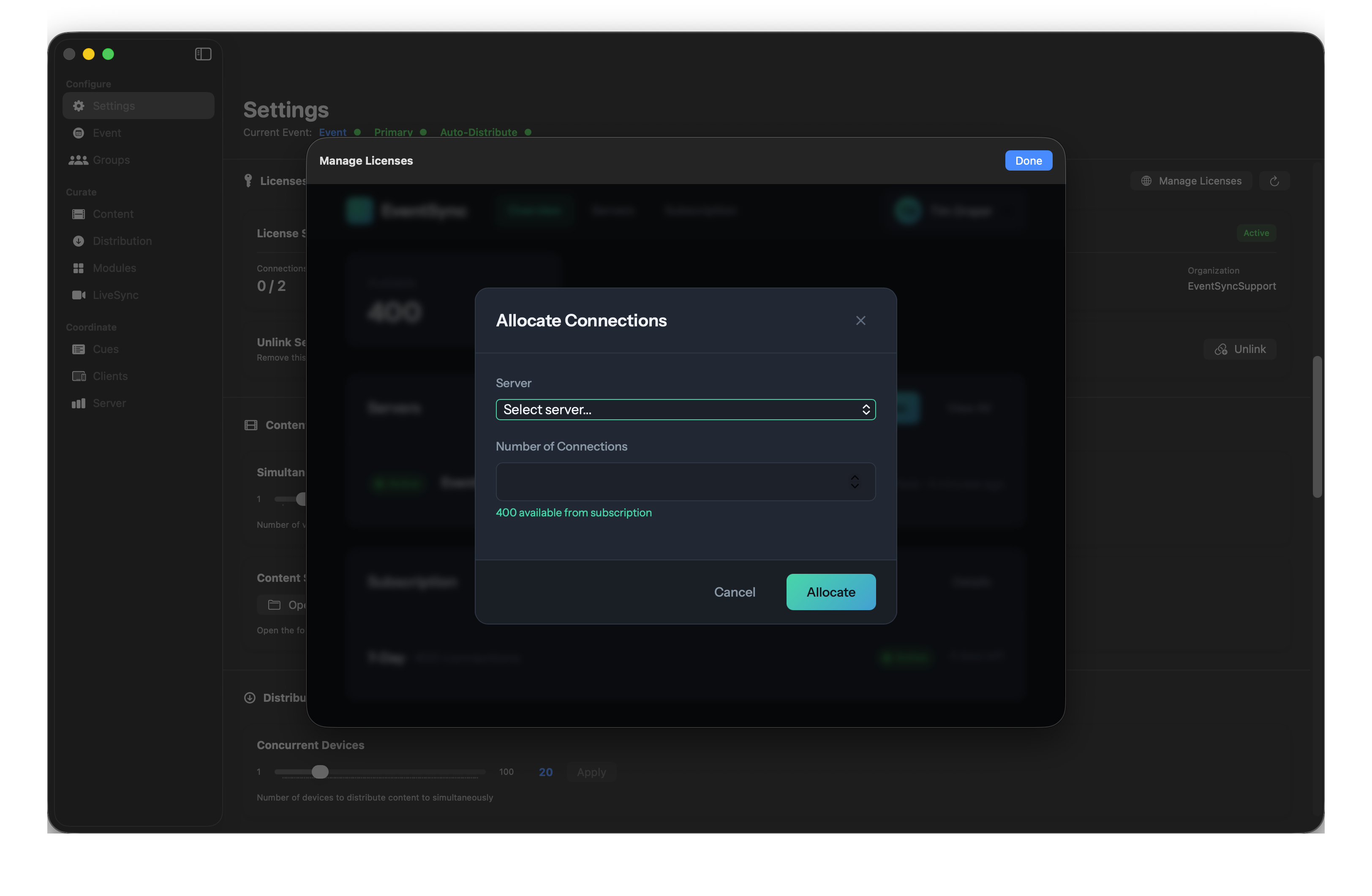
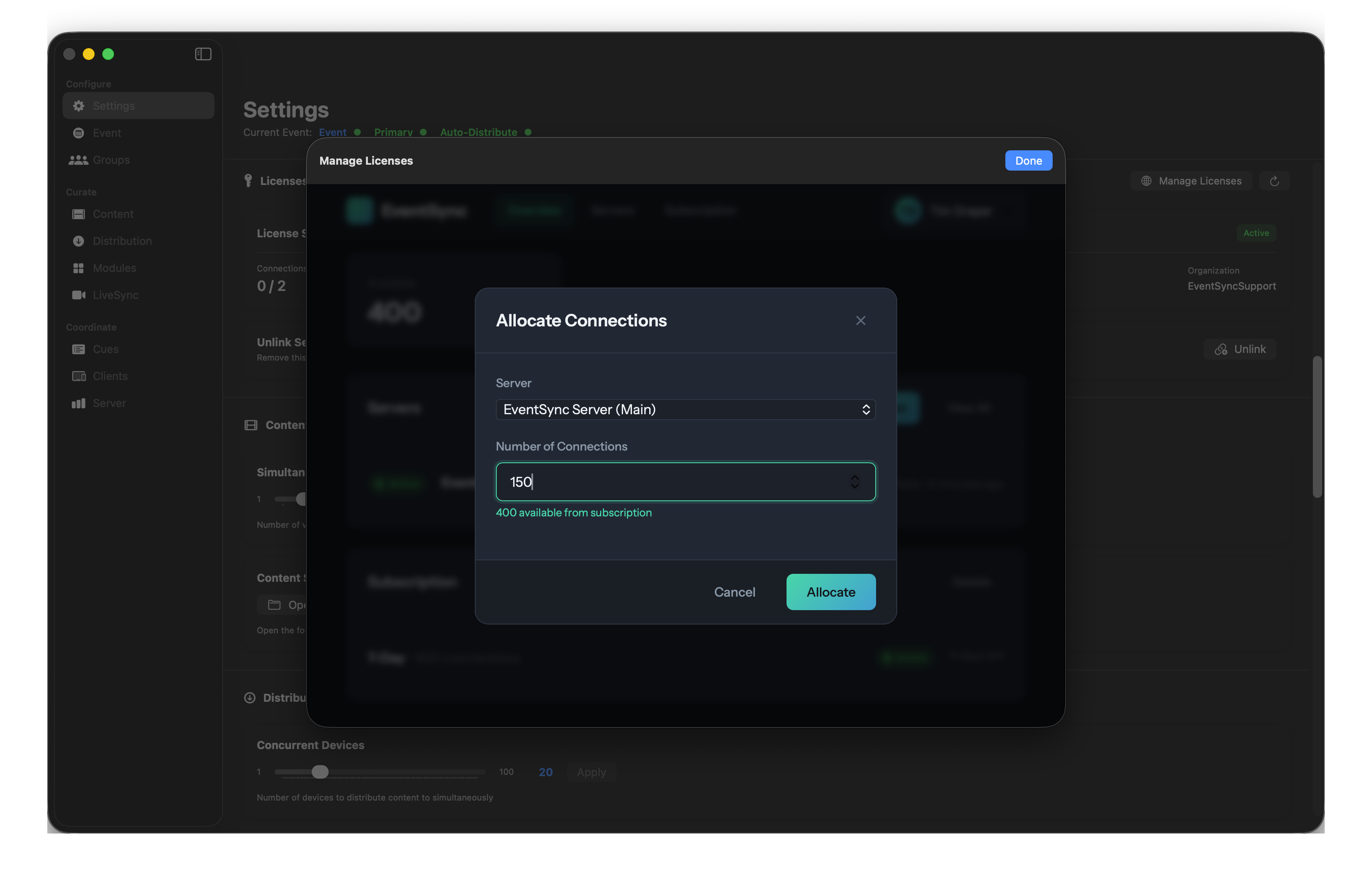
The server refreshes and you'll see the new allocation live in the License Status panel.
💡 Best Practice
Allocate a handful more than you need. devices occasionally reconnect under a different identity after a network blip, and one spare license keeps the show from stalling while it sorts itself out.
Servers tab
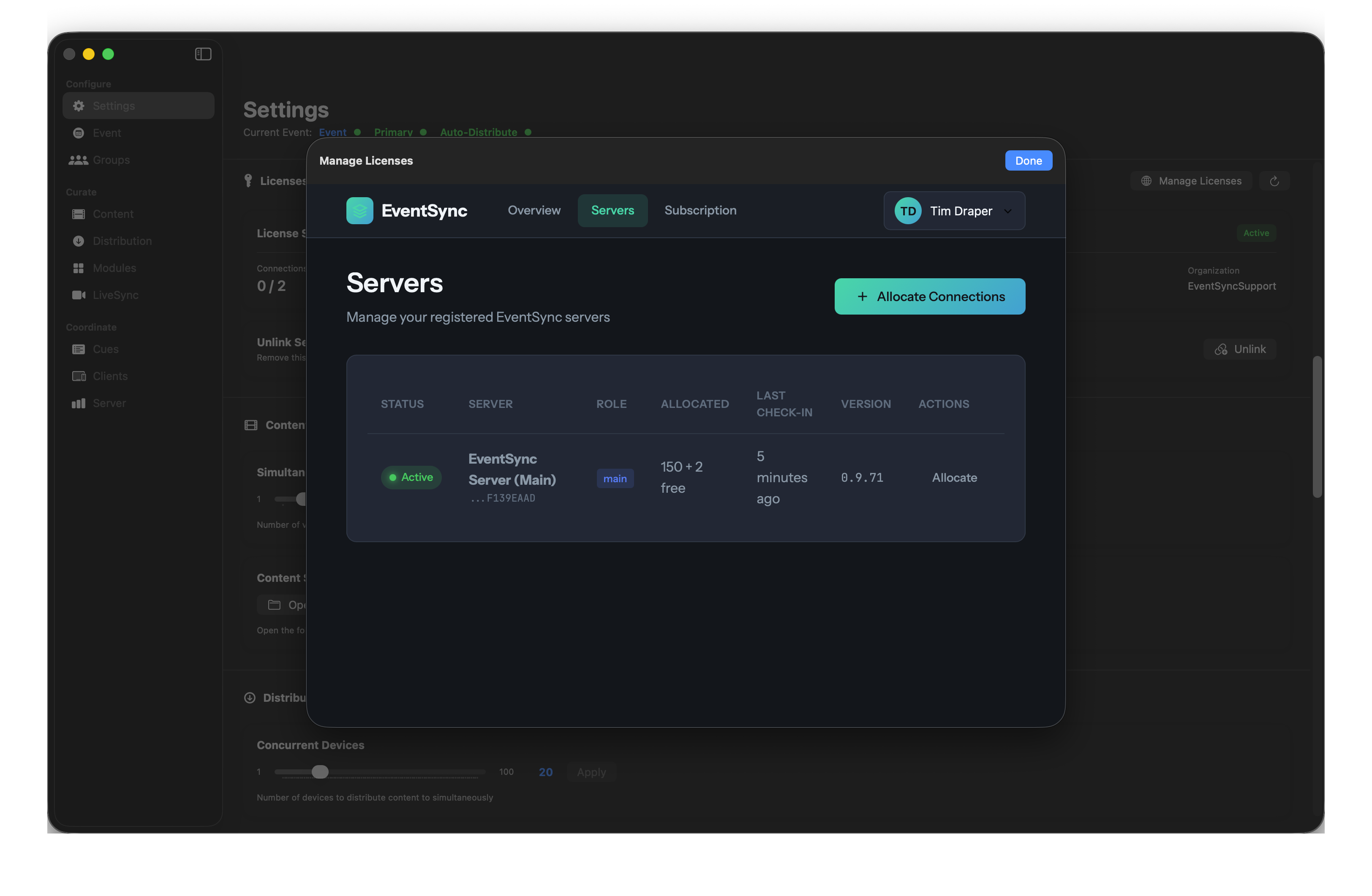
The Servers tab is your flight-deck for multi-server deployments — show allocation, last check-in, version and quick allocate action for every linked server.
Subscription
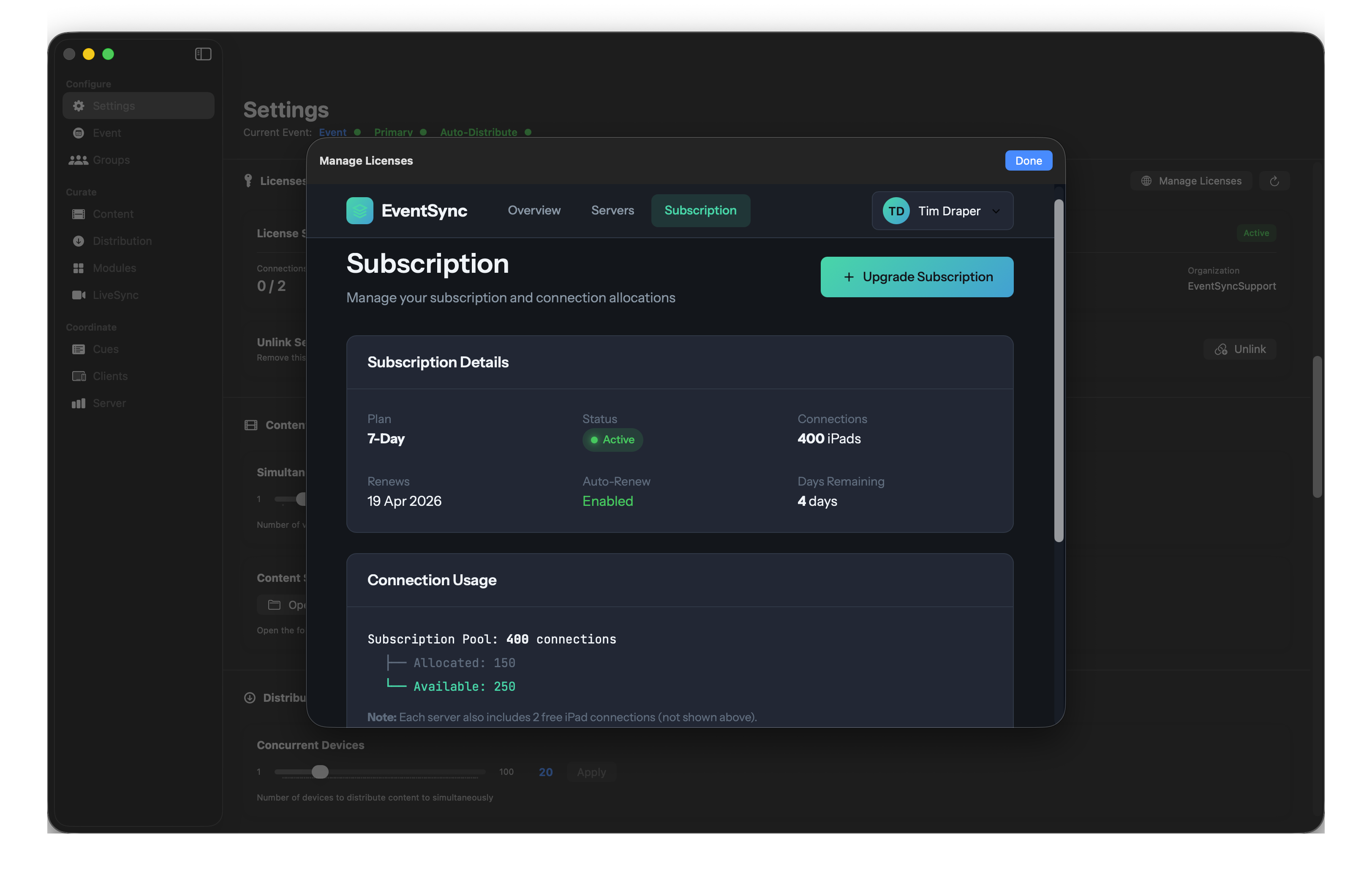
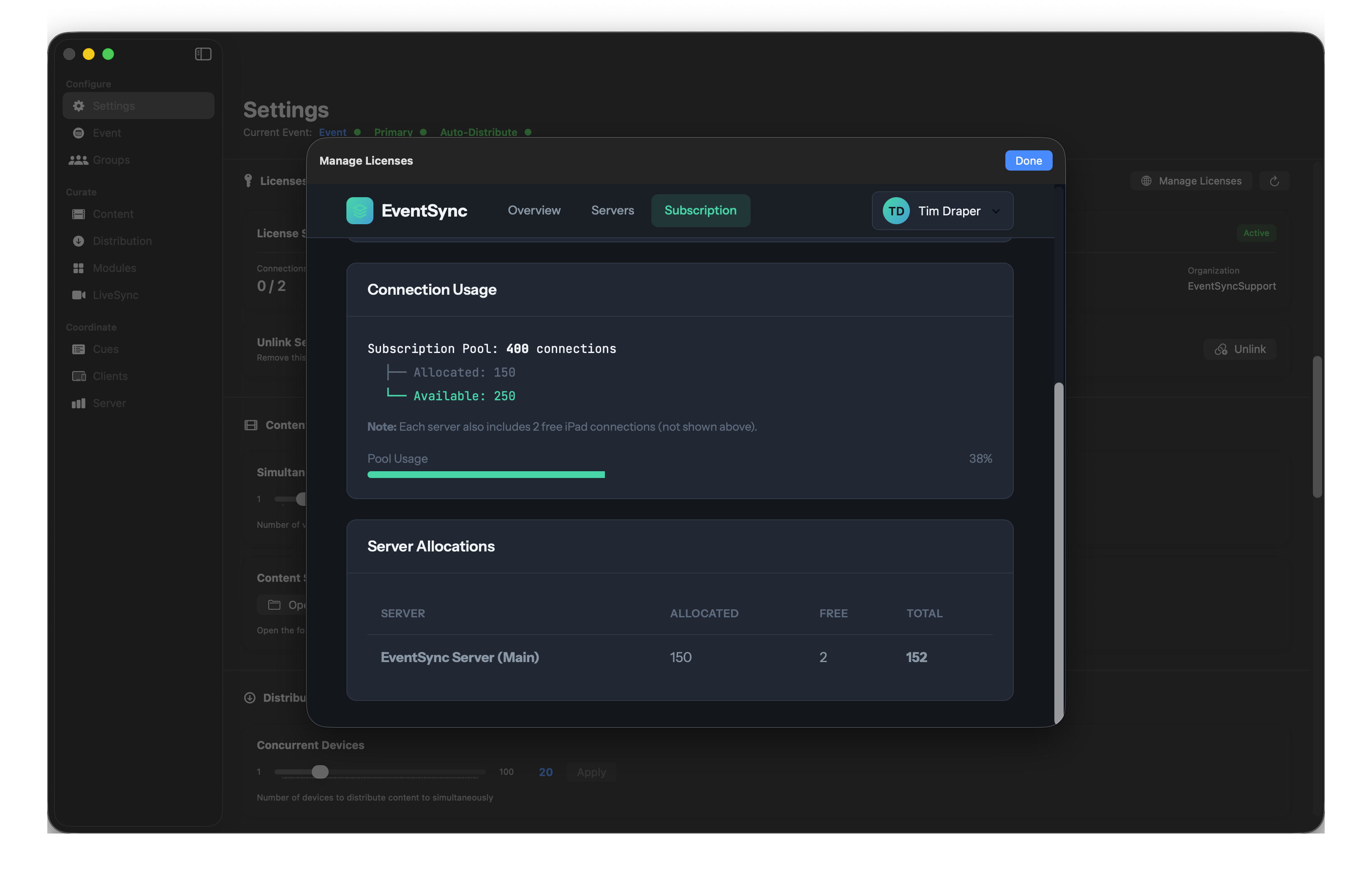
The Subscription tab shows plan details — plan type, connections included, renewal date and days remaining — plus connection usage and server allocations.
Check-in behaviour
Linked servers check in over the internet periodically. Auto-renew check-ins typically run around 3 a.m. the day before renewal. Two grace windows are built in:
- 24-hour grace period after expiry — the server keeps working, you get a visible warning.
- 48-hour total window — after which device connections begin to degrade.
The grace windows are there specifically so overnight internet flakes, venue firewalls or offline get-ins don't interrupt a live show. Plan to be within the window before your event starts, not during.
If your event will run across a renewal and the venue has no internet, contact support in advance — we can renew your licenses early so you go in fully covered.
Returning licenses
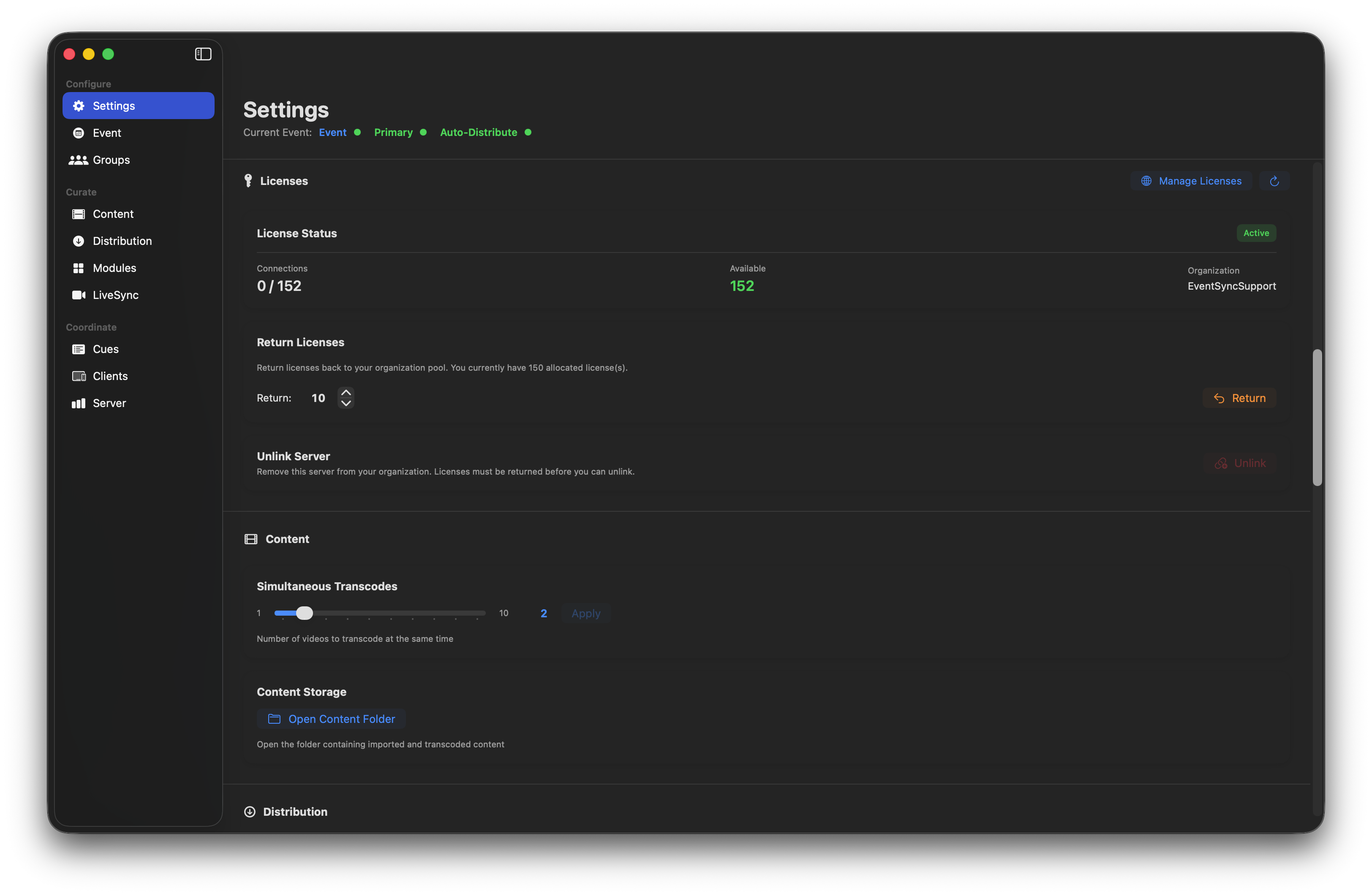
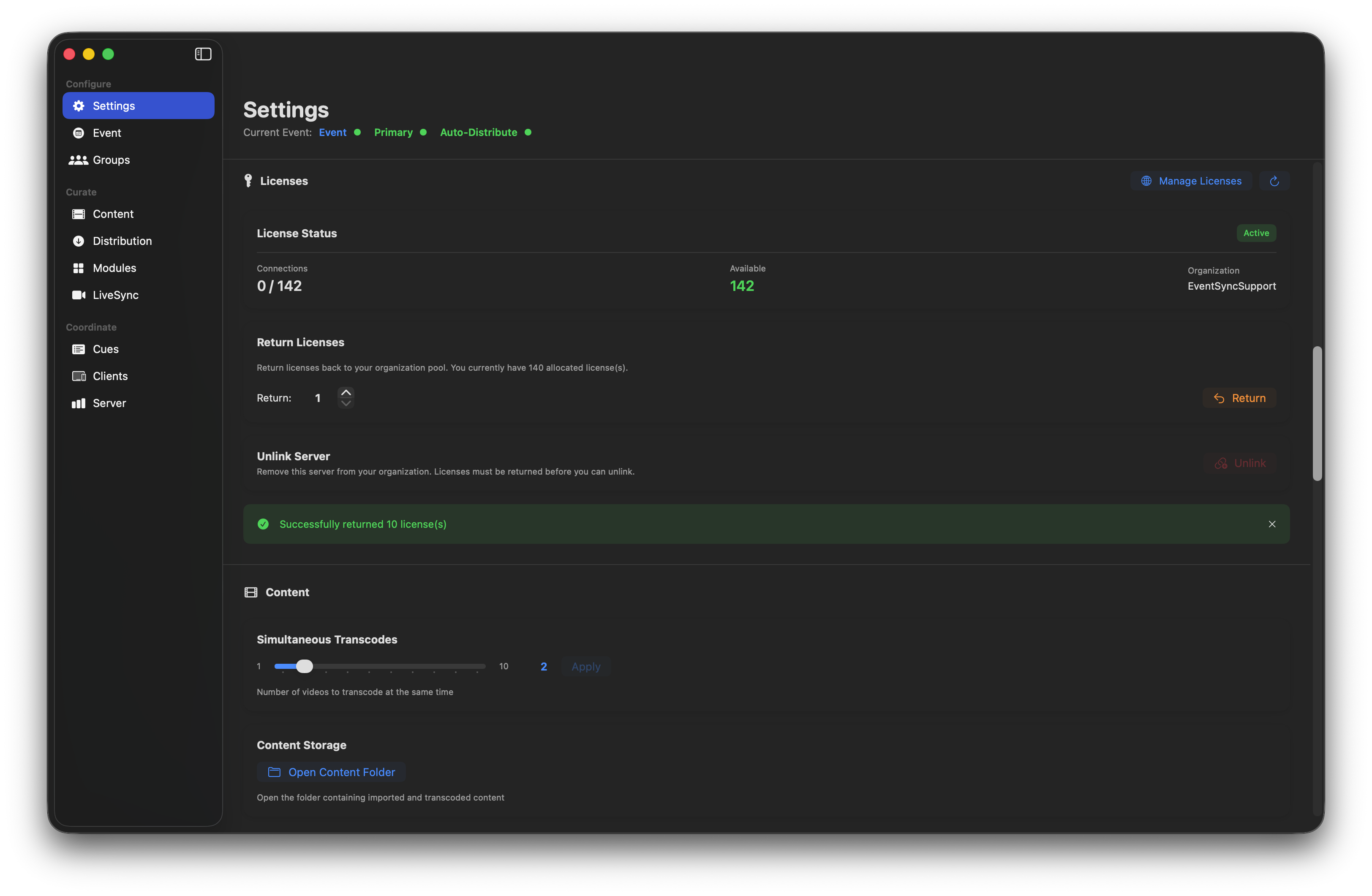
When an event ends, return licenses so they can be allocated elsewhere. From Settings → Licenses on the linked server:
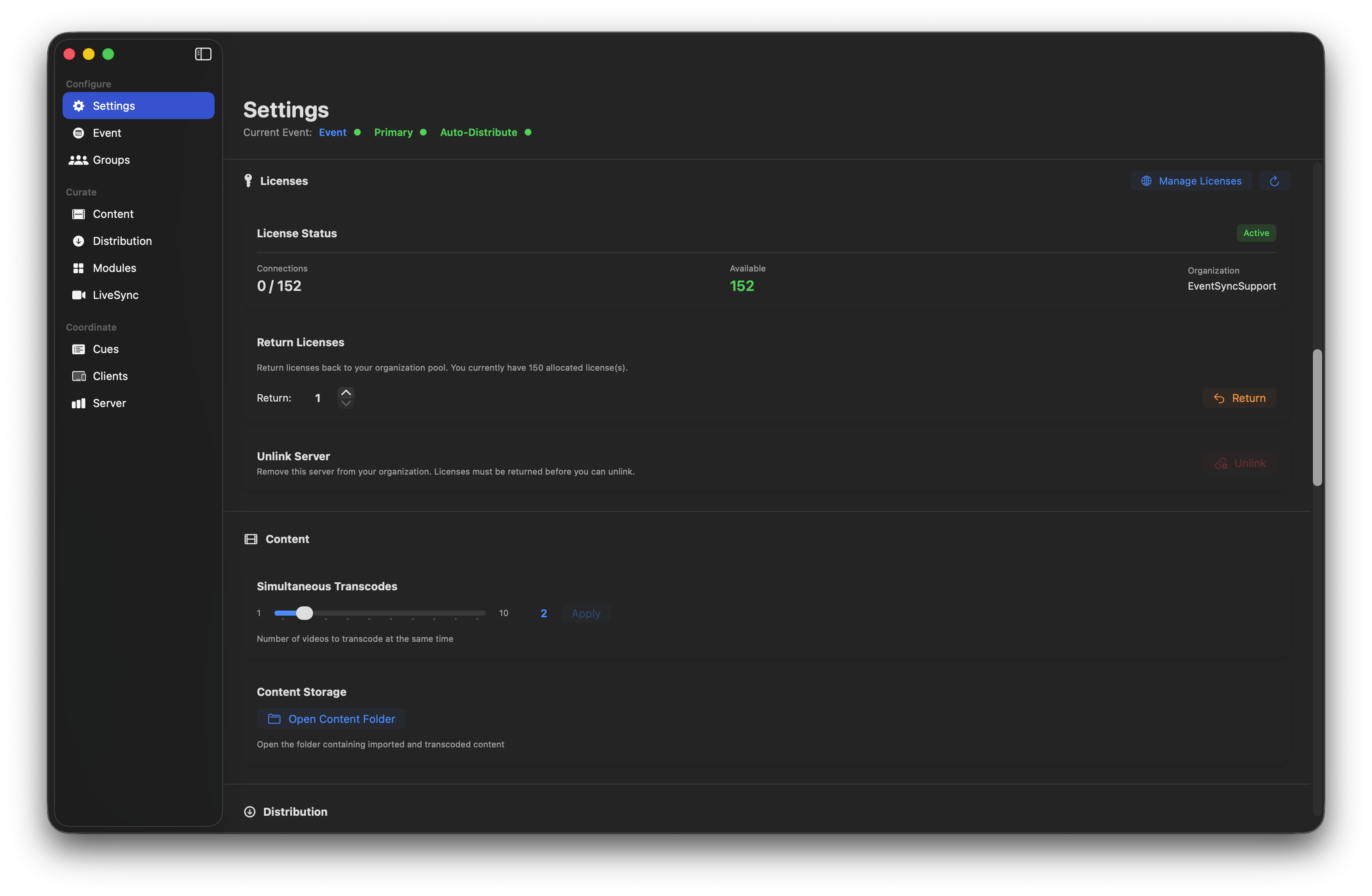
Set a quantity to Return and confirm.
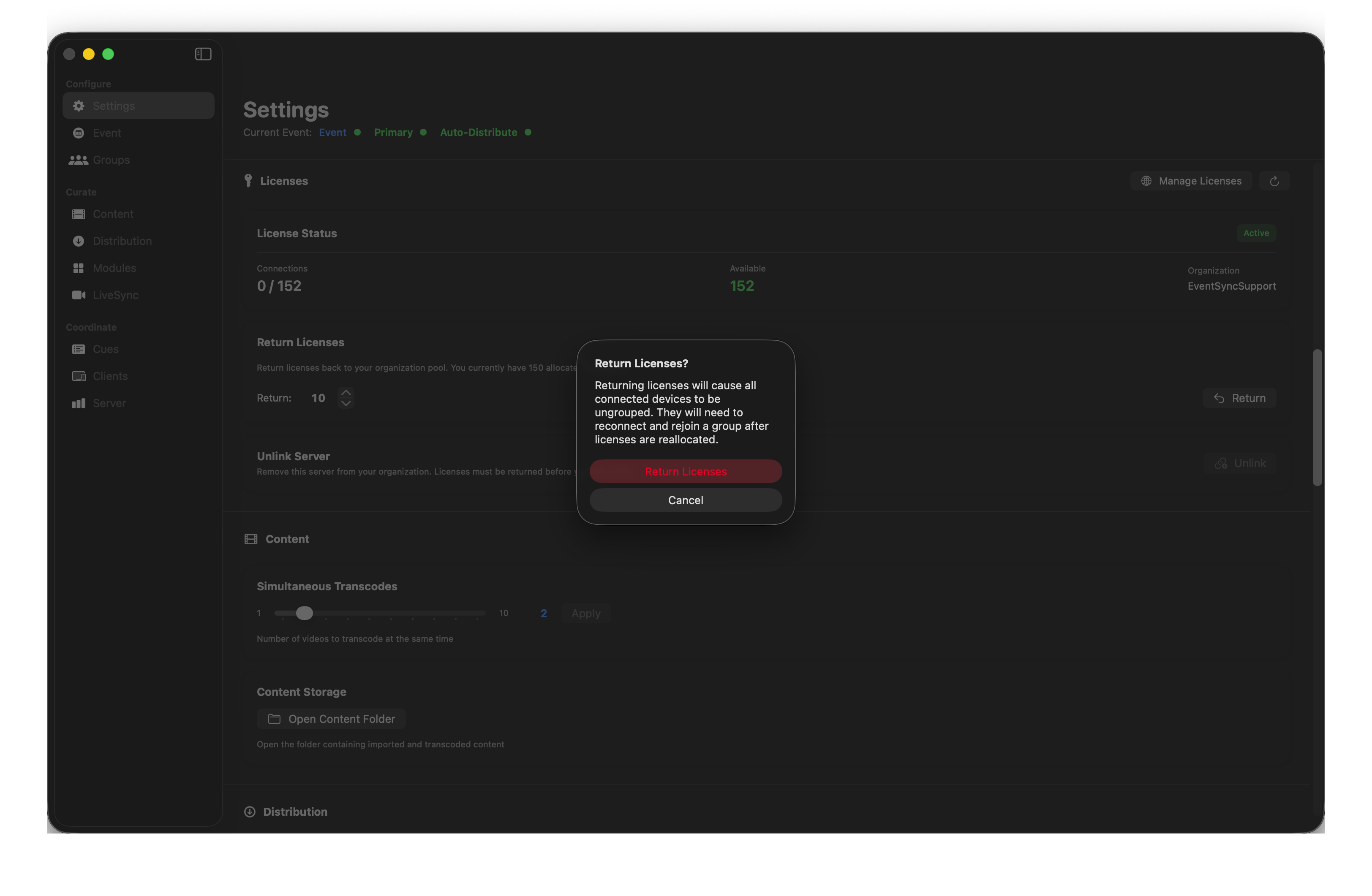
Returning licenses disconnects any devices that were using them — the dialog is explicit about this.
⚠️ Returning is disruptive
Returning licenses disconnects the devices using them — they'll need to reconnect and rejoin a group once licenses are back available. Never do it mid-show. Do it after strike.
Unlinking a server
Unlink Server (also in Licenses settings) returns every license on that server to the pool and severs the server from your account — the server then runs on the 2-connection free tier until relinked. Use this when reassigning a Mac to a different client permanently.
Recovering stranded licenses
If you delete or uninstall EventSync without returning licenses first, reinstall the software and reconnect the server to your account — the licenses can then be returned from the license portal as normal.
If the computer is no longer accessible, please contact support.