
The Server Applications
EventSync ships as four co-operating applications — the Launcher, the EventSync Server, the LiveSync Server and the Dashboard. This page explains what each one does and how to operate it.
EventSync Launcher
The Launcher is the top-level app you open from Applications. It starts, stops and monitors the three services, handles updates, and exposes a Factory Reset for when you need to start clean.
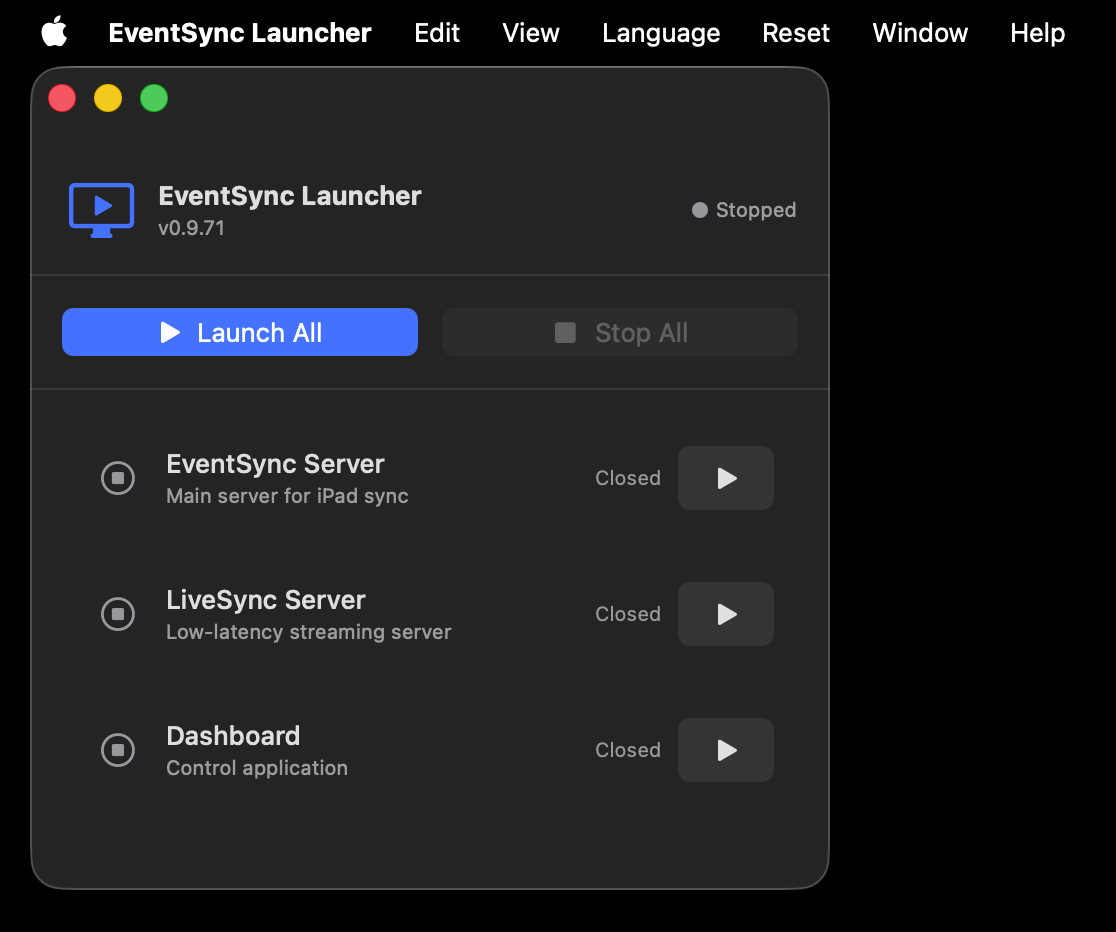
The Launcher when nothing is running.
Launch controls
- Launch All — starts the EventSync Server, LiveSync Server and Dashboard in order. This is the normal way to bring the stack up.
- Stop All — gracefully shuts every service down.
- Each service also has its own Play button if you only want to run part of the stack (e.g. Dashboard-only on a second operator Mac).
The Launcher remembers your last configuration — if the last session had only EventSync Server and Dashboard running, Launch All will start just those two again.
Language
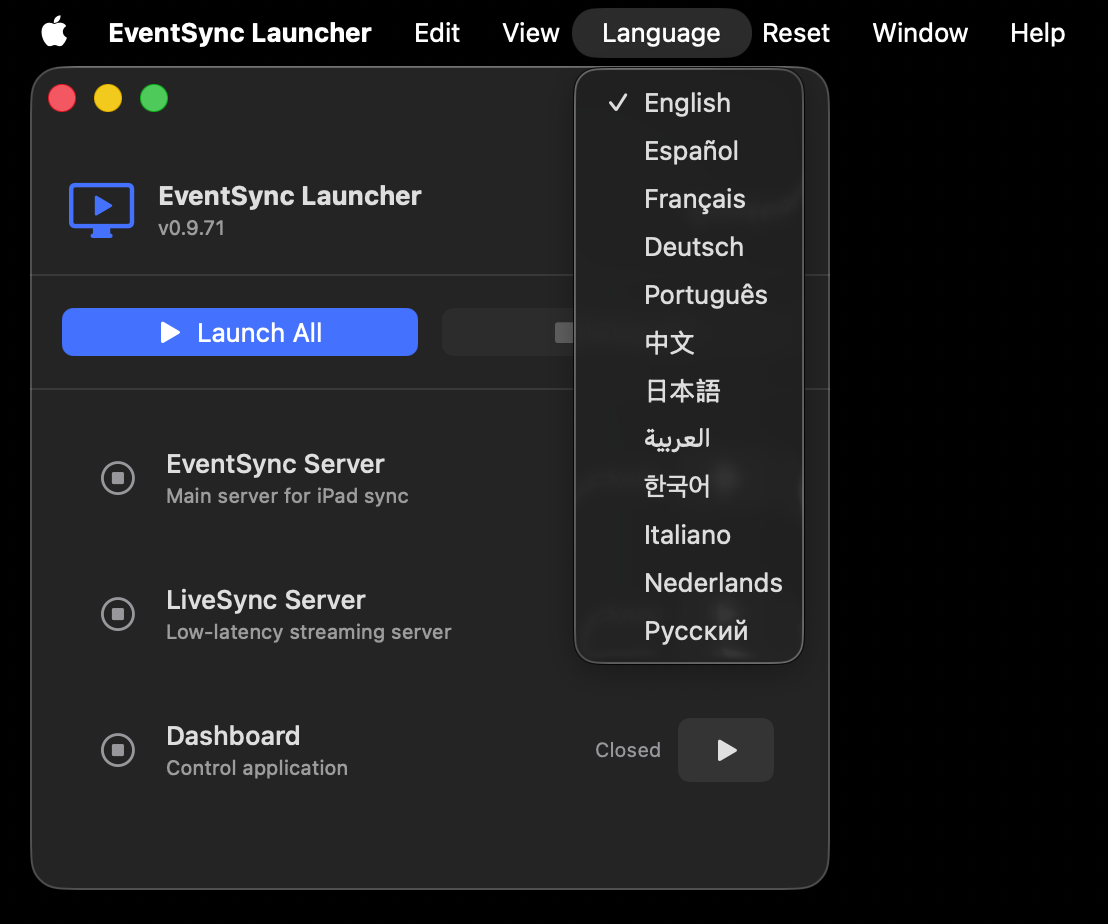
The Launcher, servers, Dashboard and client apps are all localised. Change language from the Language menu — English, Español, Français, Deutsch, Português, 中文, 日本語, العربية, 한국어, Italiano, Nederlands, Русский.
Updates
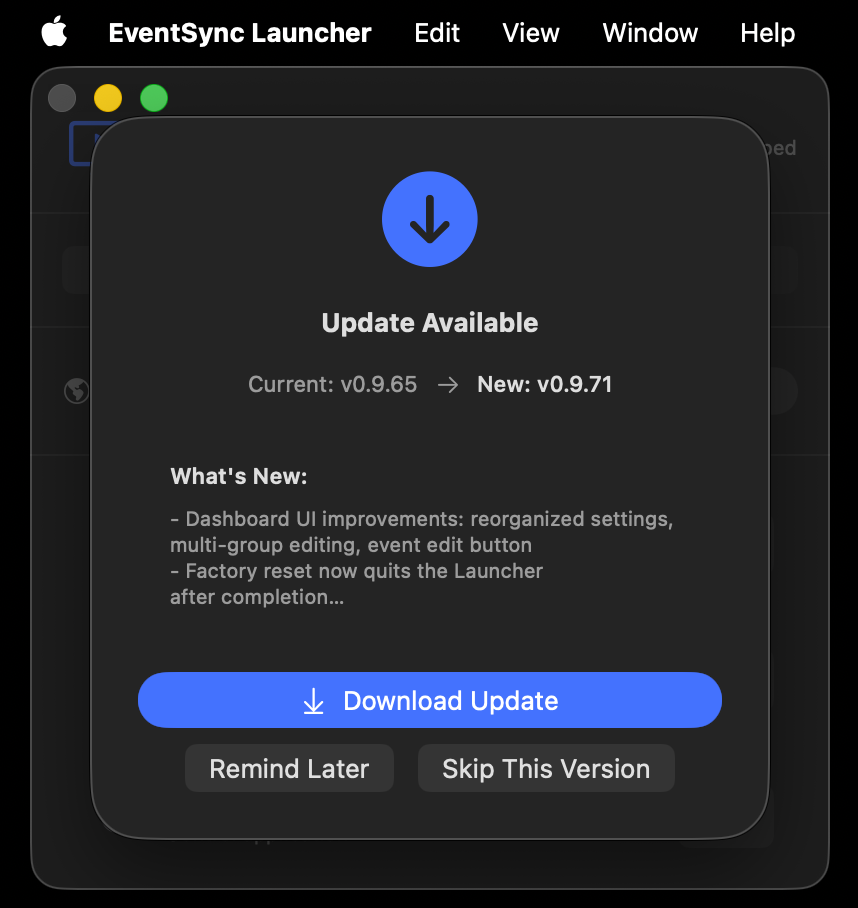
The Launcher checks for updates automatically every time it starts (provided it has internet). You can also check manually via Help → Check for Updates…. When a new version is available you'll see an Update Available window with the changelog. Download the update, then click Install & Restart — the Launcher replaces itself and relaunches.
💡 Tip — update between shows, not during
Choose Remind Later or Skip This Version if you're on site. Never update the Launcher during a live event.
Factory Reset
Reset → Factory Reset… permanently wipes everything the server has stored. Use it when you want a genuinely clean slate between clients, or if support has asked you to reproduce an issue from a known state.
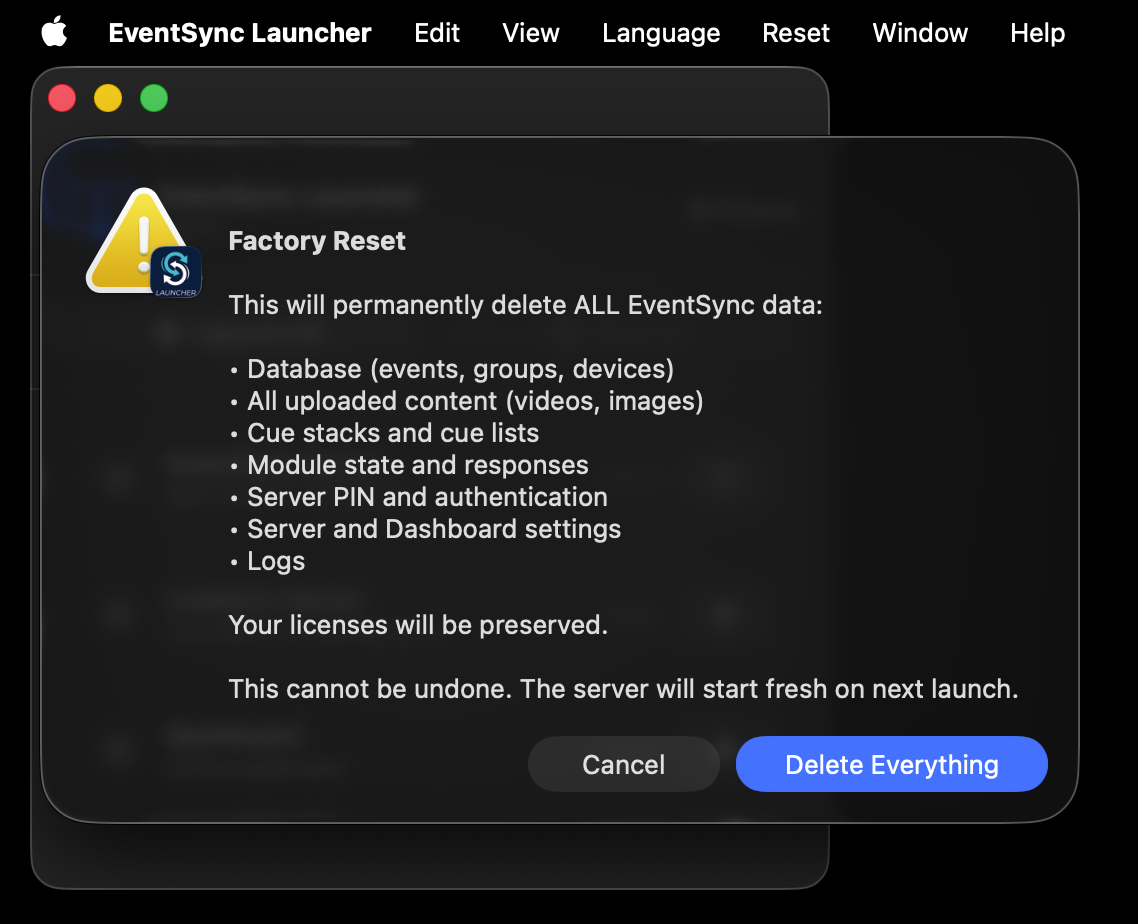
Factory Reset confirmation — explicit about what it does.
Factory Reset deletes:
- The database (events, groups, devices).
- All uploaded content (videos, images).
- Cue stacks and cue lists.
- Module state and responses.
- Server PIN and authentication.
- Server and Dashboard settings.
- Logs.
It preserves your licenses — they stay attached to the server. The server starts fresh on next launch, as if you'd just installed.
⚠️ Factory Reset is destructive and irreversible
Always Export Event first if you want to keep the show. See Import / Export.
EventSync Server
The EventSync Server is the core application, running on port 8080 (changeable from the Server window while the server is stopped). It handles every device connection, stores your content and event data, distributes assets to devices and fires cues.
First-boot setup (security certificate)
EventSync serves every connection over an encrypted, private connection. To do that, a brand-new server needs its own security certificate. This now happens automatically the first time you start a fresh server — there's no flag to set and no manual step. On first launch the server enrols its certificate from the EventSync licensing service. A fresh machine self-registers on the free tier, so you don't need a paid licence for this step — you only need the internet.
This is a one-time setup. Once the certificate is provisioned it's stored on the machine, and the server runs fully offline from then on.
📶 Air-gapped venues — provision before you travel
Because first-boot setup needs the internet once, provision every new server machine while it's online — at the office or on any internet connection — before it goes to a venue with no internet. After that one-time setup it works on a fully isolated show network forever.
If a never-provisioned server can't reach the internet on first launch it will not start (it won't fall back to an insecure mode). Instead the Server window shows a clear message explaining what went wrong, followed by a Server ID that uniquely identifies this machine to us:
Couldn't reach the EventSync licensing server to set up this server's security certificate. Connect this Mac to the internet and restart — this is a one-time first-boot step.
Server ID: 46B454AF-…
Please email this Server ID and the message above to [email protected] and we'll help get you running.
In most cases connecting the machine to the internet and restarting completes setup. If it still won't start, use the popup's Copy details or Email support button and send us the Server ID and message — that ID lets us identify your exact server and sort it out quickly.
Enrolling devices — the enrolment link
Before an iPad or Android player can connect, it must enrol with the server so it's trusted. You can either type the server PIN on the device, or send devices an enrolment link — the quickest way to bring a fleet online, and the way to push enrolment through an MDM.
Open the Device Enrolment panel in the EventSync Server window to find everything you need:
- Copy enrolment link — copies the full enrolment payload to the clipboard without opening the QR. This is the exact text a device (or your MDM) needs to enrol.
- Show / Open large QR — displays the QR full-screen for devices to scan. The large view now shows the full server address and the complete enrolment link as selectable text, each with its own copy button, so nothing is cut off.
- Rotate link — generates a brand-new enrolment link and immediately invalidates the previous one.
🔗 The link is stable — send it once
The enrolment link stays the same across server restarts, so you can send it to your MDM once and reuse it. It only changes if you press Rotate link or the server's IP address changes. Use Rotate link as a security control — if a link is ever shared too widely or leaks, rotate it to invalidate it, then send the new one.
Setting a server PIN
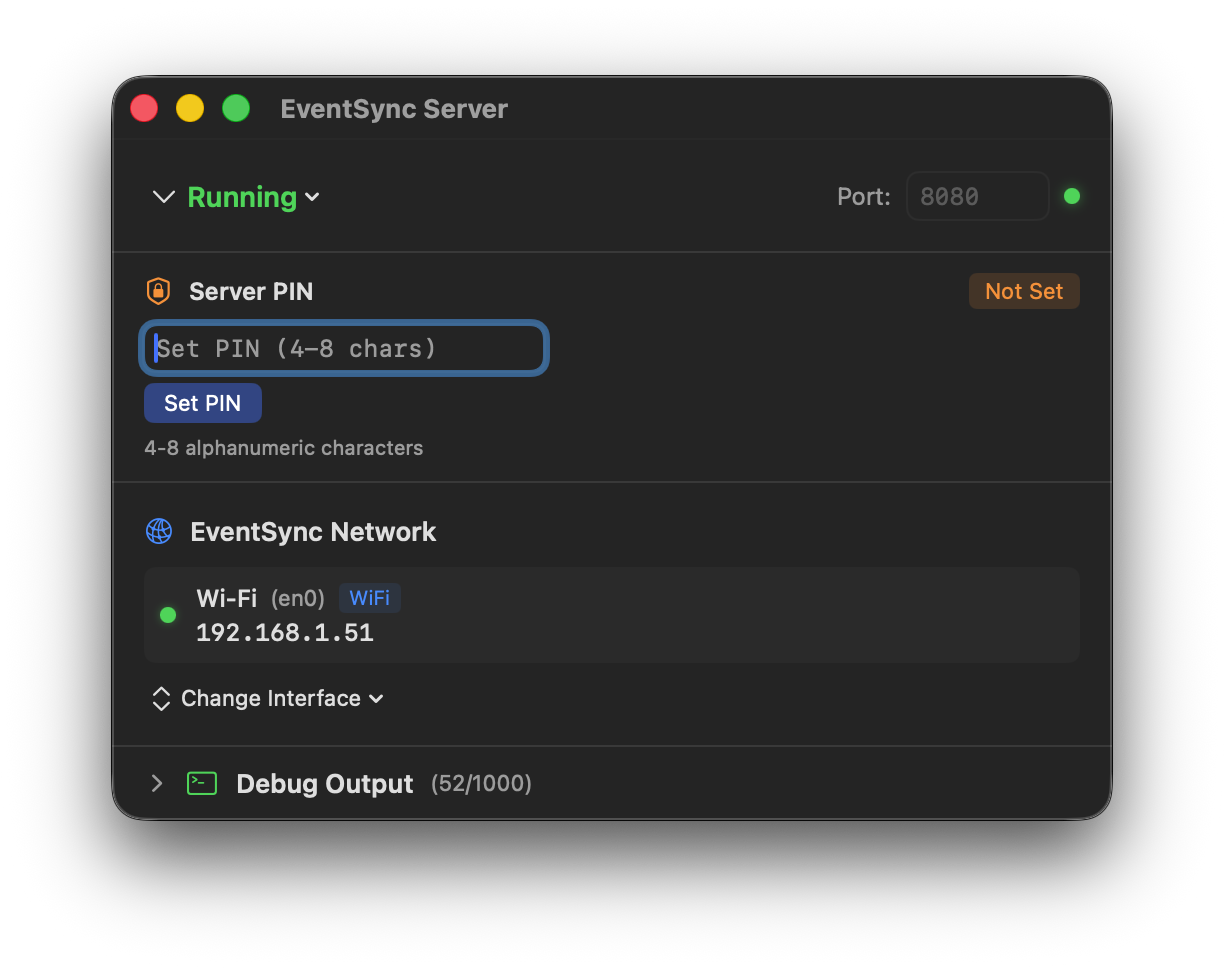
Every server should have a PIN. The Dashboard needs the PIN to connect and devices need it too if you've enabled PIN-protected client mode. PINs are 4–8 digits and are set directly in the EventSync Server window.
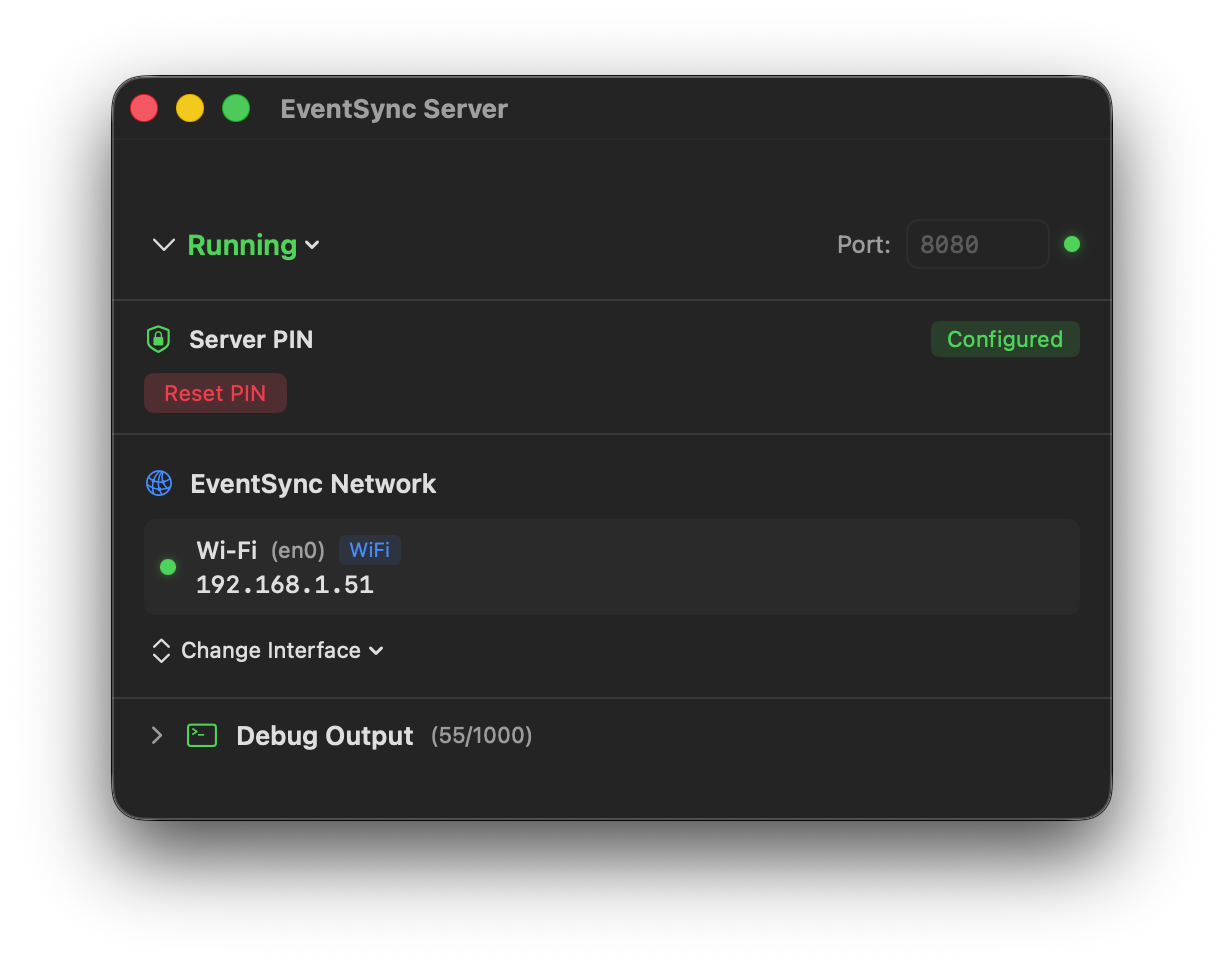
Once set, the PIN badge turns green. Use Reset PIN to clear it.
Primary vs Backup
The Server runs in one of two roles:
- Primary — the live server controlling the show. This is what you want for a single-server setup.
- Backup — a standby server that continuously mirrors the Primary's event, content, modules and cues. Switchover is manual — the operator clicks Take Control to use the backup machine. See BackupSync for the full setup.
Pick the role from the dropdown when the server is stopped.
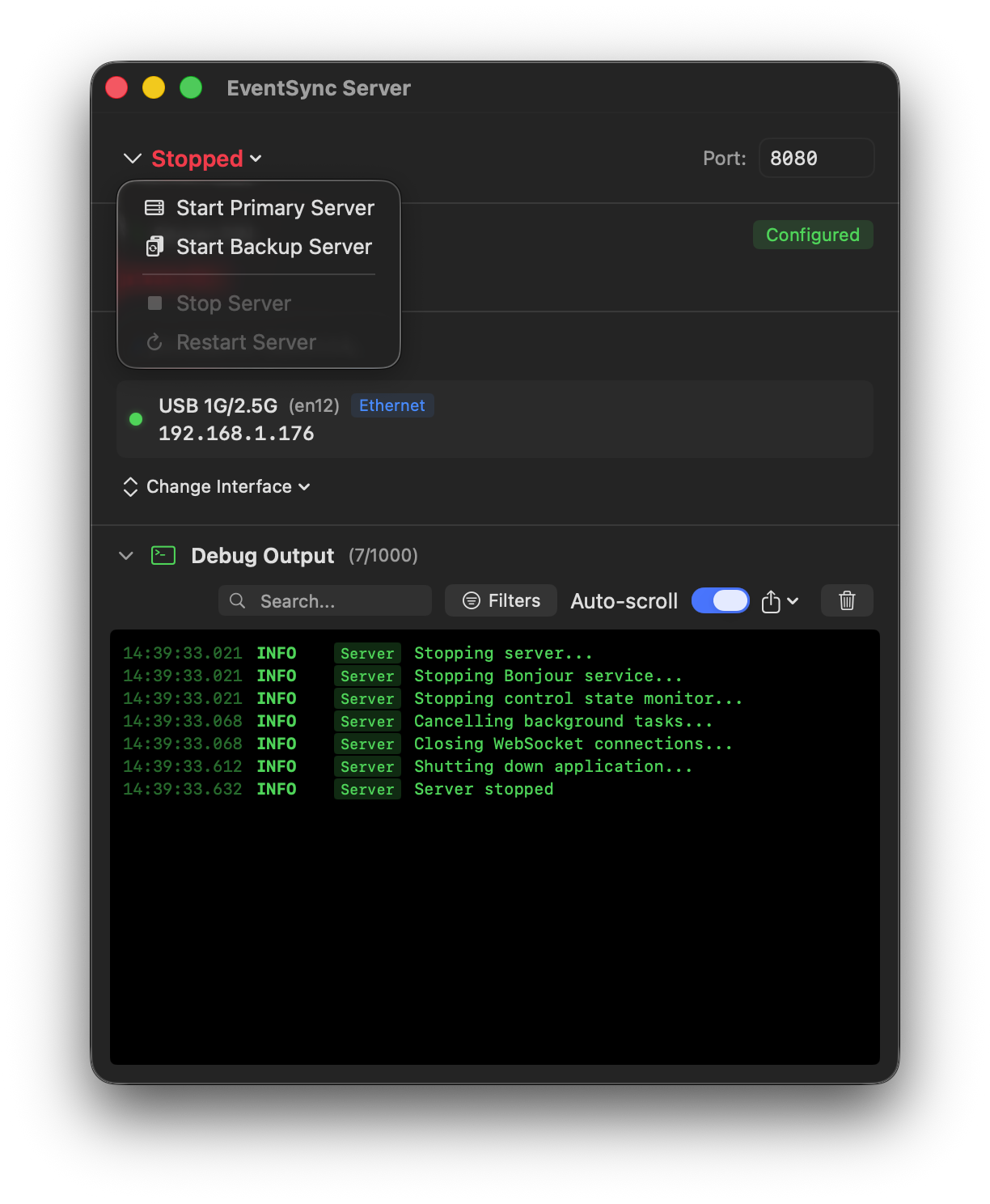
When an EventSync Server or LiveSync Server starts it scans the network for others already running. Only one Primary of each service can exist on the network at a time. You can run as many Backups and (for LiveSync) Relays as you need. If a second server tries to start as a Primary while one is already running, it will stop itself and show a warning.
Network interface
The server binds to a single network interface — the one devices will reach it on. Pick it from Change Interface. The server restarts automatically after a change.
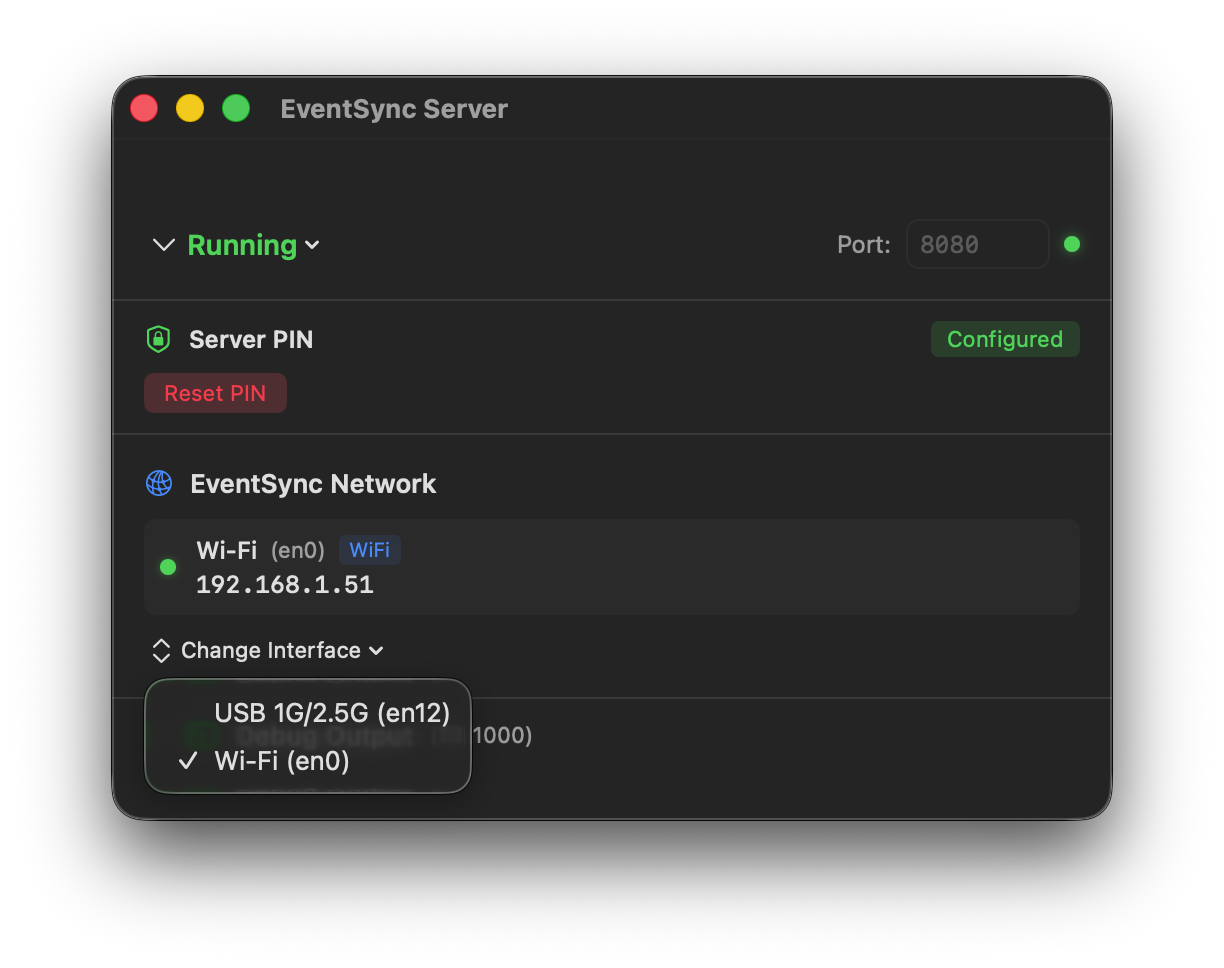
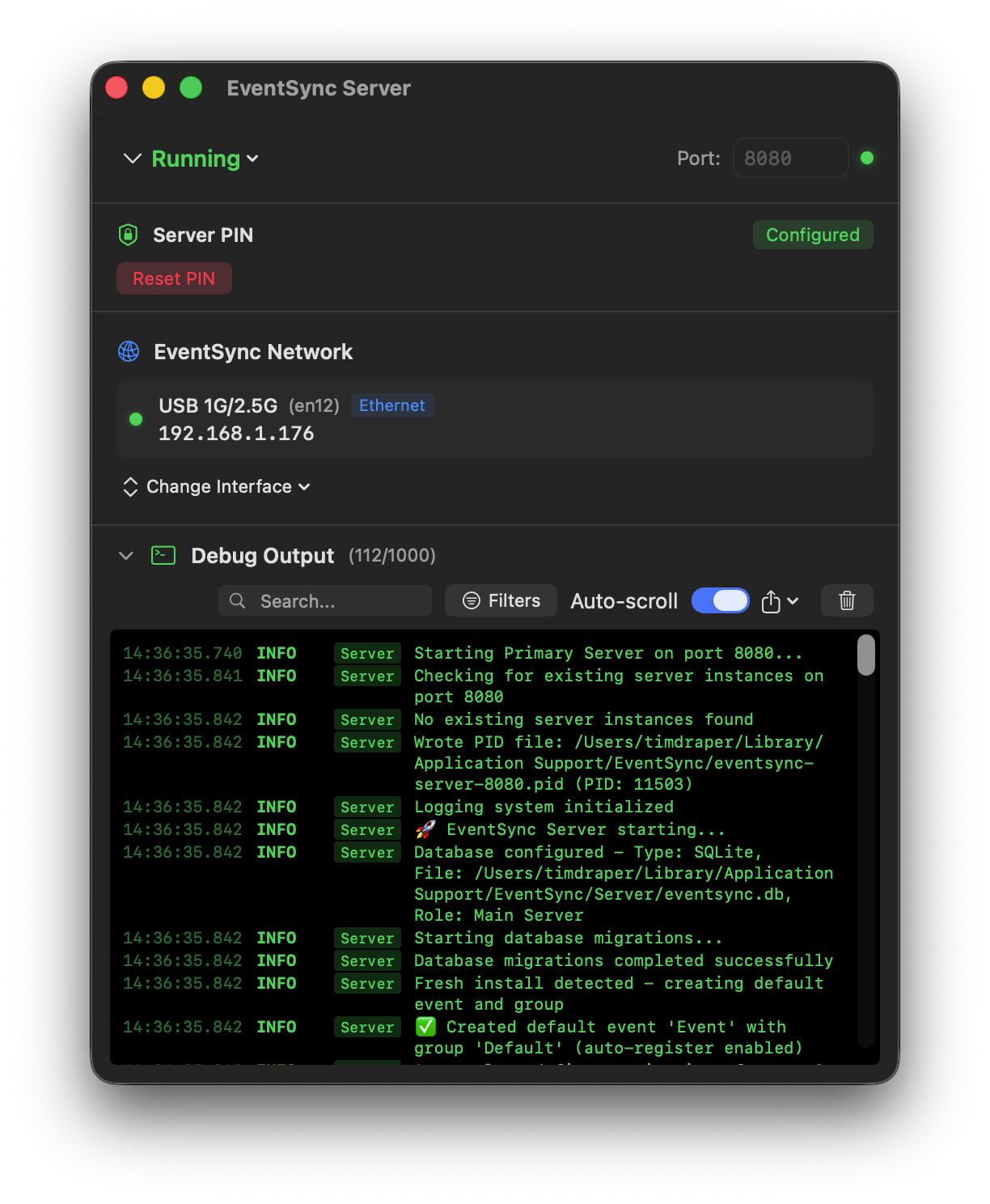
Server running on a USB-C 2.5 GbE adapter — the typical show configuration.
💡 Best Practice
Pick a wired interface for the EventSync Network whenever you can. Wi-Fi works for testing but adds a variable on show day you don't need.
Debug output, logs and support
The bottom of the Server window is a live log output. Use the filter and search to find a specific event. The export menu (top-right of Debug Output) gives three options:
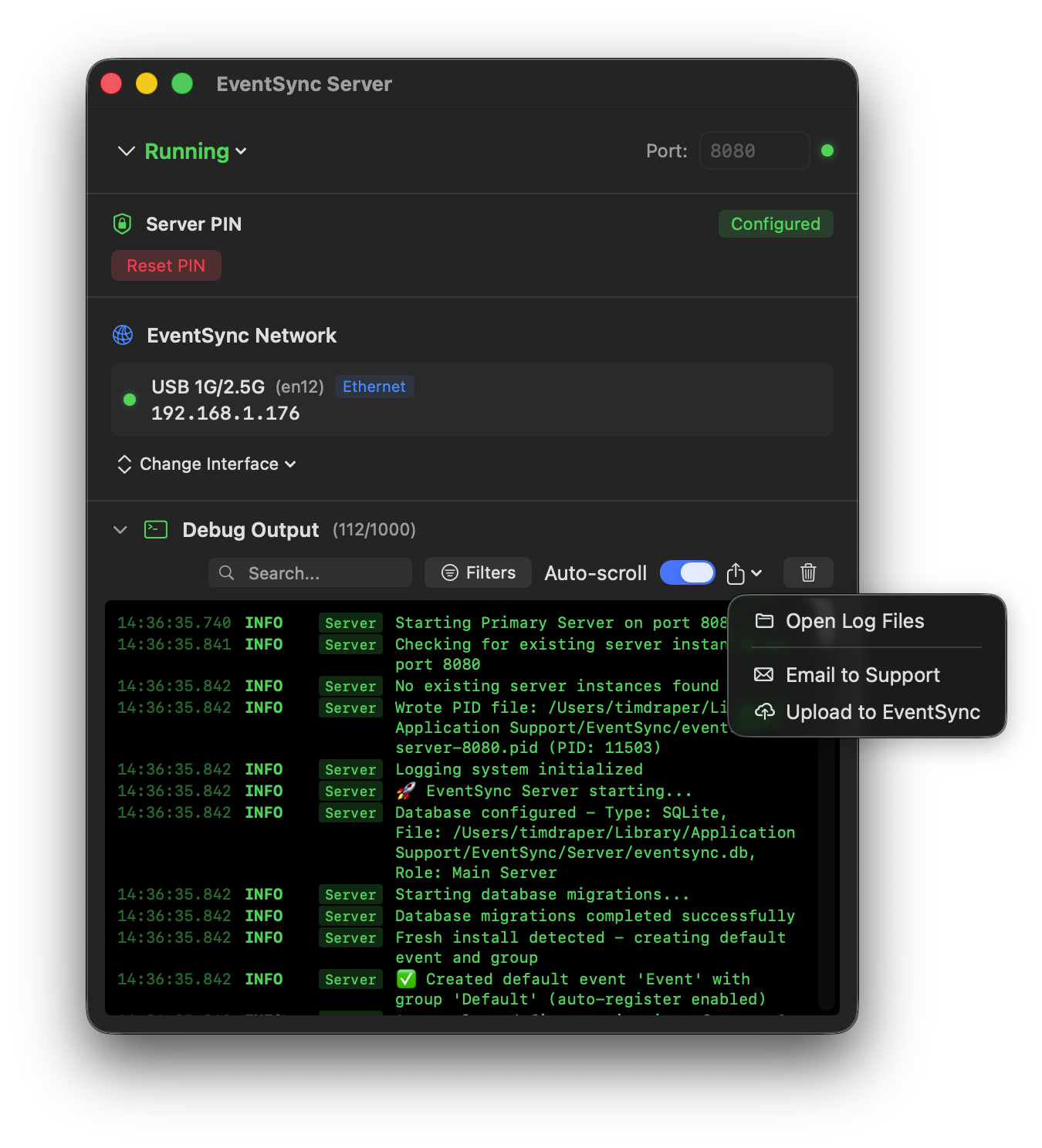
- Open Log Files — opens the folder
~/Library/Application Support/EventSync/Logs/Server/. Hourly log files, auto-cleaned after 6 hours. - Email to Support — opens a helper with the right email address and a pre-filled template to paste into your mail client.
- Upload to EventSync — uploads the log bundle straight to us, with a short description.
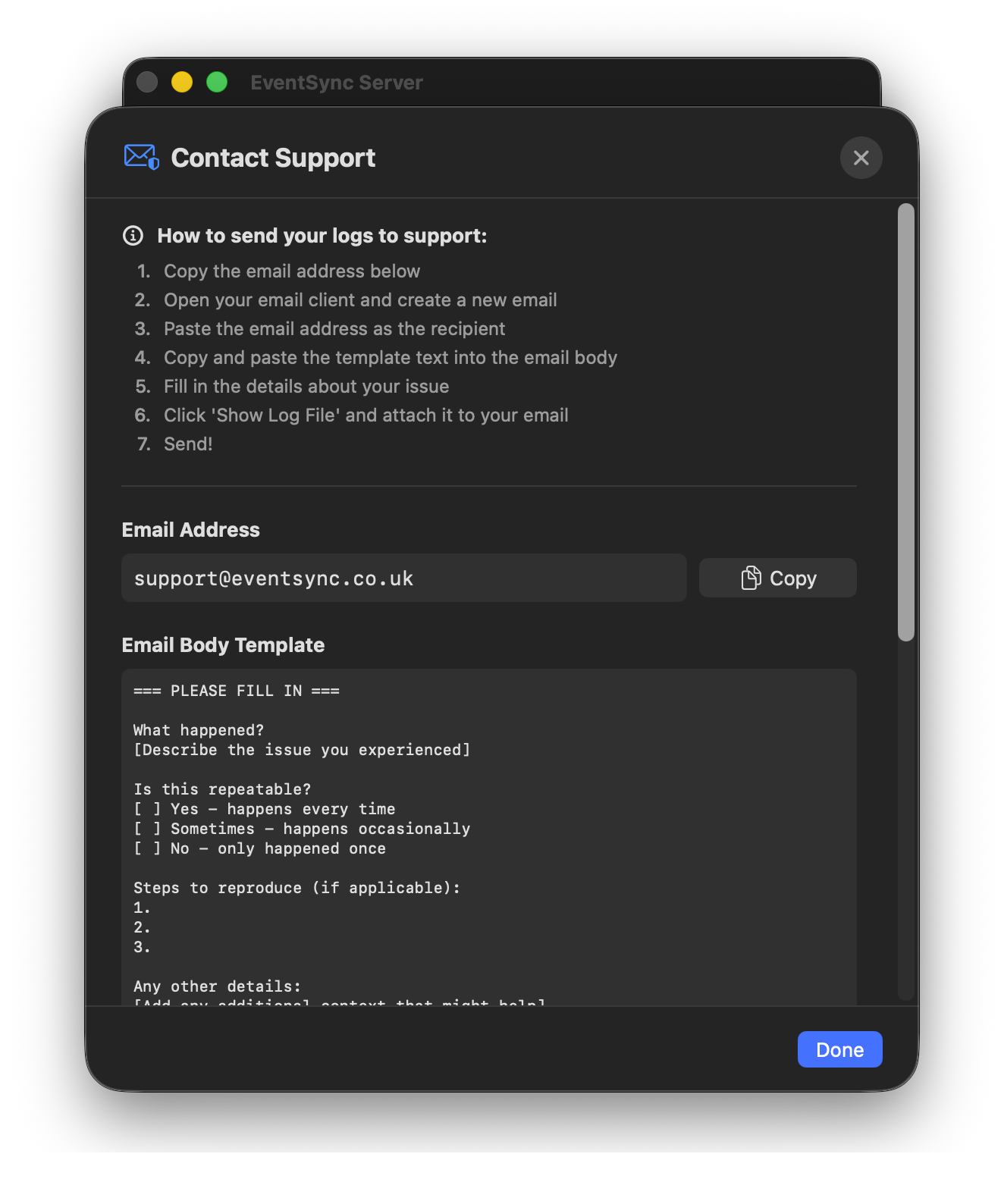
Email helper — copies the address, supplies a template, reminds you to attach a log.
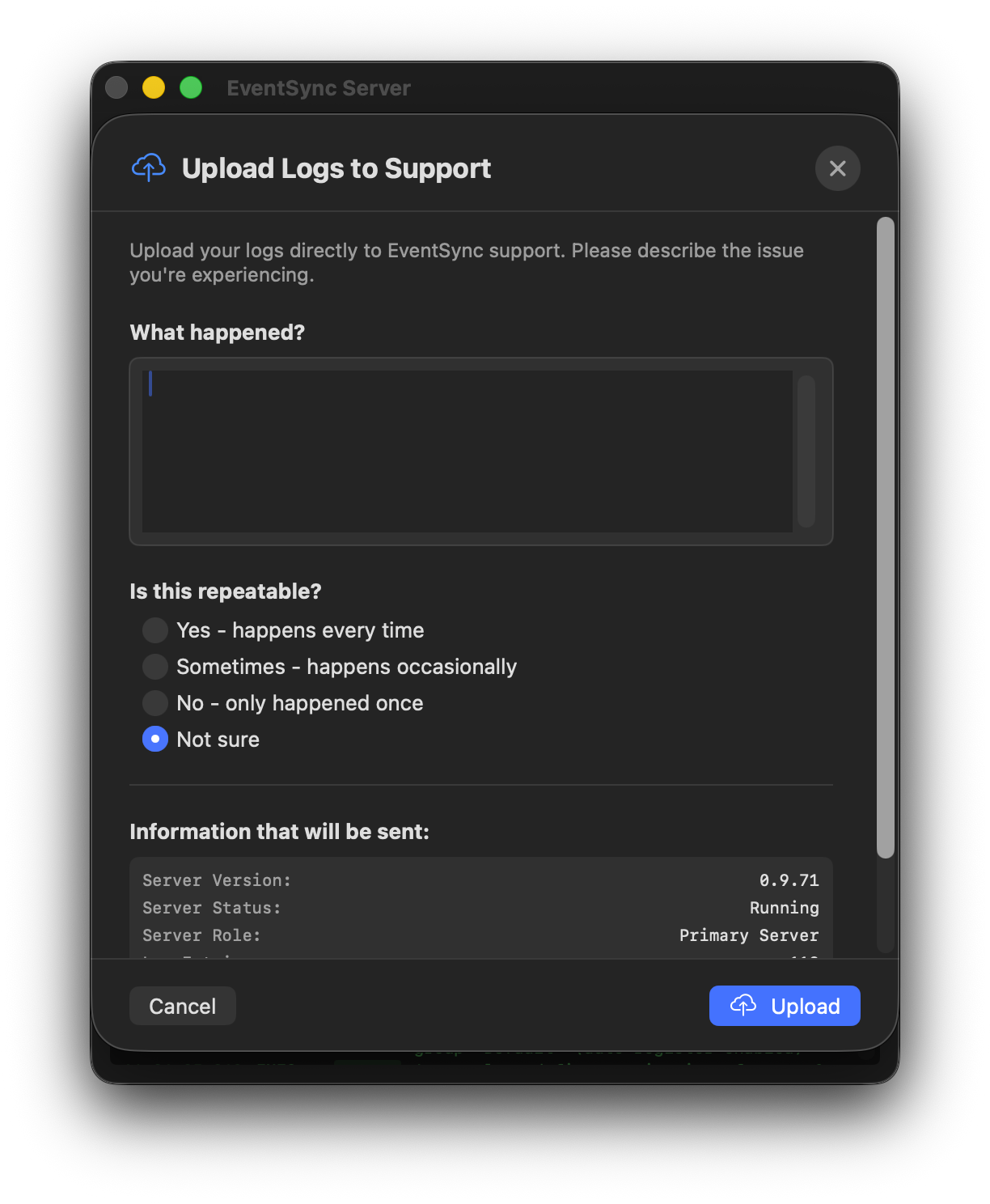
Direct upload form — faster for us and for you.
💡 Best Practice
When something goes wrong, open the Upload to Support form first, while the logs are still within the 6-hour rolling window. The further past an incident you are, the less we have to work with.
LiveSync Server
The LiveSync Server is a separate service on port 8081 (changeable from the LiveSync window while the server is stopped), responsible for low-latency live video (~250 ms). You don't need it for synchronised video playback of stored content — only for live feeds.
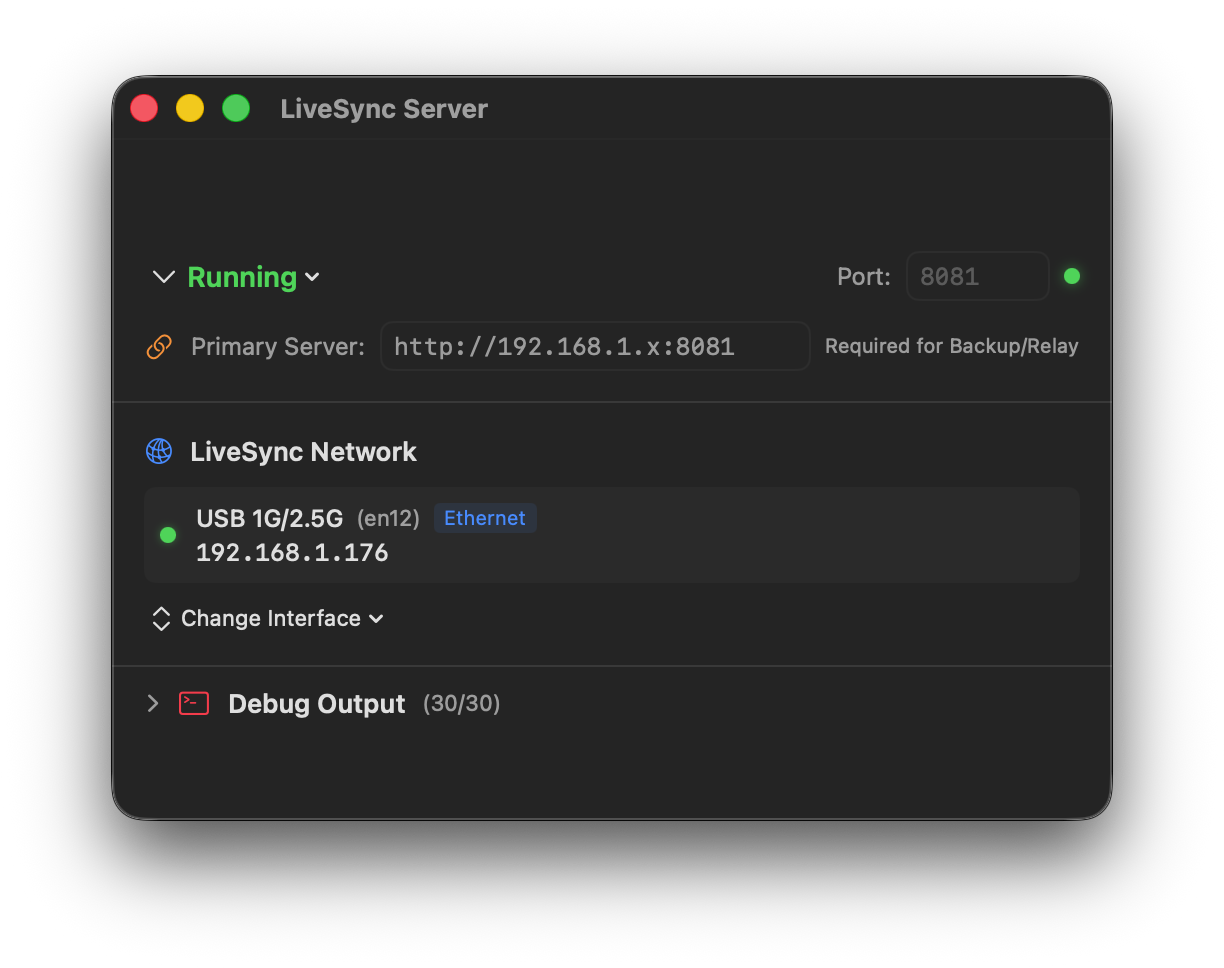
Roles
- Primary — the live LiveSync Server. Always required if you're using LiveSync.
- Backup — mirrors the Primary for redundancy. Switchover is per LiveSync cue — click Switch to backup on the cue to move just that feed across. Independent per feed, and independent of the main BackupSync failover for the EventSync Server.
- Relay — repeats the Primary feed to more clients than a single Mac can handle on its own. Multiple relays cooperate automatically to share load across large deployments. See Scaling LiveSync with relays for the full setup.
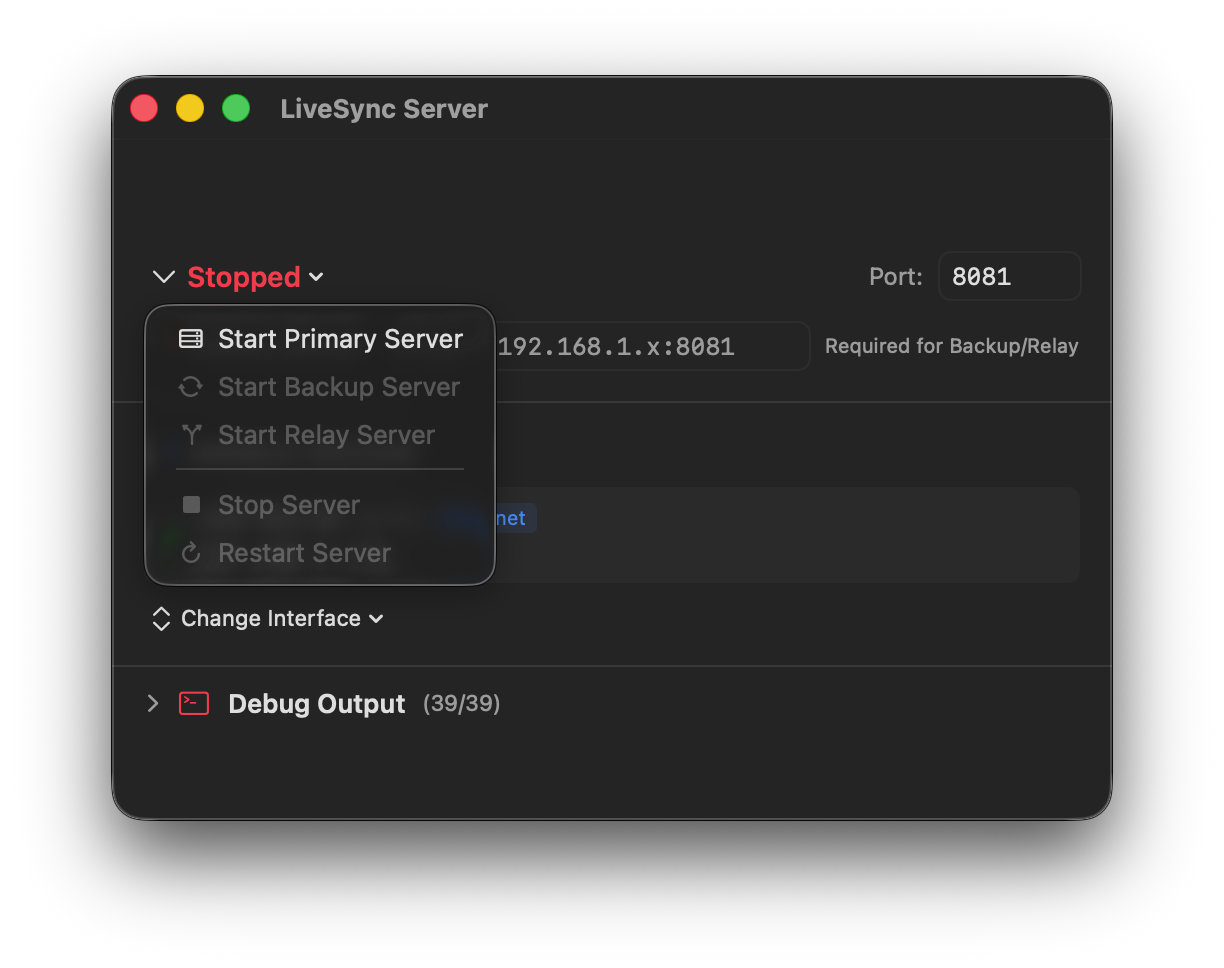
LiveSync needs to know its Primary Server URL for Backup/Relay roles — that's how a backup knows which primary to shadow. Set it in the field at the top of the window.
Network interface
Pick the interface LiveSync binds to via Change Interface — always the same interface as the EventSync Server. For a Relay, whichever interface is connected to the EventSync Network.
Debug output
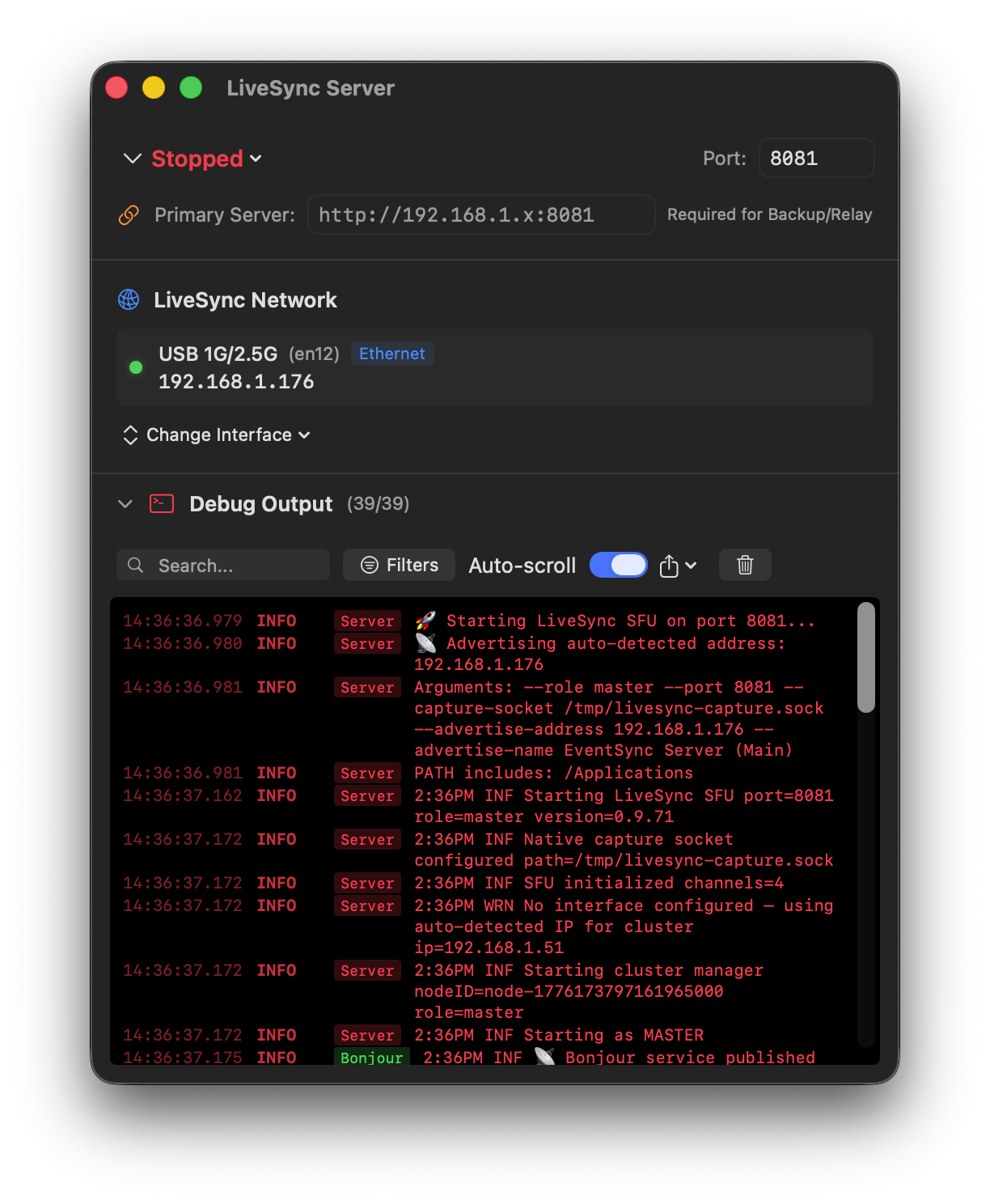
LiveSync Server Running.
💡 Tip — include LiveSync logs for LiveSync issues
If you hit a problem with live video, upload the logs from the LiveSync Server as well as the EventSync Server. The two services log separately; support needs both to see the full picture.